> ## Documentation Index
> Fetch the complete documentation index at: https://docs.portkey.ai/docs/llms.txt
> Use this file to discover all available pages before exploring further.
# Portkey CLI
> Wire Claude Code, Codex, or Cursor to Portkey — gateway routing, MCP servers, and team skills in one command.
The Portkey CLI sets up AI coding agent integrations from your terminal.
```bash theme={"system"}
npx portkey
```
Or install globally:
```bash theme={"system"}
npm install -g portkey
portkey
```
**Requirements:** Node.js 18+ · [Portkey account](https://app.portkey.ai) with at least one provider in [Model Catalog](/product/model-catalog)
github.com/Portkey-AI/cli
***
## What gets configured
Running `npx portkey` (or `npx portkey setup`) opens an interactive wizard. Choose which agent to configure:
* **Claude Code** — sets `ANTHROPIC_BASE_URL`, `ANTHROPIC_AUTH_TOKEN`, and `ANTHROPIC_CUSTOM_HEADERS` in `~/.claude/settings.json`
* **Codex** — writes `base_url`, `PORTKEY_API_KEY`, and `wire_api` into `.codex/config.toml`
* **Cursor (skills only)** — syncs team skills to `.cursor/skills/`
### Gateway routing
```json Claude Code (~/.claude/settings.json) theme={"system"}
{
"env": {
"ANTHROPIC_BASE_URL": "https://api.portkey.ai",
"ANTHROPIC_AUTH_TOKEN": "YOUR_PORTKEY_API_KEY",
"ANTHROPIC_CUSTOM_HEADERS": "x-portkey-provider: @your-provider"
}
}
```
```toml Codex (~/.codex/config.toml) theme={"system"}
model_provider = "portkey"
model = "@your-provider/gpt-4o"
[model_providers.portkey]
name = "Portkey"
base_url = "https://api.portkey.ai/v1"
env_key = "PORTKEY_API_KEY"
```
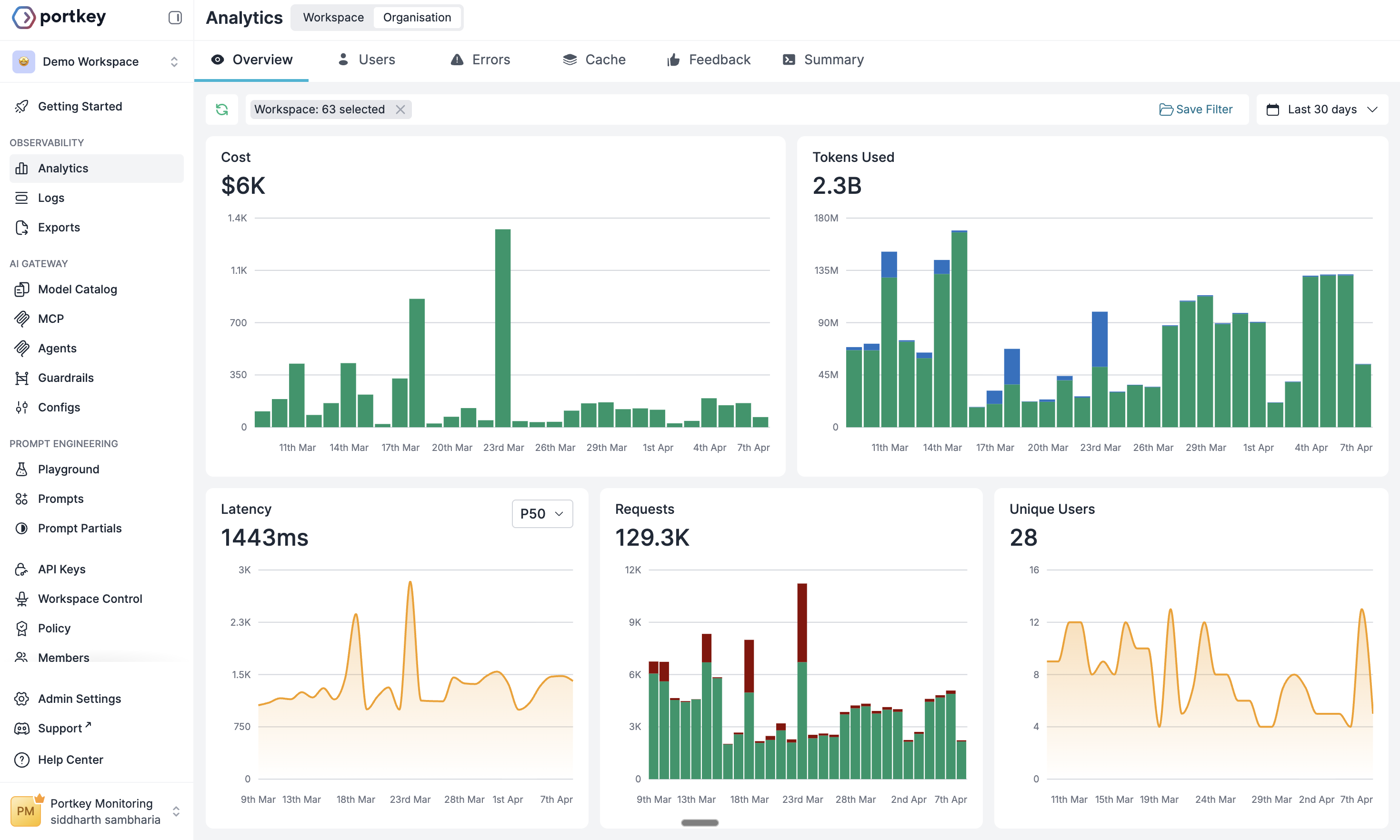
Every request appears in [Portkey Logs](https://app.portkey.ai) with cost, latency, and full trace detail.
 ### MCP servers
Fetches your workspace's MCP integrations and writes them to each agent's config — your Portkey API key included in headers automatically.
* **Claude Code** — written to `~/.claude.json` / `.mcp.json`
* **Codex** — written as `[mcp_servers.*]` blocks in `.codex/config.toml`
MCP integrations requiring upstream OAuth (e.g. Linear, Slack) are flagged during setup. For Claude Code, run `/mcp` to complete the OAuth flow. For Codex, run `codex mcp login `.
### Team skills
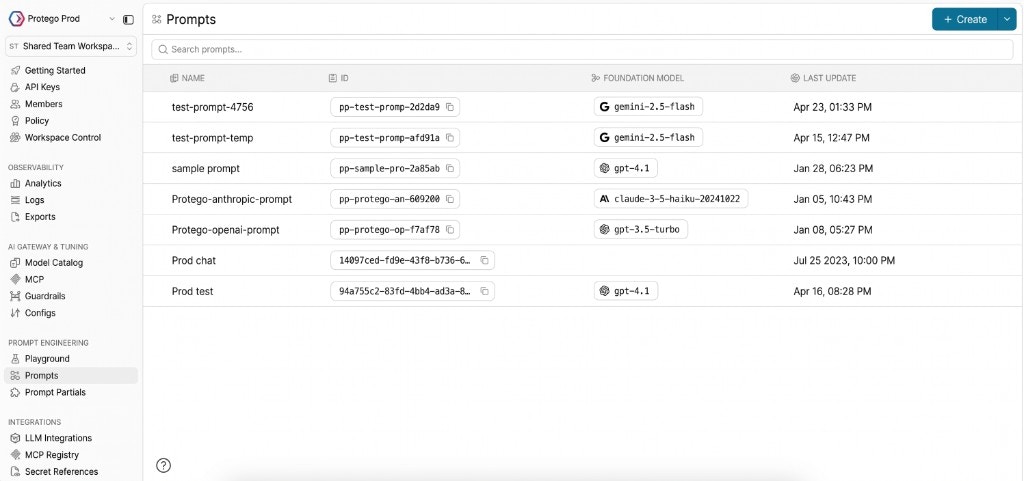
Syncs [Prompt Partials](/product/prompt-engineering-studio/prompt-partial) from Portkey as `SKILL.md` files to the agent's skills directory. Every developer runs one command and gets the same instructions.
| Agent | Skills directory |
| ----------- | ----------------- |
| Claude Code | `.claude/skills/` |
| Codex | `.agents/skills/` |
| Cursor | `.cursor/skills/` |
### MCP servers
Fetches your workspace's MCP integrations and writes them to each agent's config — your Portkey API key included in headers automatically.
* **Claude Code** — written to `~/.claude.json` / `.mcp.json`
* **Codex** — written as `[mcp_servers.*]` blocks in `.codex/config.toml`
MCP integrations requiring upstream OAuth (e.g. Linear, Slack) are flagged during setup. For Claude Code, run `/mcp` to complete the OAuth flow. For Codex, run `codex mcp login `.
### Team skills
Syncs [Prompt Partials](/product/prompt-engineering-studio/prompt-partial) from Portkey as `SKILL.md` files to the agent's skills directory. Every developer runs one command and gets the same instructions.
| Agent | Skills directory |
| ----------- | ----------------- |
| Claude Code | `.claude/skills/` |
| Codex | `.agents/skills/` |
| Cursor | `.cursor/skills/` |
 ***
## Commands
| Command | What it does |
| ------------------------- | ------------------------------------------------------------------------ |
| `npx portkey` | Interactive menu (Setup Claude Code, Setup Codex, or Cursor skills-only) |
| `npx portkey setup` | Full setup wizard — gateway, MCP, skills |
| `npx portkey status` | Show current config, routing hints, and MCP counts |
| `npx portkey skills sync` | Pull Prompt Partials from Portkey → local `SKILL.md` trees |
| `npx portkey skills list` | List skills available in the workspace |
| `npx portkey mcp add` | Add MCP servers from the Portkey registry |
```bash theme={"system"}
npx portkey setup
npx portkey status
npx portkey skills sync
npx portkey mcp add
```
***
## Non-interactive setup (CI / scripts)
Pass `--yes` to skip all prompts and use flags directly:
```bash theme={"system"}
npx portkey setup \
--yes \
--portkey-key YOUR_PORTKEY_API_KEY \
--provider @anthropic-prod \
--skip-mcp \
--skip-skills
```
Available flags:
| Flag | Description |
| ------------------ | ------------------------------------------------ |
| `--yes` | Skip all prompts, accept defaults |
| `--portkey-key` | Portkey API key |
| `--provider` | Provider or Config slug (e.g. `@anthropic-prod`) |
| `--skip-mcp` | Skip MCP server configuration |
| `--skip-skills` | Skip skills sync |
| `--codex-wire-api` | Codex only: `chat` (default) or `responses` |
### Refresh skills in CI
```bash theme={"system"}
npx portkey skills sync --yes --agent claude
npx portkey skills sync --yes --agent codex
```
***
## Next steps
Configure providers and model access in Portkey
Fallbacks, load balancing, and routing strategies
Create and sync team skills to every developer's machine
Centralized auth and observability for MCP tool access
***
## Commands
| Command | What it does |
| ------------------------- | ------------------------------------------------------------------------ |
| `npx portkey` | Interactive menu (Setup Claude Code, Setup Codex, or Cursor skills-only) |
| `npx portkey setup` | Full setup wizard — gateway, MCP, skills |
| `npx portkey status` | Show current config, routing hints, and MCP counts |
| `npx portkey skills sync` | Pull Prompt Partials from Portkey → local `SKILL.md` trees |
| `npx portkey skills list` | List skills available in the workspace |
| `npx portkey mcp add` | Add MCP servers from the Portkey registry |
```bash theme={"system"}
npx portkey setup
npx portkey status
npx portkey skills sync
npx portkey mcp add
```
***
## Non-interactive setup (CI / scripts)
Pass `--yes` to skip all prompts and use flags directly:
```bash theme={"system"}
npx portkey setup \
--yes \
--portkey-key YOUR_PORTKEY_API_KEY \
--provider @anthropic-prod \
--skip-mcp \
--skip-skills
```
Available flags:
| Flag | Description |
| ------------------ | ------------------------------------------------ |
| `--yes` | Skip all prompts, accept defaults |
| `--portkey-key` | Portkey API key |
| `--provider` | Provider or Config slug (e.g. `@anthropic-prod`) |
| `--skip-mcp` | Skip MCP server configuration |
| `--skip-skills` | Skip skills sync |
| `--codex-wire-api` | Codex only: `chat` (default) or `responses` |
### Refresh skills in CI
```bash theme={"system"}
npx portkey skills sync --yes --agent claude
npx portkey skills sync --yes --agent codex
```
***
## Next steps
Configure providers and model access in Portkey
Fallbacks, load balancing, and routing strategies
Create and sync team skills to every developer's machine
Centralized auth and observability for MCP tool access