> ## Documentation Index
> Fetch the complete documentation index at: https://docs.portkey.ai/docs/llms.txt
> Use this file to discover all available pages before exploring further.
# Optimizing Prompts for Customer Support using Portkey | LLama Prompt Ops Integration
Llama Prompt Ops is a Python package that automatically optimizes prompts for Llama models. It transforms prompts that work well with other LLMs into prompts that are optimized for Llama models, improving performance and reliability.
This guide shows you how to combine Llama Prompt Ops with Portkey to optimize prompts for Llama models using enterprise-grade LLM infrastructure. You'll build a system that analyzes support messages to extract urgency, sentiment, and relevant service categories.
Learn More about Llama Prompt Ops on it's Official Github
You can explore the complete dataset and prompt in the use-cases/facility-support-analyzer directory, which contains the sample data and system prompts used in this guide. By using Portkey, you'll gain access to:
* **1600+ LLM models** through a unified API interface
* **Enterprise-grade controls** for production deployments
* **Comprehensive observability** with 40+ key metrics and request logs
* **Governance features** including spend tracking and budget limits
* **Security guardrails** like PII detection and content filtering
Portkey provides a drop-in replacement for LLM providers in the llama-prompt-ops workflow, requiring minimal configuration changes.
### Understanding the Facility Support Analyzer
Before diving into the installation, let's take a closer look at the components of this use case. You can find all the relevant files in the [use-cases/facility-support-analyzer](https://github.com/meta-llama/llama-prompt-ops/blob/main/use-cases/facility-support-analyzer) directory:
* `facility_prompt_sys.txt` - System prompt for the task
* `facility_v2_test.json`- Dataset with customer service messages
* `facility-simple.yaml` - Simple configuration file
* `eval.ipynb`- Evaluation notebook
### Existing System Prompt
The system prompt instructs the LLM to analyze customer service messages and extract structured information in JSON format:
````
You are a helpful assistant. Extract and return a json with the following keys and values:
- "urgency" as one of `high`, `medium`, `low`
- "sentiment" as one of `negative`, `neutral`, `positive`
- "categories" Create a dictionary with categories as keys and boolean values (True/False), where the value indicates whether the category is one of the best matching support category tags from: `emergency_repair_services`, `routine_maintenance_requests`, `quality_and_safety_concerns`, `specialized_cleaning_services`, `general_inquiries`, `sustainability_and_environmental_practices`, `training_and_support_requests`, `cleaning_services_scheduling`, `customer_feedback_and_complaints`, `facility_management_issues`
Your complete message should be a valid json string that can be read directly and only contain the keys mentioned in the list above. Never enclose it in ```json...```, no newlines, no unnessacary whitespaces.
````
### Dataset Format
The dataset consists of customer service messages in JSON format. Each entry contains:
1. An input field with the customer's message (typically an email or support ticket)
2. An answer field with the expected JSON output containing urgency, sentiment, and categories
Example entry:
```json theme={"system"}
{
"fields": {
"input": "Subject: Urgent HVAC Repair Needed\n\nHi ProCare Support Team,\n\nI'm reaching out with an urgent issue that needs immediate attention. Our HVAC system has been acting up for the past two days, and it's starting to affect the comfort of our living space. I've tried resetting the system and checking the filters, but nothing seems to work.\n\nCould you please send someone over as soon as possible?\n\nThank you,\n[Sender]"
},
"answer": "{\"categories\": {\"routine_maintenance_requests\": false, \"customer_feedback_and_complaints\": false, \"training_and_support_requests\": false, \"quality_and_safety_concerns\": false, \"sustainability_and_environmental_practices\": false, \"cleaning_services_scheduling\": false, \"specialized_cleaning_services\": false, \"emergency_repair_services\": true, \"facility_management_issues\": false, \"general_inquiries\": false}, \"sentiment\": \"positive\", \"urgency\": \"high\"}"
}
```
### Metric Calculation
The FacilityMetric evaluates the model's outputs by comparing them to the ground truth answers. It checks:
1. **Urgency Classification**: Accuracy in determining if a request is high, medium, or low priority
2. **Sentiment Analysis**: Accuracy in classifying the customer's tone as positive, neutral, or negative
3. **Category Tagging**: Precision and recall in identifying the correct service categories
The metric parses both the predicted and ground truth JSON outputs, compares them field by field, and calculates an overall score that reflects how well the model is performing on this task.
## Prerequisites
Before you begin, make sure you have:
* Python 3.10 or later installed
* A Portkey account (sign up at [portkey.ai](https://app.portkey.ai))
* The llama-prompt-ops repository (either installed via pip or cloned from GitHub)
# Step 1: Setting up Portkey
Portkey allows you to use 1600+ LLMs with your llama-prompt-ops setup, with minimal configuration required. Let's set up the core components in Portkey that you'll need for integration.
Model Catalog is Portkey's secure way to manage your LLM provider API keys. It provides essential controls like:
* Budget limits for API usage
* Rate limiting capabilities
* Secure API key storage
To add a provider:
1. Go to [Model Catalog](https://app.portkey.ai/model-catalog) in the Portkey App
2. Click **Add Provider** and select your provider (e.g., OpenAI)
3. Enter your API key and name your provider (e.g., `openai-prod`)
Your provider slug will be `@openai-prod` (or whatever name you chose with @ prefix).
Configs in Portkey are JSON objects that define how your requests are routed. They help with implementing features like advanced routing, fallbacks, and retries.
We need to create a default config to route our requests to the provider created in Step 1.
To create your config:
1. Go to [Configs](https://app.portkey.ai/configs) in Portkey dashboard
2. Create new config with:
```json Config theme={"system"}
{
"override_params": {"model": "@openai-prod/gpt-4o"}
}
```
3. Save and note the Config name for the next step
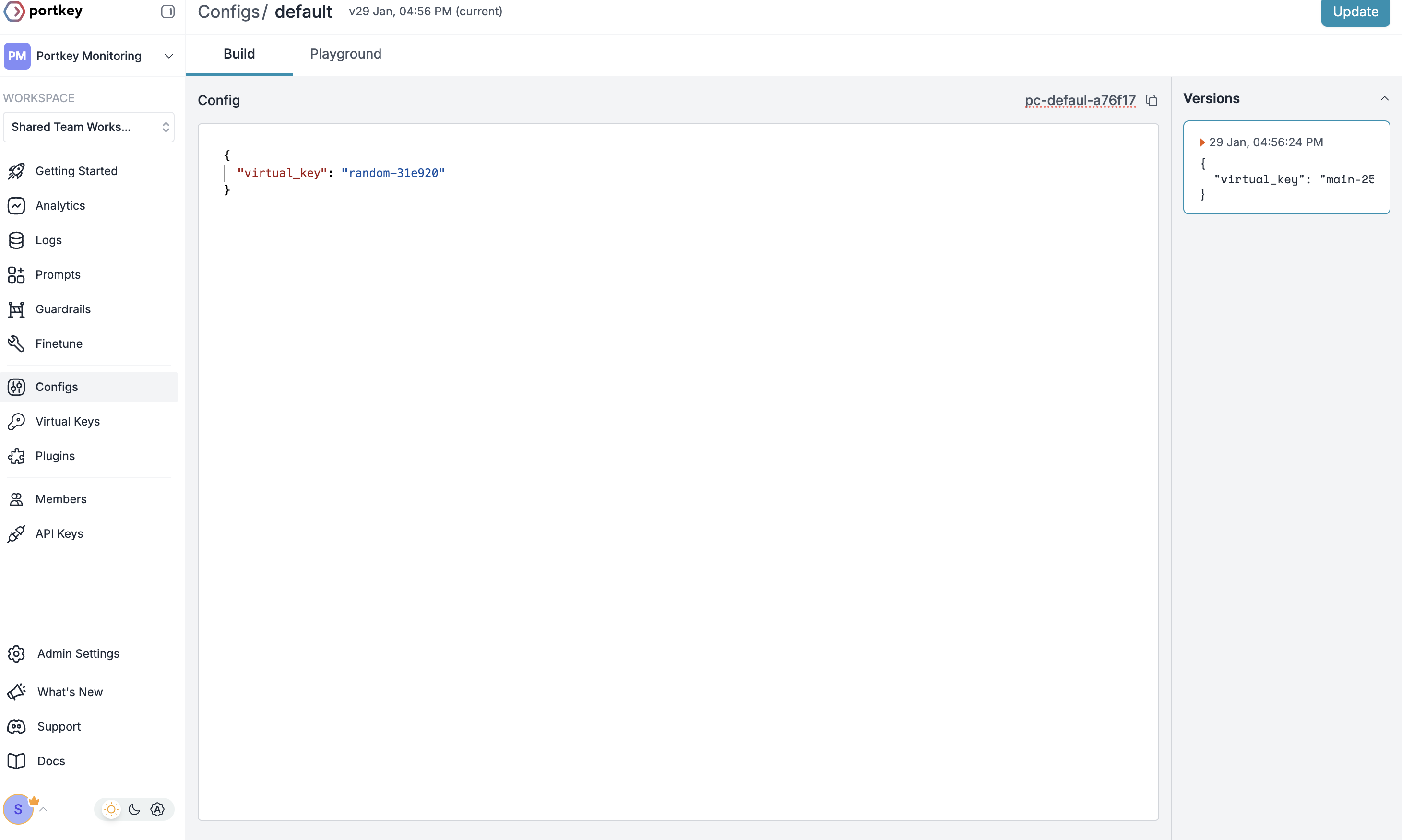 This basic config routes requests to your provider. You can add more advanced Portkey features later.
Now create Portkey API key access point and attach the config you created in Step 2:
1. Go to [API Keys](https://app.portkey.ai/api-keys) in Portkey and Create new API key
2. Select your config from `Step 2`
3. Generate and save your API key
This basic config routes requests to your provider. You can add more advanced Portkey features later.
Now create Portkey API key access point and attach the config you created in Step 2:
1. Go to [API Keys](https://app.portkey.ai/api-keys) in Portkey and Create new API key
2. Select your config from `Step 2`
3. Generate and save your API key
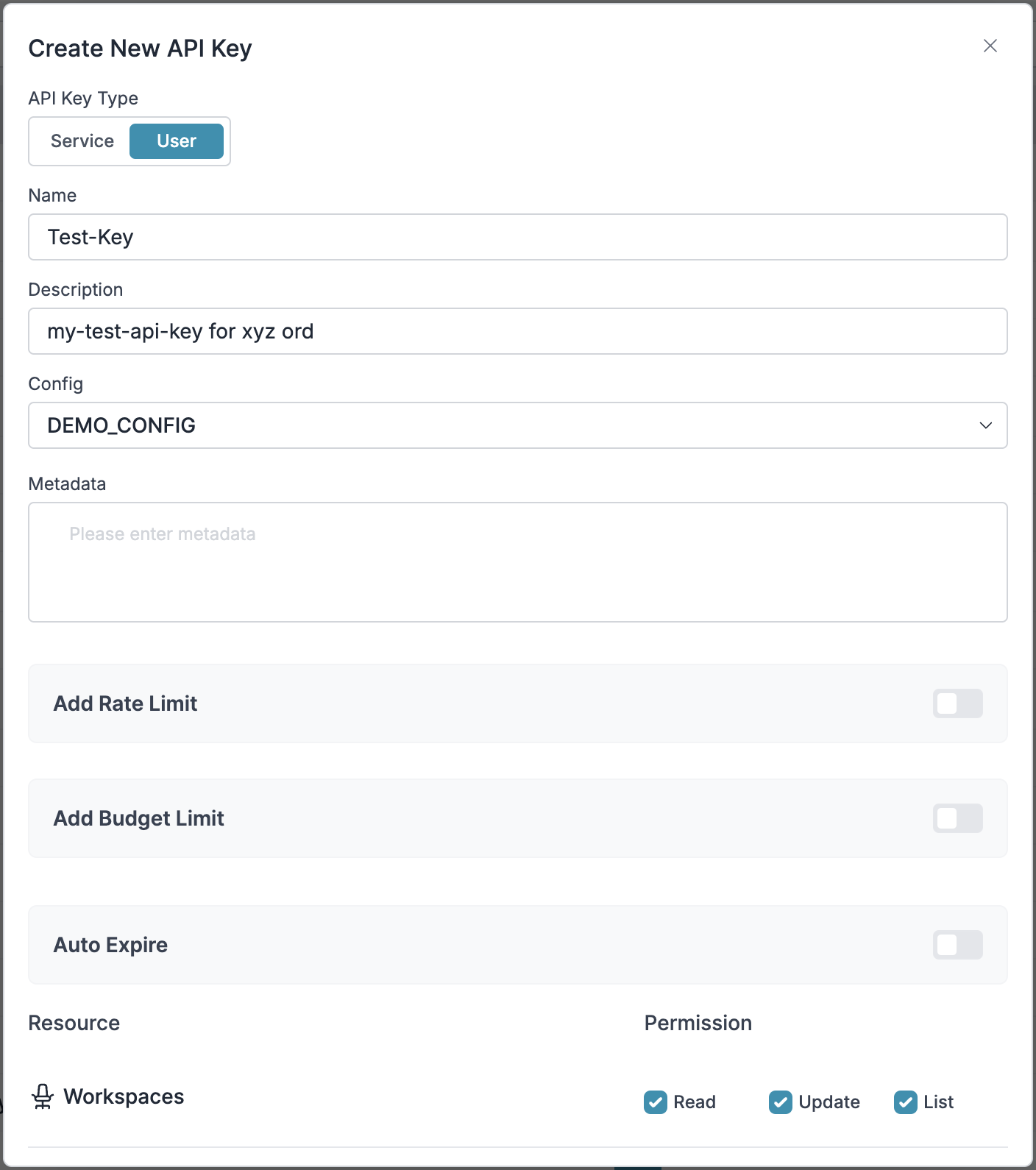 Save your API key securely - you'll need it for llama-prompt-ops integration.
## Step 2: Configure llama-prompt-ops to Use Portkey
With Portkey set up, we now need to configure llama-prompt-ops to use Portkey instead of OpenRouter.
### 2.1 Create Your Project
If you haven't already, create a sample project:
```bash icon="square-terminal" theme={"system"}
# Install llama-prompt-ops if you haven't already
pip install llama-prompt-ops
# Create a sample project
llama-prompt-ops create my-project
cd my-project
```
### 2.2 Update the `.env` File
Replace the OpenRouter API key with your Portkey API key:
```bash .env icon="square-terminal" theme={"system"}
OPENROUTER_API_KEY=your_portkey_api_key_here
```
### 2.3 Update the Configuration File
Modify your `config.yaml` file to use Portkey instead of OpenRouter:
```yaml config.yaml theme={"system"}
system_prompt:
file: prompts/prompt.txt
inputs: [question]
outputs: [answer]
dataset:
path: data/dataset.json
input_field: [fields, input]
golden_output_field: answer
metric:
class: llama_prompt_ops.core.metrics.FacilityMetric
strict_json: false
output_field: answer
optimization:
strategy: llama
model:
name: openai/openai/gpt-4o # The model you want to use
api_base: "https://api.portkey.ai/v1" # Portkey API endpoint
temperature: 0.0
max_tokens: 300
task_model: openai/openai/gpt-4o
proposer_model: openai/openai/gpt-4o
```
**Important Notes:**
1. The `name` parameter can be set to `openai/openai/gpt-4o` or any other model identifier, but the actual model selection is handled by your Portkey config.
2. Make sure to set `api_base` to `"https://api.portkey.ai/v1"`.
3. If you're using task\_model and proposer\_model, update those as well.
## Step 3: Run Optimization with Portkey
Now you're ready to run llama-prompt-ops with Portkey:
```bash icon="square-terminal" theme={"system"}
llama-prompt-ops migrate
```
The tool will run the optimization process using your Portkey configuration, which will:
1. Connect to Portkey's API
2. Use the model specified in your Portkey config
3. Log all requests and metrics in your Portkey dashboard
## Example Output
The optimized prompt will be saved in the `results/` directory with a filename like `facility-simple_YYYYMMDD_HHMMSS.yaml`. When you open this file, you'll see something like this:
```yaml theme={"system"}
system: |-
Analyze the customer's message and determine the level of urgency, sentiment, and relevant categories. Extract and return a json with the keys "urgency", "sentiment", and "categories". The "urgency" key should have a value of "high", "medium", or "low", the "sentiment" key should have a value of "negative", "neutral", or "positive", and the "categories" key should have a dictionary with categories as keys and boolean values indicating whether the category is a best matching support category tag. The categories should include "emergency_repair_services", "routine_maintenance_requests", "quality_and_safety_concerns", "specialized_cleaning_services", "general_inquiries", "sustainability_and_environmental_practices", "training_and_support_requests", "cleaning_services_scheduling", "customer_feedback_and_complaints", and "facility_management_issues".
Few-shot examples:
Example 1:
Question: Our office bathroom needs cleaning urgently. The toilets are clogged and there's water on the floor.
Answer: {"urgency": "high", "sentiment": "negative", "categories": {"emergency_repair_services": true, "specialized_cleaning_services": true, "facility_management_issues": true, "emergency_repair_services": false, "routine_maintenance_requests": false, "quality_and_safety_concerns": false, "general_inquiries": false, "sustainability_and_environmental_practices": false, "training_and_support_requests": false, "customer_feedback_and_complaints": false}}
```
# Portkey Features
Now that you have enterprise-grade llama-prompt-ops setup, let's explore the comprehensive features Portkey provides to ensure secure, efficient, and cost-effective AI operations.
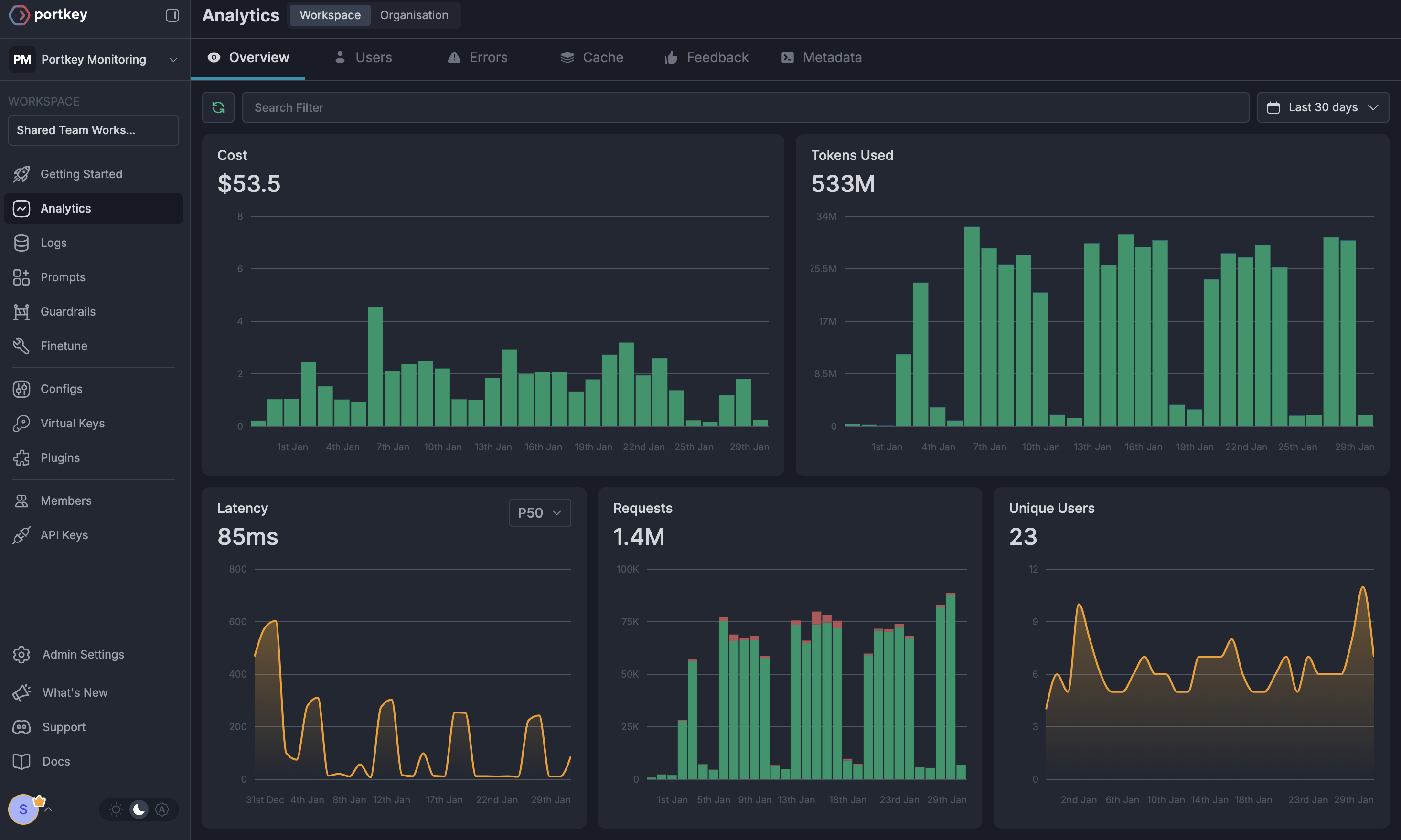
### 1. Comprehensive Metrics
Using Portkey you can track 40+ key metrics including cost, token usage, response time, and performance across all your LLM providers in real time. You can also filter these metrics based on custom metadata that you can set in your configs. Learn more about metadata here.
Save your API key securely - you'll need it for llama-prompt-ops integration.
## Step 2: Configure llama-prompt-ops to Use Portkey
With Portkey set up, we now need to configure llama-prompt-ops to use Portkey instead of OpenRouter.
### 2.1 Create Your Project
If you haven't already, create a sample project:
```bash icon="square-terminal" theme={"system"}
# Install llama-prompt-ops if you haven't already
pip install llama-prompt-ops
# Create a sample project
llama-prompt-ops create my-project
cd my-project
```
### 2.2 Update the `.env` File
Replace the OpenRouter API key with your Portkey API key:
```bash .env icon="square-terminal" theme={"system"}
OPENROUTER_API_KEY=your_portkey_api_key_here
```
### 2.3 Update the Configuration File
Modify your `config.yaml` file to use Portkey instead of OpenRouter:
```yaml config.yaml theme={"system"}
system_prompt:
file: prompts/prompt.txt
inputs: [question]
outputs: [answer]
dataset:
path: data/dataset.json
input_field: [fields, input]
golden_output_field: answer
metric:
class: llama_prompt_ops.core.metrics.FacilityMetric
strict_json: false
output_field: answer
optimization:
strategy: llama
model:
name: openai/openai/gpt-4o # The model you want to use
api_base: "https://api.portkey.ai/v1" # Portkey API endpoint
temperature: 0.0
max_tokens: 300
task_model: openai/openai/gpt-4o
proposer_model: openai/openai/gpt-4o
```
**Important Notes:**
1. The `name` parameter can be set to `openai/openai/gpt-4o` or any other model identifier, but the actual model selection is handled by your Portkey config.
2. Make sure to set `api_base` to `"https://api.portkey.ai/v1"`.
3. If you're using task\_model and proposer\_model, update those as well.
## Step 3: Run Optimization with Portkey
Now you're ready to run llama-prompt-ops with Portkey:
```bash icon="square-terminal" theme={"system"}
llama-prompt-ops migrate
```
The tool will run the optimization process using your Portkey configuration, which will:
1. Connect to Portkey's API
2. Use the model specified in your Portkey config
3. Log all requests and metrics in your Portkey dashboard
## Example Output
The optimized prompt will be saved in the `results/` directory with a filename like `facility-simple_YYYYMMDD_HHMMSS.yaml`. When you open this file, you'll see something like this:
```yaml theme={"system"}
system: |-
Analyze the customer's message and determine the level of urgency, sentiment, and relevant categories. Extract and return a json with the keys "urgency", "sentiment", and "categories". The "urgency" key should have a value of "high", "medium", or "low", the "sentiment" key should have a value of "negative", "neutral", or "positive", and the "categories" key should have a dictionary with categories as keys and boolean values indicating whether the category is a best matching support category tag. The categories should include "emergency_repair_services", "routine_maintenance_requests", "quality_and_safety_concerns", "specialized_cleaning_services", "general_inquiries", "sustainability_and_environmental_practices", "training_and_support_requests", "cleaning_services_scheduling", "customer_feedback_and_complaints", and "facility_management_issues".
Few-shot examples:
Example 1:
Question: Our office bathroom needs cleaning urgently. The toilets are clogged and there's water on the floor.
Answer: {"urgency": "high", "sentiment": "negative", "categories": {"emergency_repair_services": true, "specialized_cleaning_services": true, "facility_management_issues": true, "emergency_repair_services": false, "routine_maintenance_requests": false, "quality_and_safety_concerns": false, "general_inquiries": false, "sustainability_and_environmental_practices": false, "training_and_support_requests": false, "customer_feedback_and_complaints": false}}
```
# Portkey Features
Now that you have enterprise-grade llama-prompt-ops setup, let's explore the comprehensive features Portkey provides to ensure secure, efficient, and cost-effective AI operations.
### 1. Comprehensive Metrics
Using Portkey you can track 40+ key metrics including cost, token usage, response time, and performance across all your LLM providers in real time. You can also filter these metrics based on custom metadata that you can set in your configs. Learn more about metadata here.
 ### 2. Advanced Logs
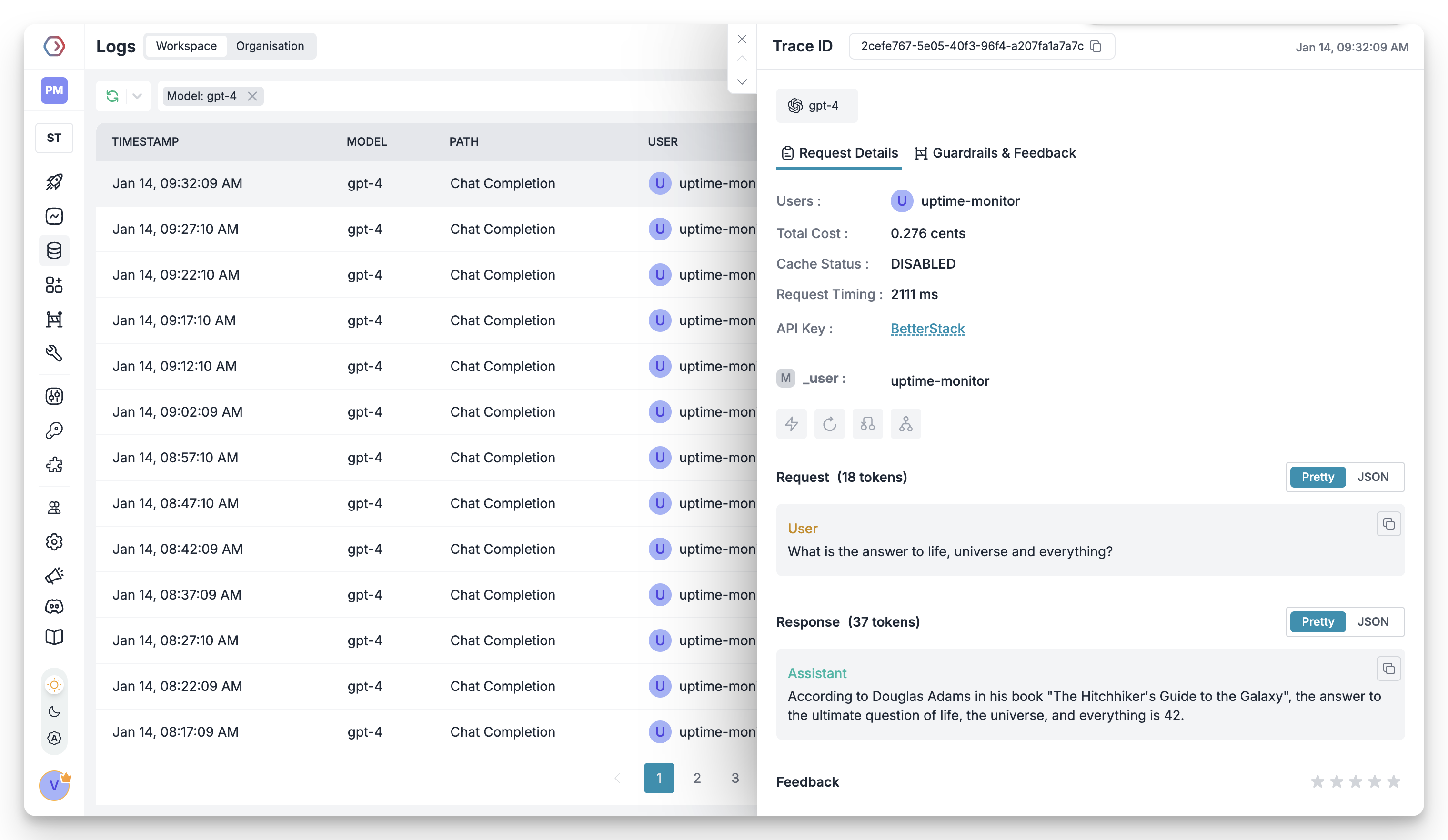
Portkey's logging dashboard provides detailed logs for every request made to your LLMs. These logs include:
* Complete request and response tracking
* Metadata tags for filtering
* Cost attribution and much more...
### 2. Advanced Logs
Portkey's logging dashboard provides detailed logs for every request made to your LLMs. These logs include:
* Complete request and response tracking
* Metadata tags for filtering
* Cost attribution and much more...
 ### 3. Unified Access to 1600+ LLMs
You can easily switch between 1,600+ LLMs. Call various LLMs such as Anthropic, Gemini, Mistral, Azure OpenAI, Google Vertex AI, AWS Bedrock, and many more by simply changing the provider slug in your model parameter (e.g., `@anthropic-prod/claude-3-opus`).
### 4. Advanced Metadata Tracking
Using Portkey, you can add custom metadata to your LLM requests for detailed tracking and analytics. Use metadata tags to filter logs, track usage, and attribute costs across departments and teams.
### 5. Enterprise Access Management
Set and manage spending limits across teams and departments. Control costs with granular budget limits and usage tracking.
Enterprise-grade SSO integration with support for SAML 2.0, Okta, Azure AD, and custom providers for secure authentication.
Hierarchical organization structure with workspaces, teams, and role-based access control for enterprise-scale deployments.
Comprehensive access control rules and detailed audit logging for security compliance and usage tracking.
### 6. Reliability Features
Automatically switch to backup targets if the primary target fails.
Route requests to different targets based on specified conditions.
Distribute requests across multiple targets based on defined weights.
Enable caching of responses to improve performance and reduce costs.
Automatic retry handling with exponential backoff for failed requests
Set and manage budget limits across teams and departments. Control costs with granular budget limits and usage tracking.
### 7. Advanced Guardrails
Protect your Project's data and enhance reliability with real-time checks on LLM inputs and outputs. Leverage guardrails to:
* Prevent sensitive data leaks
* Enforce compliance with organizational policies
* PII detection and masking
* Content filtering
* Custom security rules
* Data compliance checks
Implement real-time protection for your LLM interactions with automatic detection and filtering of sensitive content, PII, and custom security rules. Enable comprehensive data protection while maintaining compliance with organizational policies.
# FAQs
You can update your provider limits at any time from the Portkey dashboard:
1. Go to Model Catalog section
2. Click on the provider you want to modify
3. Update the budget or rate limits
4. Save your changes
Yes! You can add multiple providers in Model Catalog and reference them using different provider slugs (e.g., `@openai-prod`, `@anthropic-prod`). Use configs for advanced routing between providers.
Portkey provides several ways to track team costs:
* Create separate providers for each team
* Use metadata tags in your configs
* Set up team-specific API keys
* Monitor usage in the analytics dashboard
When a team reaches their budget limit:
1. Further requests will be blocked
2. Team admins receive notifications
3. Usage statistics remain available in dashboard
4. Limits can be adjusted if needed
You can control model access by:
1. Setting specific models in your Portkey configs
2. Creating different providers with different model access in Model Catalog
3. Using model-specific configs attached to different API keys
4. Implementing conditional routing based on workflow metadata
## Conclusion
By integrating Portkey with llama-prompt-ops, you've unlocked access to a vast array of LLMs while gaining enterprise-grade controls, observability, and governance features. This setup provides both flexibility in model selection and robust infrastructure for production deployments.
Portkey's unified API approach also means you can easily switch between different models without changing your code, making it simple to test and compare different LLMs for optimal performance with your prompt optimization workflows.
### 3. Unified Access to 1600+ LLMs
You can easily switch between 1,600+ LLMs. Call various LLMs such as Anthropic, Gemini, Mistral, Azure OpenAI, Google Vertex AI, AWS Bedrock, and many more by simply changing the provider slug in your model parameter (e.g., `@anthropic-prod/claude-3-opus`).
### 4. Advanced Metadata Tracking
Using Portkey, you can add custom metadata to your LLM requests for detailed tracking and analytics. Use metadata tags to filter logs, track usage, and attribute costs across departments and teams.
### 5. Enterprise Access Management
Set and manage spending limits across teams and departments. Control costs with granular budget limits and usage tracking.
Enterprise-grade SSO integration with support for SAML 2.0, Okta, Azure AD, and custom providers for secure authentication.
Hierarchical organization structure with workspaces, teams, and role-based access control for enterprise-scale deployments.
Comprehensive access control rules and detailed audit logging for security compliance and usage tracking.
### 6. Reliability Features
Automatically switch to backup targets if the primary target fails.
Route requests to different targets based on specified conditions.
Distribute requests across multiple targets based on defined weights.
Enable caching of responses to improve performance and reduce costs.
Automatic retry handling with exponential backoff for failed requests
Set and manage budget limits across teams and departments. Control costs with granular budget limits and usage tracking.
### 7. Advanced Guardrails
Protect your Project's data and enhance reliability with real-time checks on LLM inputs and outputs. Leverage guardrails to:
* Prevent sensitive data leaks
* Enforce compliance with organizational policies
* PII detection and masking
* Content filtering
* Custom security rules
* Data compliance checks
Implement real-time protection for your LLM interactions with automatic detection and filtering of sensitive content, PII, and custom security rules. Enable comprehensive data protection while maintaining compliance with organizational policies.
# FAQs
You can update your provider limits at any time from the Portkey dashboard:
1. Go to Model Catalog section
2. Click on the provider you want to modify
3. Update the budget or rate limits
4. Save your changes
Yes! You can add multiple providers in Model Catalog and reference them using different provider slugs (e.g., `@openai-prod`, `@anthropic-prod`). Use configs for advanced routing between providers.
Portkey provides several ways to track team costs:
* Create separate providers for each team
* Use metadata tags in your configs
* Set up team-specific API keys
* Monitor usage in the analytics dashboard
When a team reaches their budget limit:
1. Further requests will be blocked
2. Team admins receive notifications
3. Usage statistics remain available in dashboard
4. Limits can be adjusted if needed
You can control model access by:
1. Setting specific models in your Portkey configs
2. Creating different providers with different model access in Model Catalog
3. Using model-specific configs attached to different API keys
4. Implementing conditional routing based on workflow metadata
## Conclusion
By integrating Portkey with llama-prompt-ops, you've unlocked access to a vast array of LLMs while gaining enterprise-grade controls, observability, and governance features. This setup provides both flexibility in model selection and robust infrastructure for production deployments.
Portkey's unified API approach also means you can easily switch between different models without changing your code, making it simple to test and compare different LLMs for optimal performance with your prompt optimization workflows.