> ## Documentation Index
> Fetch the complete documentation index at: https://docs.portkey.ai/docs/llms.txt
> Use this file to discover all available pages before exploring further.
# How to use Portkey Guardrails for PII Protection
> Portkey Guardrails is a powerful tool for protecting Personally Identifiable Information (PII) in your AI applications. This guide provides a comprehensive walkthrough of implementing PII protection using Portkey's guardrail capabilities.
Protecting Personally Identifiable Information (PII) has become a critical requirement for enterprises deploying AI applications. With regulations like GDPR, CCPA, and HIPAA imposing strict penalties for data breaches, organizations need robust mechanisms to prevent PII from being exposed through AI systems. This guide provides a comprehensive walkthrough of implementing PII protection using Portkey's guardrail capabilities.
### Why PII Guardrails Matter for Your AI Applications
* **Regulatory Compliance**: Meet requirements for GDPR, CCPA, HIPAA, and other data protection regulations
* **Data Breach Prevention**: Stop sensitive information from leaking through AI responses
* **Customer Trust**: Demonstrate commitment to privacy and data protection
* **Cost Optimization**: Avoid regulatory fines and reputational damage
* **Operational Excellence**: Automate PII detection and redaction at scale
## Overview of Portkey's PII Protection Options
Portkey offers multiple approaches to PII protection:
### 1. **Portkey Native PII Detection**
* Comprehensive PII detection using advanced ML models
* Detects and redacts: names, emails, phones, addresses, SSNs, credit cards, IP addresses
* Simple configuration with immediate results
* Available on Production and Enterprise plans
### 2. **AWS Bedrock Guardrails Integration**
* Enterprise-grade PII detection from AWS
* Supports custom PII patterns via regex
* Currently focuses on SSN redaction by default
### 3. **Partner PII Solutions**
Advanced PII detection and redaction
Enterprise PII for business documents
Microsoft's PII detection service
## How PII Transformation Works
When PII is detected in a request, Portkey transforms it before sending to the LLM:
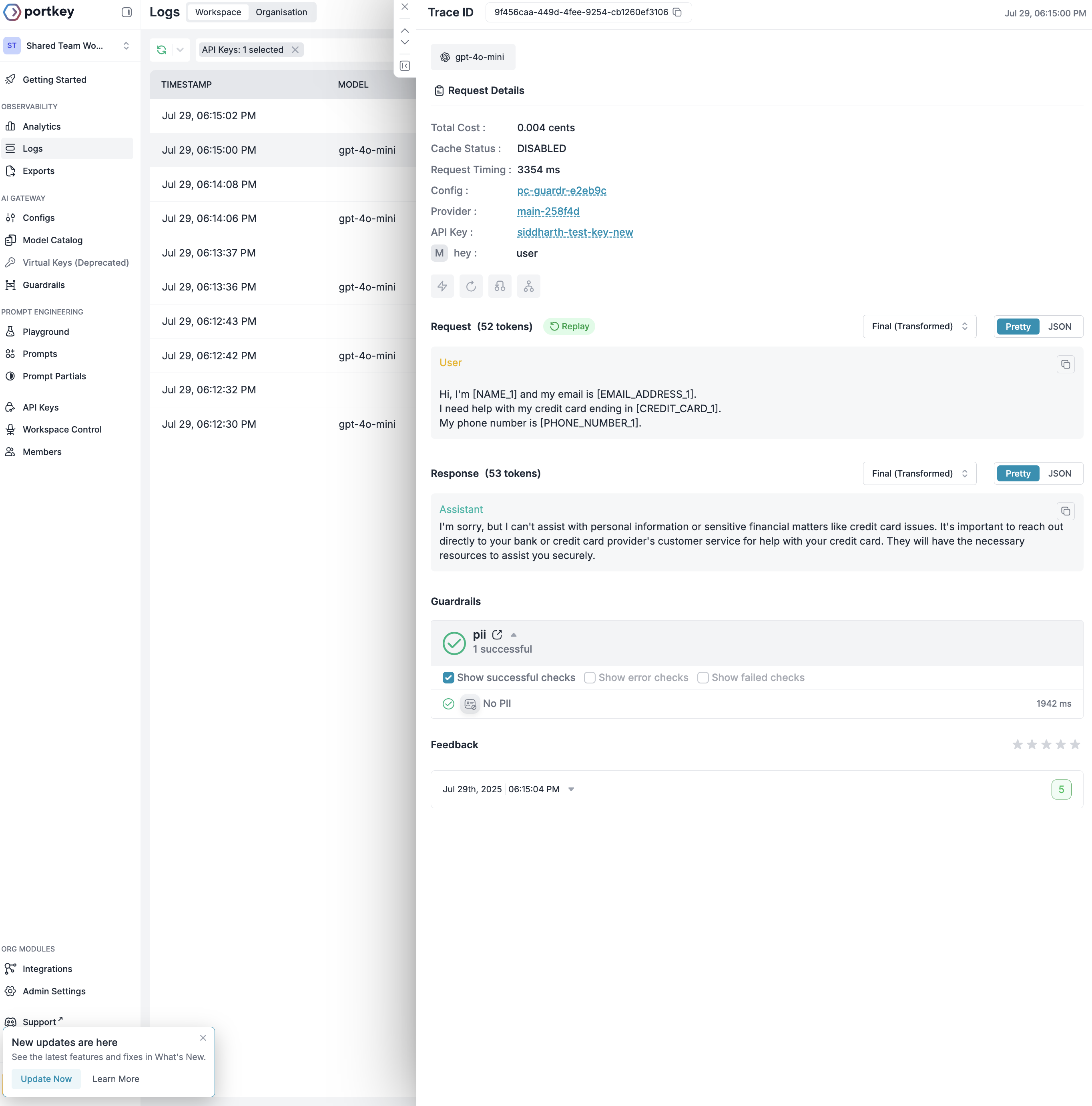 The transformation process:
* **Original**: Contains actual PII like names, emails, SSNs
* **Final (Transformed)**: PII replaced with numbered placeholders
* **Status**: Shows if transformation occurred
## Setting Up Portkey's Native PII Detection
### Step 1: Create a PII Detection Guardrail
1. Navigate to **Guardrails** → **Create**
2. Search for "Detect PII" under PRO guardrails
3. Select PII categories to detect:
* **Phone Numbers**: Mobile and landline numbers
* **Email Addresses**: Personal and corporate emails
* **Location Information**: Addresses, cities, coordinates
* **IP Addresses**: IPv4 and IPv6 addresses
* **Social Security Numbers**: US SSN format
* **Names**: First names, last names, full names
* **Credit Card Information**: Card numbers
### Step 2: Enable PII Redaction
The transformation process:
* **Original**: Contains actual PII like names, emails, SSNs
* **Final (Transformed)**: PII replaced with numbered placeholders
* **Status**: Shows if transformation occurred
## Setting Up Portkey's Native PII Detection
### Step 1: Create a PII Detection Guardrail
1. Navigate to **Guardrails** → **Create**
2. Search for "Detect PII" under PRO guardrails
3. Select PII categories to detect:
* **Phone Numbers**: Mobile and landline numbers
* **Email Addresses**: Personal and corporate emails
* **Location Information**: Addresses, cities, coordinates
* **IP Addresses**: IPv4 and IPv6 addresses
* **Social Security Numbers**: US SSN format
* **Names**: First names, last names, full names
* **Credit Card Information**: Card numbers
### Step 2: Enable PII Redaction
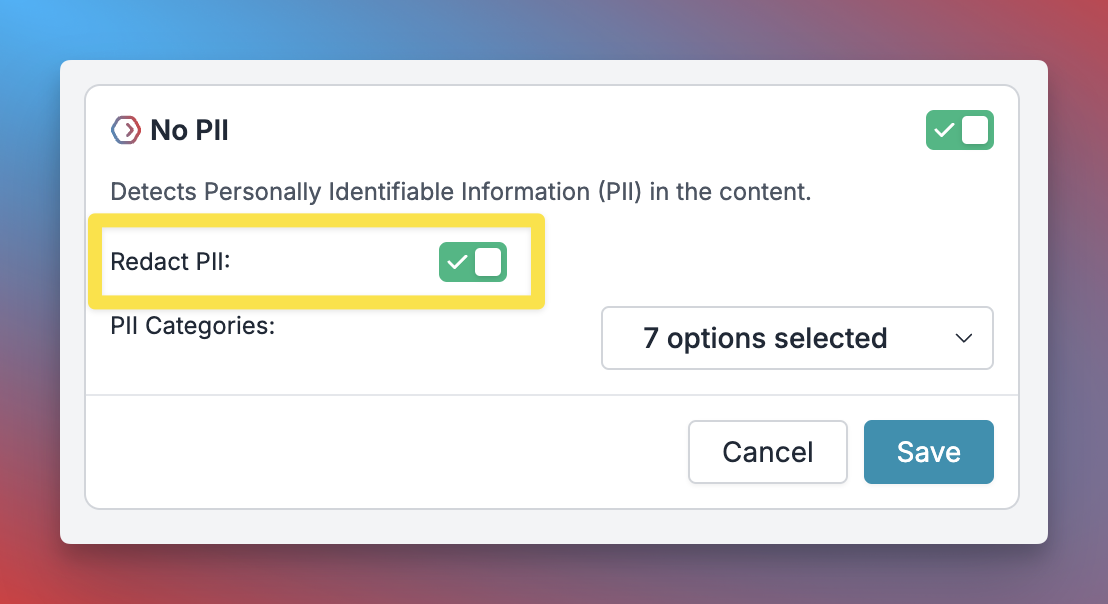 Toggle the **Redact PII** option to automatically replace detected PII with placeholders.
### Step 3: Configure Guardrail Actions
Set up how your guardrail should behave:
* **Async**: Run checks without blocking (default: TRUE)
* **Deny**: Block requests with PII (default: FALSE)
* **On Success/Failure**: Send feedback for monitoring
### Step 4: Add to Config and Use
Once you save your guardrail, you'll get a Guardrail ID. Add it to your config:
```json theme={"system"}
{
"input_guardrails": ["gr-pii-detection-xxx"]
}
```
The examples below demonstrate **input guardrails only**. You can also apply PII detection to outputs by adding guardrails to `output_guardrails`.
## Real-World Examples: Portkey vs Bedrock
Let's see how Portkey and AWS Bedrock handle the same PII-containing requests:
```python theme={"system"}
from portkey_ai import Portkey
# Initialize Portkey with PII protection
portkey = Portkey(
api_key="PORTKEY_API_KEY",
config="pc-pii-protection"
)
```
```javascript theme={"system"}
import { Portkey } from 'portkey-ai';
const portkey = new Portkey({
apiKey: "PORTKEY_API_KEY",
config: "pc-pii-protection"
});
```
### Email Address Detection
**Original Query**:
```
Please update my email from john.doe@example.com to john.smith@company.com
```
**Transformed Input**:
```
Please update my email from [EMAIL_ADDRESS_1] to [EMAIL_ADDRESS_2]
```
**What Portkey Detected**:
* `EMAIL_ADDRESS_1`: [john.doe@example.com](mailto:john.doe@example.com)
* `EMAIL_ADDRESS_2`: [john.smith@company.com](mailto:john.smith@company.com)
**Transformed Input**:
```
Please update my email from {EMAIL} to {EMAIL}
```
**What Bedrock Detected**:
* Both email addresses replaced with `{EMAIL}` placeholder
### Phone Number Detection
**Original Query**:
```
My phone number is (555) 123-4567, and my alternate is +1-800-555-0123
```
**Transformed Input**:
```
My phone number is [PHONE_NUMBER_1], and my alternate is [PHONE_NUMBER_2]
```
**What Portkey Detected**:
* `PHONE_NUMBER_1`: (555) 123-4567
* `PHONE_NUMBER_2`: +1-800-555-0123
**Transformed Input**:
```
My phone number is {PHONE}, and my alternate is {PHONE}
```
**What Bedrock Detected**:
* Both phone numbers replaced with `{PHONE}` placeholder
### Social Security Number Protection
**Original Query**:
```
I need to update my tax information. My SSN is 123-45-6789
```
**Transformed Input**:
```
I need to update my tax information. My SSN is [SSN_1]
```
**What Portkey Detected**:
* `SSN_1`: 123-45-6789
**Transformed Input**:
```
I need to update my tax information. My SSN is {US_SOCIAL_SECURITY_NUMBER}{SSN_REGEX}
```
**What Bedrock Detected**:
* SSN replaced with dual placeholders for enhanced detection
### Credit Card Information
**Original Query**:
```
I used my card ending in 4532, full number is 4532-1234-5678-9012
```
**Transformed Input**:
```
I used my card ending in [CREDIT_CARD_1], full number is [CREDIT_CARD_2]
```
**What Portkey Detected**:
* `CREDIT_CARD_1`: 4532
* `CREDIT_CARD_2`: 4532-1234-5678-9012
**Transformed Input**:
```
I used my card ending in {CREDIT_DEBIT_CARD_NUMBER}, full number is {CREDIT_DEBIT_CARD_NUMBER}
```
**What Bedrock Detected**:
* Both partial and full card numbers replaced
### Name Detection
**Original Query**:
```
John Smith from accounting needs access. His manager Jane Doe approved it.
```
**Transformed Input**:
```
[NAME_1] from accounting needs access. His manager [NAME_2] approved it.
```
**What Portkey Detected**:
* `NAME_1`: John Smith
* `NAME_2`: Jane Doe
**Transformed Input**:
```
{NAME} from accounting needs access. His manager {NAME} approved it.
```
**What Bedrock Detected**:
* Both names replaced with `{NAME}` placeholder
### Address Detection
**Original Query**:
```
Deliver to 123 Main Street, Apt 4B, New York, NY 10001
```
**Transformed Input**:
```
Deliver to [LOCATION_ADDRESS_1]
```
**What Portkey Detected**:
* `LOCATION_ADDRESS_1`: 123 Main Street, Apt 4B, New York, NY 10001
**Transformed Input**:
```
Deliver to {ADDRESS}
```
**What Bedrock Detected**:
* Complete address replaced with `{ADDRESS}` placeholder
### IP Address Detection
**Original Query**:
```
My computer IP is 192.168.1.100 and I'm connecting to server at 10.0.0.1
```
**Transformed Input**:
```
My computer IP is [IP_ADDRESS_1] and I'm connecting to server at [IP_ADDRESS_2]
```
**What Portkey Detected**:
* `IP_ADDRESS_1`: 192.168.1.100
* `IP_ADDRESS_2`: 10.0.0.1
**Transformed Input**:
```
My computer IP is {IP_ADDRESS} and I'm connecting to server at {IP_ADDRESS}
```
**What Bedrock Detected**:
* Both IP addresses replaced with `{IP_ADDRESS}` placeholder
## Complex Real-World Scenarios
### Financial Services Example
**Original Query**:
```
Hi, I'm John Smith. My account number is 123456789.
Please update my email from john.smith@oldbank.com to john@newbank.com.
My SSN for verification is 123-45-6789 and my phone is (555) 123-4567.
I recently used my credit card ending in 4532 for a transaction.
```
**Transformed Input**:
```
Hi, I'm [NAME_1]. My account number is 123456789.
Please update my email from [EMAIL_ADDRESS_1] to [EMAIL_ADDRESS_2].
My SSN for verification is [SSN_1] and my phone is [PHONE_NUMBER_1].
I recently used my credit card ending in [CREDIT_CARD_1] for a transaction.
```
**Detected PII**:
* Individual tracking with numbered placeholders
* Account number not redacted (customize if needed)
**Transformed Input**:
```
Hi, I'm {NAME}. My account number is {US_BANK_ACCOUNT_NUMBER}.
Please update my email from {EMAIL} to {EMAIL}.
My SSN for verification is {US_SOCIAL_SECURITY_NUMBER}{SSN_REGEX} and my phone is {PHONE}.
I recently used my credit card ending in {CREDIT_DEBIT_CARD_NUMBER} for a transaction.
```
**Detected PII**:
* Comprehensive detection including bank account
* Generic placeholders for each PII type
### Legal Document Example
**Original Query**:
```
Case: Smith vs. Johnson
Plaintiff John Smith, residing at 789 Legal Ave, Law City, CA 90210,
email: jsmith@lawfirm.com, phone: (310) 555-1234,
SSN: 111-22-3333 (for court records).
IP address from incident: 192.168.1.50
```
**Transformed Input**:
```
Case: [NAME_1] vs. [NAME_2]
Plaintiff [NAME_3], residing at [LOCATION_ADDRESS_1],
email: [EMAIL_ADDRESS_1], phone: [PHONE_NUMBER_1],
SSN: [SSN_1] (for court records).
IP address from incident: [IP_ADDRESS_1]
```
**Unique Tracking**: Each instance tracked separately
**Transformed Input**:
```
Case: {NAME} vs. {NAME}
{NAME} {NAME}, residing at {ADDRESS},
email: {EMAIL}, phone: {PHONE},
SSN: {US_SOCIAL_SECURITY_NUMBER}{SSN_REGEX} (for court records).
IP address from incident: {IP_ADDRESS}
```
**Generic Placeholders**: Same placeholder for same PII type
## Key Differences: Portkey vs Bedrock
| Feature | Portkey Native | AWS Bedrock |
| --------------------- | --------------------------------------- | ---------------------------------------- |
| **Placeholder Style** | Numbered (e.g., `[NAME_1]`, `[NAME_2]`) | Generic (e.g., `{NAME}`) |
| **Instance Tracking** | ✅ Each PII instance tracked separately | ✅ Same placeholder for same type |
| **Names** | `[NAME_X]` | `{NAME}` |
| **Emails** | `[EMAIL_ADDRESS_X]` | `{EMAIL}` |
| **Phone Numbers** | `[PHONE_NUMBER_X]` | `{PHONE}` |
| **SSN** | `[SSN_X]` | `{US_SOCIAL_SECURITY_NUMBER}{SSN_REGEX}` |
| **Addresses** | `[LOCATION_ADDRESS_X]` | `{ADDRESS}` |
| **Credit Cards** | `[CREDIT_CARD_X]` | `{CREDIT_DEBIT_CARD_NUMBER}` |
| **IP Addresses** | `[IP_ADDRESS_X]` | `{IP_ADDRESS}` |
| **Bank Accounts** | Not in default categories | `{US_BANK_ACCOUNT_NUMBER}` |
### When to Use Which?
**Choose Portkey Native PII Detection when**:
* You need to track individual PII instances
* You want numbered placeholders for better context
* You prefer simple, consistent placeholder format
* You need quick setup without AWS configuration
**Choose AWS Bedrock when**:
* You're already using AWS infrastructure
* You need specific US-format detection (US\_BANK\_ACCOUNT\_NUMBER)
* You want dual detection patterns (e.g., SSN + regex)
* You need to comply with AWS security standards
## Monitoring PII Detection
### Viewing Results in Portkey Logs
Navigate to your Portkey logs to see:
1. **Original Request**: What the user sent
2. **Final (Transformed)**: What was sent to the LLM
3. **Guardrail Status**: Shows if PII detection succeeded
4. **Detected Entities**: List of all PII found
Example log entry:
```
Guardrails
✓ pii - 1 successful
No PII (when no PII detected)
```
### Understanding Response Codes
* **200**: Request successful (PII redacted if found)
* **246**: PII detected but request continued (Deny = false)
* **446**: Request blocked due to PII (Deny = true)
For support, join the [Portkey community](https://discord.gg/portkey-llms-in-prod-1143393887742861333).
Toggle the **Redact PII** option to automatically replace detected PII with placeholders.
### Step 3: Configure Guardrail Actions
Set up how your guardrail should behave:
* **Async**: Run checks without blocking (default: TRUE)
* **Deny**: Block requests with PII (default: FALSE)
* **On Success/Failure**: Send feedback for monitoring
### Step 4: Add to Config and Use
Once you save your guardrail, you'll get a Guardrail ID. Add it to your config:
```json theme={"system"}
{
"input_guardrails": ["gr-pii-detection-xxx"]
}
```
The examples below demonstrate **input guardrails only**. You can also apply PII detection to outputs by adding guardrails to `output_guardrails`.
## Real-World Examples: Portkey vs Bedrock
Let's see how Portkey and AWS Bedrock handle the same PII-containing requests:
```python theme={"system"}
from portkey_ai import Portkey
# Initialize Portkey with PII protection
portkey = Portkey(
api_key="PORTKEY_API_KEY",
config="pc-pii-protection"
)
```
```javascript theme={"system"}
import { Portkey } from 'portkey-ai';
const portkey = new Portkey({
apiKey: "PORTKEY_API_KEY",
config: "pc-pii-protection"
});
```
### Email Address Detection
**Original Query**:
```
Please update my email from john.doe@example.com to john.smith@company.com
```
**Transformed Input**:
```
Please update my email from [EMAIL_ADDRESS_1] to [EMAIL_ADDRESS_2]
```
**What Portkey Detected**:
* `EMAIL_ADDRESS_1`: [john.doe@example.com](mailto:john.doe@example.com)
* `EMAIL_ADDRESS_2`: [john.smith@company.com](mailto:john.smith@company.com)
**Transformed Input**:
```
Please update my email from {EMAIL} to {EMAIL}
```
**What Bedrock Detected**:
* Both email addresses replaced with `{EMAIL}` placeholder
### Phone Number Detection
**Original Query**:
```
My phone number is (555) 123-4567, and my alternate is +1-800-555-0123
```
**Transformed Input**:
```
My phone number is [PHONE_NUMBER_1], and my alternate is [PHONE_NUMBER_2]
```
**What Portkey Detected**:
* `PHONE_NUMBER_1`: (555) 123-4567
* `PHONE_NUMBER_2`: +1-800-555-0123
**Transformed Input**:
```
My phone number is {PHONE}, and my alternate is {PHONE}
```
**What Bedrock Detected**:
* Both phone numbers replaced with `{PHONE}` placeholder
### Social Security Number Protection
**Original Query**:
```
I need to update my tax information. My SSN is 123-45-6789
```
**Transformed Input**:
```
I need to update my tax information. My SSN is [SSN_1]
```
**What Portkey Detected**:
* `SSN_1`: 123-45-6789
**Transformed Input**:
```
I need to update my tax information. My SSN is {US_SOCIAL_SECURITY_NUMBER}{SSN_REGEX}
```
**What Bedrock Detected**:
* SSN replaced with dual placeholders for enhanced detection
### Credit Card Information
**Original Query**:
```
I used my card ending in 4532, full number is 4532-1234-5678-9012
```
**Transformed Input**:
```
I used my card ending in [CREDIT_CARD_1], full number is [CREDIT_CARD_2]
```
**What Portkey Detected**:
* `CREDIT_CARD_1`: 4532
* `CREDIT_CARD_2`: 4532-1234-5678-9012
**Transformed Input**:
```
I used my card ending in {CREDIT_DEBIT_CARD_NUMBER}, full number is {CREDIT_DEBIT_CARD_NUMBER}
```
**What Bedrock Detected**:
* Both partial and full card numbers replaced
### Name Detection
**Original Query**:
```
John Smith from accounting needs access. His manager Jane Doe approved it.
```
**Transformed Input**:
```
[NAME_1] from accounting needs access. His manager [NAME_2] approved it.
```
**What Portkey Detected**:
* `NAME_1`: John Smith
* `NAME_2`: Jane Doe
**Transformed Input**:
```
{NAME} from accounting needs access. His manager {NAME} approved it.
```
**What Bedrock Detected**:
* Both names replaced with `{NAME}` placeholder
### Address Detection
**Original Query**:
```
Deliver to 123 Main Street, Apt 4B, New York, NY 10001
```
**Transformed Input**:
```
Deliver to [LOCATION_ADDRESS_1]
```
**What Portkey Detected**:
* `LOCATION_ADDRESS_1`: 123 Main Street, Apt 4B, New York, NY 10001
**Transformed Input**:
```
Deliver to {ADDRESS}
```
**What Bedrock Detected**:
* Complete address replaced with `{ADDRESS}` placeholder
### IP Address Detection
**Original Query**:
```
My computer IP is 192.168.1.100 and I'm connecting to server at 10.0.0.1
```
**Transformed Input**:
```
My computer IP is [IP_ADDRESS_1] and I'm connecting to server at [IP_ADDRESS_2]
```
**What Portkey Detected**:
* `IP_ADDRESS_1`: 192.168.1.100
* `IP_ADDRESS_2`: 10.0.0.1
**Transformed Input**:
```
My computer IP is {IP_ADDRESS} and I'm connecting to server at {IP_ADDRESS}
```
**What Bedrock Detected**:
* Both IP addresses replaced with `{IP_ADDRESS}` placeholder
## Complex Real-World Scenarios
### Financial Services Example
**Original Query**:
```
Hi, I'm John Smith. My account number is 123456789.
Please update my email from john.smith@oldbank.com to john@newbank.com.
My SSN for verification is 123-45-6789 and my phone is (555) 123-4567.
I recently used my credit card ending in 4532 for a transaction.
```
**Transformed Input**:
```
Hi, I'm [NAME_1]. My account number is 123456789.
Please update my email from [EMAIL_ADDRESS_1] to [EMAIL_ADDRESS_2].
My SSN for verification is [SSN_1] and my phone is [PHONE_NUMBER_1].
I recently used my credit card ending in [CREDIT_CARD_1] for a transaction.
```
**Detected PII**:
* Individual tracking with numbered placeholders
* Account number not redacted (customize if needed)
**Transformed Input**:
```
Hi, I'm {NAME}. My account number is {US_BANK_ACCOUNT_NUMBER}.
Please update my email from {EMAIL} to {EMAIL}.
My SSN for verification is {US_SOCIAL_SECURITY_NUMBER}{SSN_REGEX} and my phone is {PHONE}.
I recently used my credit card ending in {CREDIT_DEBIT_CARD_NUMBER} for a transaction.
```
**Detected PII**:
* Comprehensive detection including bank account
* Generic placeholders for each PII type
### Legal Document Example
**Original Query**:
```
Case: Smith vs. Johnson
Plaintiff John Smith, residing at 789 Legal Ave, Law City, CA 90210,
email: jsmith@lawfirm.com, phone: (310) 555-1234,
SSN: 111-22-3333 (for court records).
IP address from incident: 192.168.1.50
```
**Transformed Input**:
```
Case: [NAME_1] vs. [NAME_2]
Plaintiff [NAME_3], residing at [LOCATION_ADDRESS_1],
email: [EMAIL_ADDRESS_1], phone: [PHONE_NUMBER_1],
SSN: [SSN_1] (for court records).
IP address from incident: [IP_ADDRESS_1]
```
**Unique Tracking**: Each instance tracked separately
**Transformed Input**:
```
Case: {NAME} vs. {NAME}
{NAME} {NAME}, residing at {ADDRESS},
email: {EMAIL}, phone: {PHONE},
SSN: {US_SOCIAL_SECURITY_NUMBER}{SSN_REGEX} (for court records).
IP address from incident: {IP_ADDRESS}
```
**Generic Placeholders**: Same placeholder for same PII type
## Key Differences: Portkey vs Bedrock
| Feature | Portkey Native | AWS Bedrock |
| --------------------- | --------------------------------------- | ---------------------------------------- |
| **Placeholder Style** | Numbered (e.g., `[NAME_1]`, `[NAME_2]`) | Generic (e.g., `{NAME}`) |
| **Instance Tracking** | ✅ Each PII instance tracked separately | ✅ Same placeholder for same type |
| **Names** | `[NAME_X]` | `{NAME}` |
| **Emails** | `[EMAIL_ADDRESS_X]` | `{EMAIL}` |
| **Phone Numbers** | `[PHONE_NUMBER_X]` | `{PHONE}` |
| **SSN** | `[SSN_X]` | `{US_SOCIAL_SECURITY_NUMBER}{SSN_REGEX}` |
| **Addresses** | `[LOCATION_ADDRESS_X]` | `{ADDRESS}` |
| **Credit Cards** | `[CREDIT_CARD_X]` | `{CREDIT_DEBIT_CARD_NUMBER}` |
| **IP Addresses** | `[IP_ADDRESS_X]` | `{IP_ADDRESS}` |
| **Bank Accounts** | Not in default categories | `{US_BANK_ACCOUNT_NUMBER}` |
### When to Use Which?
**Choose Portkey Native PII Detection when**:
* You need to track individual PII instances
* You want numbered placeholders for better context
* You prefer simple, consistent placeholder format
* You need quick setup without AWS configuration
**Choose AWS Bedrock when**:
* You're already using AWS infrastructure
* You need specific US-format detection (US\_BANK\_ACCOUNT\_NUMBER)
* You want dual detection patterns (e.g., SSN + regex)
* You need to comply with AWS security standards
## Monitoring PII Detection
### Viewing Results in Portkey Logs
Navigate to your Portkey logs to see:
1. **Original Request**: What the user sent
2. **Final (Transformed)**: What was sent to the LLM
3. **Guardrail Status**: Shows if PII detection succeeded
4. **Detected Entities**: List of all PII found
Example log entry:
```
Guardrails
✓ pii - 1 successful
No PII (when no PII detected)
```
### Understanding Response Codes
* **200**: Request successful (PII redacted if found)
* **246**: PII detected but request continued (Deny = false)
* **446**: Request blocked due to PII (Deny = true)
For support, join the [Portkey community](https://discord.gg/portkey-llms-in-prod-1143393887742861333).