> ## Documentation Index
> Fetch the complete documentation index at: https://docs.portkey.ai/docs/llms.txt
> Use this file to discover all available pages before exploring further.
# Azure Guardrails
> Integrate Microsoft Azure's powerful content moderation services & PII guardrails with Portkey
Microsoft Azure offers robust content moderation and PII redaction services that can now be seamlessly integrated with Portkey's guardrails ecosystem. This integration supports four powerful Azure services:
A comprehensive content moderation service that detects harmful content including hate speech, violence, sexual content, and self-harm references in text.
Advanced detection of personally identifiable information (PII) and protected health information (PHI) to safeguard sensitive data.
Detects jailbreak and prompt injection attacks using Azure AI Content Safety Prompt Shields API.
Detects known protected/copyrighted text content in LLM outputs to help ensure intellectual property compliance.
## Setting Up Azure Guardrails
Follow these steps to integrate Azure's content moderation services with Portkey:
### 1. Configure Azure Authentication
Navigate to the **Integrations** page under **Settings** to set up your Azure credentials. You can authenticate using three different methods:
* **API Key** - Uses a simple API key for authentication
* **Entra** (formerly Azure AD) - Uses Azure Active Directory authentication
* **Managed** - Uses managed identity authentication within Azure
Each authentication method requires specific credentials from your Azure account:
* **Resource Name**: Your Azure resource name
* **API Key**: Your Azure API key
* **Resource Name**: Your Azure resource name
* **Client ID**: Your Azure client ID
* **Client Secret**: Your client secret
* **Tenant ID**: Your Azure tenant ID
* **Resource Name**: Your Azure resource name
* **Client ID**: Your Azure client ID (for managed identity)
### 2. Create Azure Guardrail Checks
Once authentication is set up, you can add Azure guardrail checks to your Portkey workflow:
1. Navigate to the **Guardrails** page
2. Search for either **Azure Content Safety** or **Azure PII Detection**
3. Click **Add** to configure your chosen guardrail
4. Configure the specific settings for your guardrail
5. Save your configuration and create the guardrail
Guardrail Actions allow you to orchestrate your guardrails logic. You can learn more about them [here](/product/guardrails#there-are-6-types-of-guardrail-actions)
## Azure Content Safety
Azure Content Safety analyzes text for harmful content across several categories.
**Configuration Options**
| Parameter | Description | Values |
| --------------- | ----------------------------------------------- | ------------------------------------------- |
| Blocklist Names | Custom Blocklist names from your azure setup | `blocklist-1`, `blocklist-2`, `blocklist-3` |
| API Version | Azure Content Safety API version | Default: `2024-09-01` |
| Severity | Minimum severity threshold for flagging content | `2`, `4`, `6`, or `8` |
| Categories | Content categories to monitor | Hate, SelfHarm, Sexual, Violence |
| Timeout | Maximum time in milliseconds for the check | Default: `5000` |
### Using Blocklists
Blocklists allow you to define custom terms or patterns to be flagged. You'll need to create Content Safety blocklists in your Azure account first, then reference them in the Blocklist Names field.
For more information on Azure Content Safety blocklists, visit the [official documentation](https://learn.microsoft.com/en-us/azure/ai-services/content-safety/quickstart-blocklist).
## Azure PII Detection
Azure PII Detection identifies and can help protect personal and health-related information in your content.
**Configuration Options**
| Parameter | Description | Values |
| ------------- | ------------------------------------------- | --------------------------------------------- |
| Domain | The type of sensitive information to detect | `none` (both PII and PHI) or `phi` (only PHI) |
| API Version | Azure PII Detection API version | Default: `2024-11-01` |
| Model Version | Version of the detection model to use | Default: `latest` |
| Redact | Option to redact detected information | `true` or `false` |
| Timeout | Maximum time in milliseconds for the check | Default: `5000` |
## Azure Shield Prompt
Azure Shield Prompt detects jailbreak and prompt injection attacks in your requests using Azure AI Content Safety Prompt Shields API. This guardrail analyzes system prompts and user messages to identify potential security threats before they reach your LLM.
Shield Prompt is designed to run on the **input** (before request) only. It cannot be used as an output guardrail.
**Configuration Options**
| Parameter | Description | Values |
| ----------- | ------------------------------------------ | --------------------- |
| API Version | Azure Content Safety API version | Default: `2024-09-01` |
| Timeout | Maximum time in milliseconds for the check | Default: `5000` |
**How It Works**
Shield Prompt analyzes:
* **System prompts**: Checks if system messages contain potential attacks
* **User documents**: Analyzes user-provided content for injection attempts
When an attack is detected, the guardrail returns a failed verdict, allowing you to block or handle the malicious request appropriately.
For more information on Azure Prompt Shields, visit the [official documentation](https://learn.microsoft.com/en-us/azure/ai-services/content-safety/quickstart-jailbreak).
## Azure Protected Material
Azure Protected Material detects known copyrighted or protected text content in LLM outputs using Azure AI Content Safety Protected Material Detection API. This helps ensure your AI applications don't inadvertently generate content that may infringe on intellectual property rights.
Protected Material is designed to run on the **output** (after request) only. It cannot be used as an input guardrail.
**Configuration Options**
| Parameter | Description | Values |
| ----------- | ------------------------------------------ | --------------------- |
| API Version | Azure Content Safety API version | Default: `2024-09-01` |
| Timeout | Maximum time in milliseconds for the check | Default: `5000` |
**How It Works**
Protected Material scans the LLM's response text and checks it against Azure's database of known protected content. If protected material is detected, the guardrail returns a failed verdict, allowing you to:
* Block the response from being returned to the user
* Log the incident for compliance review
* Take alternative action based on your policies
**Use Cases**
* Compliance with copyright and intellectual property laws
* Preventing reproduction of licensed content
* Enterprise content governance
For more information on Azure Protected Material Detection, visit the [official documentation](https://learn.microsoft.com/en-us/azure/ai-services/content-safety/concepts/protected-material).
## Add Guardrail ID to a Config and Make Your Request
* When you save a Guardrail, you'll get an associated Guardrail ID - add this ID to the `input_guardrails` or `output_guardrails` params in your Portkey Config
* Create these Configs in Portkey UI, save them, and get an associated Config ID to attach to your requests. [More here](/product/ai-gateway/configs).
Here's an example configuration:
```json theme={"system"}
{
"input_guardrails": ["guardrails-id-xxx", "guardrails-id-yyy"],
"output_guardrails": ["guardrails-id-xxx", "guardrails-id-yyy"]
}
```
```js theme={"system"}
const portkey = new Portkey({
apiKey: "PORTKEY_API_KEY",
config: "pc-***" // Supports a string config id or a config object
});
```
```py theme={"system"}
portkey = Portkey(
api_key="PORTKEY_API_KEY",
config="pc-***" # Supports a string config id or a config object
)
```
```js theme={"system"}
const openai = new OpenAI({
apiKey: 'OPENAI_API_KEY',
baseURL: PORTKEY_GATEWAY_URL,
defaultHeaders: createHeaders({
apiKey: "PORTKEY_API_KEY",
config: "CONFIG_ID"
})
});
```
```py theme={"system"}
client = OpenAI(
api_key="OPENAI_API_KEY", # defaults to os.environ.get("OPENAI_API_KEY")
base_url=PORTKEY_GATEWAY_URL,
default_headers=createHeaders(
provider="openai",
api_key="PORTKEY_API_KEY", # defaults to os.environ.get("PORTKEY_API_KEY")
config="CONFIG_ID"
)
)
```
```sh theme={"system"}
curl https://api.portkey.ai/v1/chat/completions \
-H "Content-Type: application/json" \
-H "Authorization: Bearer $OPENAI_API_KEY" \
-H "x-portkey-api-key: $PORTKEY_API_KEY" \
-H "x-portkey-config: $CONFIG_ID" \
-d '{
"model": "gpt-3.5-turbo",
"messages": [{
"role": "user",
"content": "Hello!"
}]
}'
```
For more, refer to the [Config documentation](/product/ai-gateway/configs).
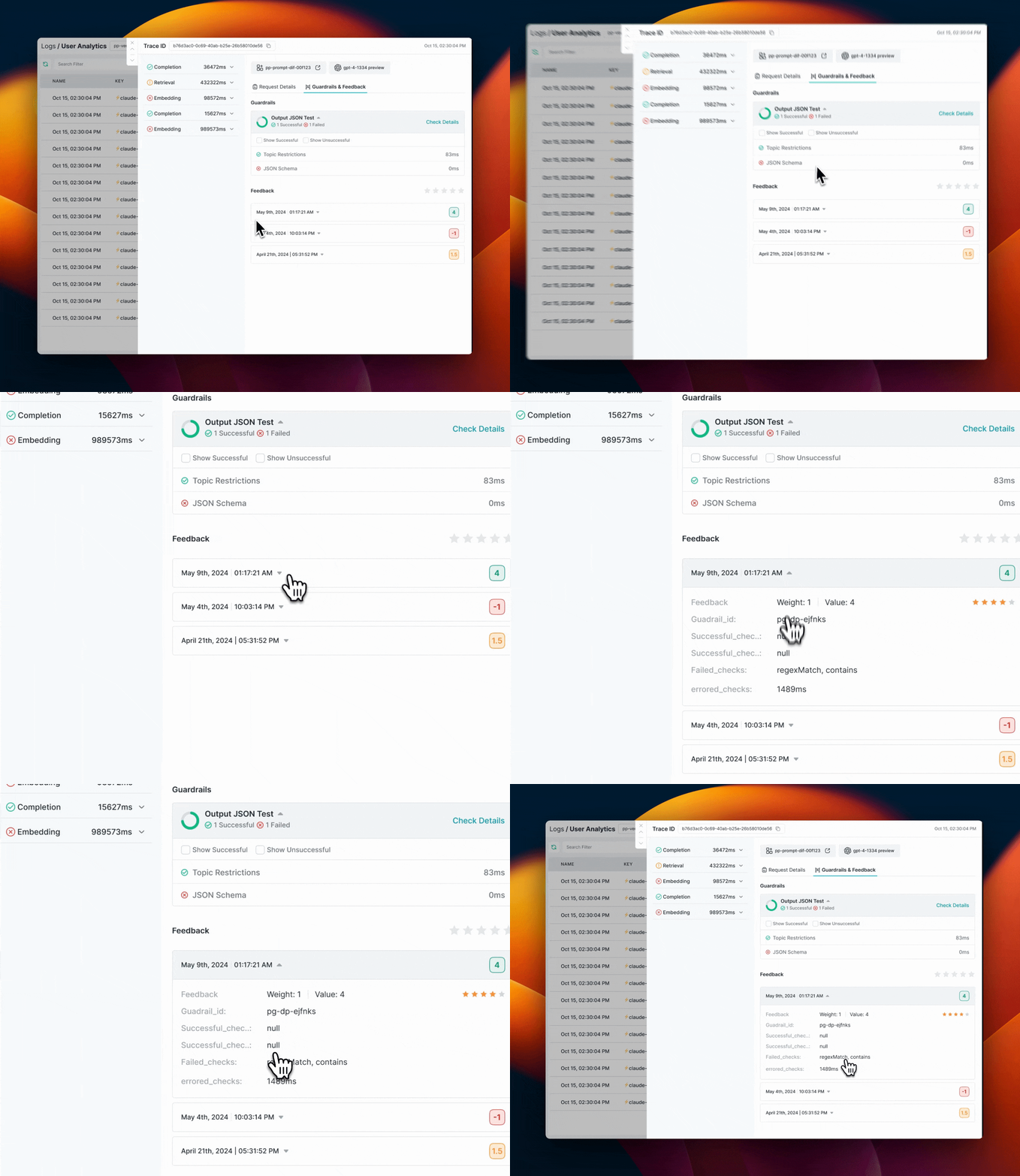
## Monitoring and Logs
All guardrail actions and verdicts are visible in your Portkey logs, allowing you to:
* Track which content has been flagged
* See guardrail verdicts and actions
* Monitor the performance of your content moderation pipeline
 ## Using Azure Guardrails - Scenarios
After setting up your guardrails, there are different ways to use them depending on your security requirements:
### Detect and Monitor Only
To simply detect but not block content:
* Configure your guardrail actions without enabling "Deny"
* Monitor the guardrail results in your Portkey logs
* If any issues are detected, the response will include a `hook_results` object with details
### Redact PII Automatically
To automatically remove sensitive information:
* Enable the `Redact` option for Azure PII Detection
* When PII is detected, it will be automatically redacted and replaced with standardized identifiers
* The response will include a `transformed` flag set to `true` in the results
### Block Harmful Content
To completely block requests that violate your policies:
* Enable the `Deny` option in the guardrails action tab
* If harmful content is detected, the request will fail with an appropriate status code
* You can customize denial messages to provide guidance to users
***
## Need Support?
If you encounter any issues with Azure Guardrails, please reach out to our support team through the [Portkey community forum](https://discord.gg/portkey-llms-in-prod-1143393887742861333).
## Using Azure Guardrails - Scenarios
After setting up your guardrails, there are different ways to use them depending on your security requirements:
### Detect and Monitor Only
To simply detect but not block content:
* Configure your guardrail actions without enabling "Deny"
* Monitor the guardrail results in your Portkey logs
* If any issues are detected, the response will include a `hook_results` object with details
### Redact PII Automatically
To automatically remove sensitive information:
* Enable the `Redact` option for Azure PII Detection
* When PII is detected, it will be automatically redacted and replaced with standardized identifiers
* The response will include a `transformed` flag set to `true` in the results
### Block Harmful Content
To completely block requests that violate your policies:
* Enable the `Deny` option in the guardrails action tab
* If harmful content is detected, the request will fail with an appropriate status code
* You can customize denial messages to provide guidance to users
***
## Need Support?
If you encounter any issues with Azure Guardrails, please reach out to our support team through the [Portkey community forum](https://discord.gg/portkey-llms-in-prod-1143393887742861333).