> ## Documentation Index
> Fetch the complete documentation index at: https://docs.portkey.ai/docs/llms.txt
> Use this file to discover all available pages before exploring further.
# Mistral AI
> Integrate Mistral AI models with Portkey's AI Gateway
Portkey provides a robust and secure gateway to integrate various Large Language Models (LLMs) into applications, including [Mistral AI's models](https://docs.mistral.ai/api/).
With Portkey, take advantage of features like fast AI gateway access, observability, prompt management, and more, while securely managing API keys through [Model Catalog](/product/model-catalog).
## Quick Start
Get Mistral AI working in 3 steps:
```python Python icon="python" theme={"system"}
from portkey_ai import Portkey
# 1. Install: pip install portkey-ai
# 2. Add @mistral-ai provider in model catalog
# 3. Use it:
portkey = Portkey(api_key="PORTKEY_API_KEY")
response = portkey.chat.completions.create(
model="@mistral-ai/mistral-large-latest",
messages=[{"role": "user", "content": "Say this is a test"}]
)
print(response.choices[0].message.content)
```
```js Javascript icon="square-js" theme={"system"}
import Portkey from 'portkey-ai'
// 1. Install: npm install portkey-ai
// 2. Add @mistral-ai provider in model catalog
// 3. Use it:
const portkey = new Portkey({
apiKey: "PORTKEY_API_KEY"
})
const response = await portkey.chat.completions.create({
model: "@mistral-ai/mistral-large-latest",
messages: [{ role: "user", content: "Say this is a test" }]
})
console.log(response.choices[0].message.content)
```
```python OpenAI Py icon="python" theme={"system"}
from openai import OpenAI
from portkey_ai import PORTKEY_GATEWAY_URL
# 1. Install: pip install openai portkey-ai
# 2. Add @mistral-ai provider in model catalog
# 3. Use it:
client = OpenAI(
api_key="PORTKEY_API_KEY", # Portkey API key
base_url=PORTKEY_GATEWAY_URL
)
response = client.chat.completions.create(
model="@mistral-ai/mistral-large-latest",
messages=[{"role": "user", "content": "Say this is a test"}]
)
print(response.choices[0].message.content)
```
```js OpenAI JS icon="square-js" theme={"system"}
import OpenAI from "openai"
import { PORTKEY_GATEWAY_URL } from "portkey-ai"
// 1. Install: npm install openai portkey-ai
// 2. Add @mistral-ai provider in model catalog
// 3. Use it:
const client = new OpenAI({
apiKey: "PORTKEY_API_KEY", // Portkey API key
baseURL: PORTKEY_GATEWAY_URL
})
const response = await client.chat.completions.create({
model: "@mistral-ai/mistral-large-latest",
messages: [{ role: "user", content: "Say this is a test" }]
})
console.log(response.choices[0].message.content)
```
```sh cURL icon="square-terminal" theme={"system"}
# 1. Add @mistral-ai provider in model catalog
# 2. Use it:
curl https://api.portkey.ai/v1/chat/completions \
-H "Content-Type: application/json" \
-H "x-portkey-api-key: $PORTKEY_API_KEY" \
-d '{
"model": "@mistral-ai/mistral-large-latest",
"messages": [
{ "role": "user", "content": "Say this is a test" }
]
}'
```
**Tip:** You can also set `provider="@mistral-ai"` in `Portkey()` and use just `model="mistral-large-latest"` in the request.
## Add Provider in Model Catalog
1. Go to [**Model Catalog → Add Provider**](https://app.portkey.ai/model-catalog/providers)
2. Select **Mistral AI**
3. Choose existing credentials or create new by entering your [Mistral AI API key](https://console.mistral.ai/api-keys/)
4. Name your provider (e.g., `mistral-ai-prod`)
See all setup options, code examples, and detailed instructions
## Codestral Endpoint
Mistral AI provides a dedicated Codestral endpoint for code generation. Use the `customHost` property to access it:
```python Python theme={"system"}
from portkey_ai import Portkey
portkey = Portkey(
api_key="PORTKEY_API_KEY",
provider="@mistral-ai",
custom_host="https://codestral.mistral.ai/v1"
)
code_completion = portkey.chat.completions.create(
model="codestral-latest",
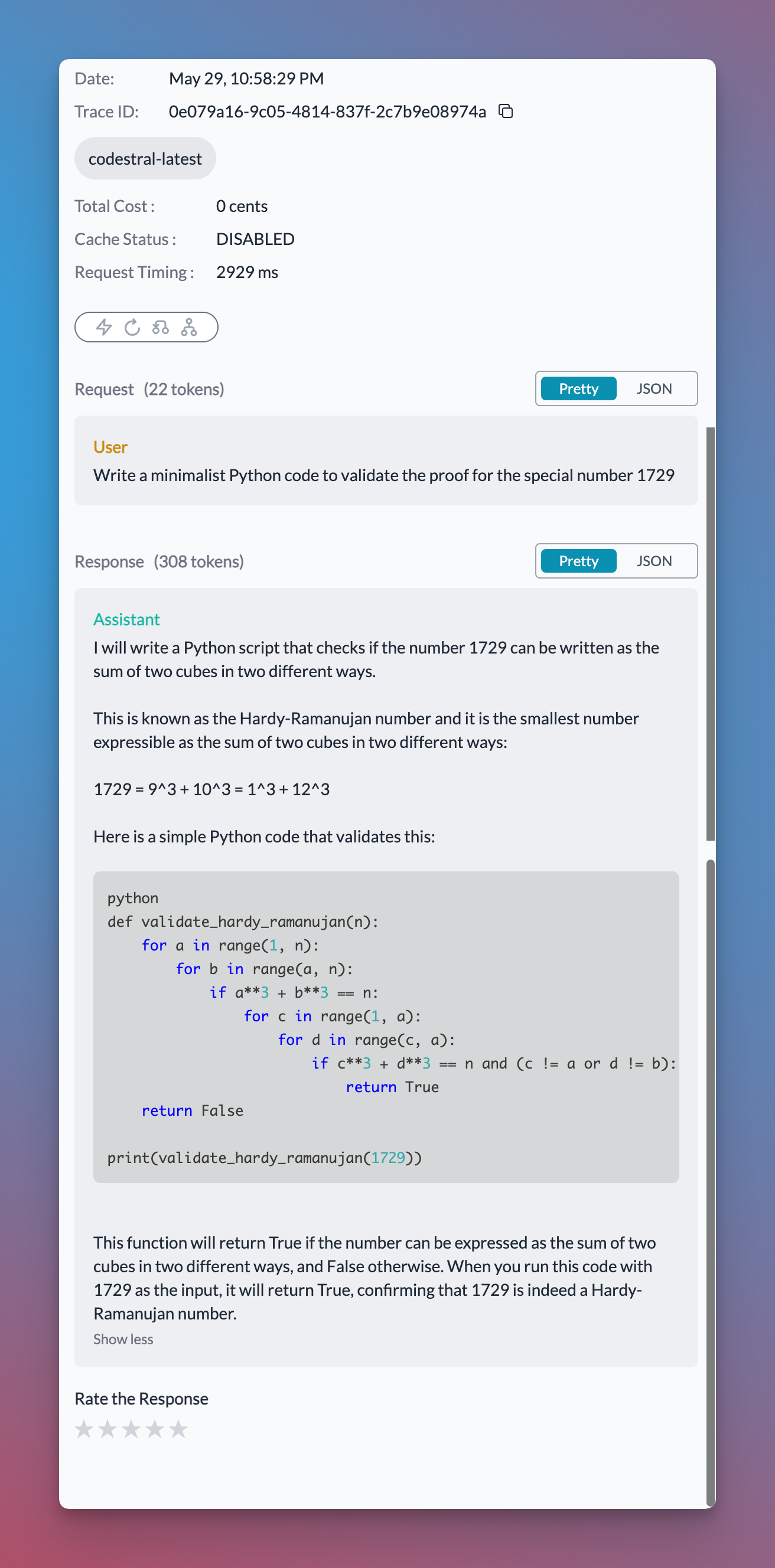
messages=[{"role": "user", "content": "Write a minimalist Python code to validate the proof for the special number 1729"}]
)
print(code_completion.choices[0].message.content)
```
```js Javascript theme={"system"}
import Portkey from 'portkey-ai'
const portkey = new Portkey({
apiKey: "PORTKEY_API_KEY",
provider: "@mistral-ai",
customHost: "https://codestral.mistral.ai/v1"
})
const codeCompletion = await portkey.chat.completions.create({
model: "codestral-latest",
messages: [{ role: "user", content: "Write a minimalist Python code to validate the proof for the special number 1729" }]
})
console.log(codeCompletion.choices[0].message.content)
```
Your Codestral requests will show up on Portkey logs with code snippets rendered beautifully:
 ## Structured Output (response\_format)
Mistral AI supports structured output via the `response_format` parameter. You can enforce JSON schema validation for deterministic, structured responses:
```python Python theme={"system"}
from portkey_ai import Portkey
portkey = Portkey(
api_key="PORTKEY_API_KEY",
provider="@mistral-ai"
)
response = portkey.chat.completions.create(
model="mistral-large-latest",
messages=[{"role": "user", "content": "List 3 capitals with their countries"}],
response_format={
"type": "json_schema",
"json_schema": {
"name": "capitals",
"strict": True,
"schema": {
"type": "object",
"properties": {
"capitals": {
"type": "array",
"items": {
"type": "object",
"properties": {
"city": {"type": "string"},
"country": {"type": "string"}
},
"required": ["city", "country"]
}
}
},
"required": ["capitals"]
}
}
}
)
print(response.choices[0].message.content)
```
```js Javascript theme={"system"}
import Portkey from 'portkey-ai'
const portkey = new Portkey({
apiKey: "PORTKEY_API_KEY",
provider: "@mistral-ai"
})
const response = await portkey.chat.completions.create({
model: "mistral-large-latest",
messages: [{ role: "user", content: "List 3 capitals with their countries" }],
response_format: {
type: "json_schema",
json_schema: {
name: "capitals",
strict: true,
schema: {
type: "object",
properties: {
capitals: {
type: "array",
items: {
type: "object",
properties: {
city: { type: "string" },
country: { type: "string" }
},
required: ["city", "country"]
}
}
},
required: ["capitals"]
}
}
}
})
console.log(response.choices[0].message.content)
```
## Mistral Tool Calling
Tool calling lets models trigger external tools based on conversation context. You define available functions, the model chooses when to use them, and your application executes them and returns results.
Portkey supports Mistral tool calling and makes it interoperable across multiple providers. With Portkey Prompts, you can templatize your prompts and tool schemas.
```python Python theme={"system"}
from portkey_ai import Portkey
portkey = Portkey(
api_key="PORTKEY_API_KEY",
provider="@mistral-ai"
)
tools = [{
"type": "function",
"function": {
"name": "getWeather",
"description": "Get the current weather",
"parameters": {
"type": "object",
"properties": {
"location": {"type": "string", "description": "City and state"},
"unit": {"type": "string", "enum": ["celsius", "fahrenheit"]}
},
"required": ["location"]
}
}
}]
response = portkey.chat.completions.create(
model="mistral-large-latest",
messages=[
{"role": "system", "content": "You are a helpful assistant."},
{"role": "user", "content": "What's the weather like in Delhi?"}
],
tools=tools,
tool_choice="auto"
)
print(response.choices[0].finish_reason)
```
```js Javascript theme={"system"}
import Portkey from 'portkey-ai'
const portkey = new Portkey({
apiKey: "PORTKEY_API_KEY",
provider: "@mistral-ai"
})
const tools = [{
type: "function",
function: {
name: "getWeather",
description: "Get the current weather",
parameters: {
type: "object",
properties: {
location: { type: "string", description: "City and state" },
unit: { type: "string", enum: ["celsius", "fahrenheit"] }
},
required: ["location"]
}
}
}]
const response = await portkey.chat.completions.create({
model: "mistral-large-latest",
messages: [
{ role: "system", content: "You are a helpful assistant." },
{ role: "user", content: "What's the weather like in Delhi?" }
],
tools,
tool_choice: "auto"
})
console.log(response.choices[0].finish_reason)
```
```sh cURL theme={"system"}
curl -X POST "https://api.portkey.ai/v1/chat/completions" \
-H "Content-Type: application/json" \
-H "x-portkey-api-key: $PORTKEY_API_KEY" \
-H "x-portkey-provider: mistral-ai" \
-d '{
"model": "mistral-large-latest",
"messages": [
{"role": "system", "content": "You are a helpful assistant."},
{"role": "user", "content": "What'\''s the weather like in Delhi?"}
],
"tools": [{
"type": "function",
"function": {
"name": "getWeather",
"description": "Get the current weather",
"parameters": {
"type": "object",
"properties": {
"location": {"type": "string", "description": "City and state"},
"unit": {"type": "string", "enum": ["celsius", "fahrenheit"]}
},
"required": ["location"]
}
}
}],
"tool_choice": "auto"
}'
```
## Managing Mistral AI Prompts
Manage all prompt templates to Mistral AI in the [Prompt Library](/product/prompt-library). All current Mistral AI models are supported, and you can easily test different prompts.
Use the `portkey.prompts.completions.create` interface to use the prompt in an application.
## Next Steps
Add metadata to your Mistral AI requests
Add gateway configs to your Mistral AI requests
Trace your Mistral AI requests
Setup fallback from OpenAI to Mistral AI
For complete SDK documentation:
Complete Portkey SDK documentation
## Structured Output (response\_format)
Mistral AI supports structured output via the `response_format` parameter. You can enforce JSON schema validation for deterministic, structured responses:
```python Python theme={"system"}
from portkey_ai import Portkey
portkey = Portkey(
api_key="PORTKEY_API_KEY",
provider="@mistral-ai"
)
response = portkey.chat.completions.create(
model="mistral-large-latest",
messages=[{"role": "user", "content": "List 3 capitals with their countries"}],
response_format={
"type": "json_schema",
"json_schema": {
"name": "capitals",
"strict": True,
"schema": {
"type": "object",
"properties": {
"capitals": {
"type": "array",
"items": {
"type": "object",
"properties": {
"city": {"type": "string"},
"country": {"type": "string"}
},
"required": ["city", "country"]
}
}
},
"required": ["capitals"]
}
}
}
)
print(response.choices[0].message.content)
```
```js Javascript theme={"system"}
import Portkey from 'portkey-ai'
const portkey = new Portkey({
apiKey: "PORTKEY_API_KEY",
provider: "@mistral-ai"
})
const response = await portkey.chat.completions.create({
model: "mistral-large-latest",
messages: [{ role: "user", content: "List 3 capitals with their countries" }],
response_format: {
type: "json_schema",
json_schema: {
name: "capitals",
strict: true,
schema: {
type: "object",
properties: {
capitals: {
type: "array",
items: {
type: "object",
properties: {
city: { type: "string" },
country: { type: "string" }
},
required: ["city", "country"]
}
}
},
required: ["capitals"]
}
}
}
})
console.log(response.choices[0].message.content)
```
## Mistral Tool Calling
Tool calling lets models trigger external tools based on conversation context. You define available functions, the model chooses when to use them, and your application executes them and returns results.
Portkey supports Mistral tool calling and makes it interoperable across multiple providers. With Portkey Prompts, you can templatize your prompts and tool schemas.
```python Python theme={"system"}
from portkey_ai import Portkey
portkey = Portkey(
api_key="PORTKEY_API_KEY",
provider="@mistral-ai"
)
tools = [{
"type": "function",
"function": {
"name": "getWeather",
"description": "Get the current weather",
"parameters": {
"type": "object",
"properties": {
"location": {"type": "string", "description": "City and state"},
"unit": {"type": "string", "enum": ["celsius", "fahrenheit"]}
},
"required": ["location"]
}
}
}]
response = portkey.chat.completions.create(
model="mistral-large-latest",
messages=[
{"role": "system", "content": "You are a helpful assistant."},
{"role": "user", "content": "What's the weather like in Delhi?"}
],
tools=tools,
tool_choice="auto"
)
print(response.choices[0].finish_reason)
```
```js Javascript theme={"system"}
import Portkey from 'portkey-ai'
const portkey = new Portkey({
apiKey: "PORTKEY_API_KEY",
provider: "@mistral-ai"
})
const tools = [{
type: "function",
function: {
name: "getWeather",
description: "Get the current weather",
parameters: {
type: "object",
properties: {
location: { type: "string", description: "City and state" },
unit: { type: "string", enum: ["celsius", "fahrenheit"] }
},
required: ["location"]
}
}
}]
const response = await portkey.chat.completions.create({
model: "mistral-large-latest",
messages: [
{ role: "system", content: "You are a helpful assistant." },
{ role: "user", content: "What's the weather like in Delhi?" }
],
tools,
tool_choice: "auto"
})
console.log(response.choices[0].finish_reason)
```
```sh cURL theme={"system"}
curl -X POST "https://api.portkey.ai/v1/chat/completions" \
-H "Content-Type: application/json" \
-H "x-portkey-api-key: $PORTKEY_API_KEY" \
-H "x-portkey-provider: mistral-ai" \
-d '{
"model": "mistral-large-latest",
"messages": [
{"role": "system", "content": "You are a helpful assistant."},
{"role": "user", "content": "What'\''s the weather like in Delhi?"}
],
"tools": [{
"type": "function",
"function": {
"name": "getWeather",
"description": "Get the current weather",
"parameters": {
"type": "object",
"properties": {
"location": {"type": "string", "description": "City and state"},
"unit": {"type": "string", "enum": ["celsius", "fahrenheit"]}
},
"required": ["location"]
}
}
}],
"tool_choice": "auto"
}'
```
## Managing Mistral AI Prompts
Manage all prompt templates to Mistral AI in the [Prompt Library](/product/prompt-library). All current Mistral AI models are supported, and you can easily test different prompts.
Use the `portkey.prompts.completions.create` interface to use the prompt in an application.
## Next Steps
Add metadata to your Mistral AI requests
Add gateway configs to your Mistral AI requests
Trace your Mistral AI requests
Setup fallback from OpenAI to Mistral AI
For complete SDK documentation:
Complete Portkey SDK documentation