> ## Documentation Index
> Fetch the complete documentation index at: https://docs.portkey.ai/docs/llms.txt
> Use this file to discover all available pages before exploring further.
# OpenAI
> Complete guide to integrate OpenAI API with Portkey. Support for gpt-4o, o1, chat completions, vision, and audio APIs with built-in reliability and monitoring features.
[Latest Pricing](https://models.portkey.ai/providers/openai) | [API Status](https://status.portkey.ai/) | [Supported Endpoints](/docs/api-reference/inference-api/supported-providers)
OpenAI's API offers powerful language, embedding, and multimodal models (gpt-4o, o1, whisper, dall-e, etc.). Portkey makes your OpenAI requests production-ready with its observability, fallbacks, guardrails, and more features. Portkey also lets you use OpenAI API's other capabilities like
## Integrate
Add your OpenAI API Key from [here](https://platform.openai.com/account/api-keys) to [Model Catalog](https://app.portkey.ai/model-catalog) to create an AI Provider.
Your OpenAI personal or service account API keys can be saved to Portkey. Additionally, your **[OpenAI Admin API Keys](https://platform.openai.com/settings/organization/admin-keys)** can also be saved to Portkey so that you can route to OpenAI Admin routes through Portkey API.
Optional
* Add your OpenAI organization and project ID details: ([Docs](#openai-projects-and-organizations))
* Directly use OpenAI API key without Model Catalog: ([Docs](/docs/api-reference/inference-api/headers#1-provider-slug-auth))
* Set budget & rate limits per AI Provider: ([Docs](/docs/product/model-catalog))
While OpenAI supports budget & rate limits at the project level, Portkey also lets you set granular limits per AI Provider in Model Catalog.
## Sample Request
Portkey is a drop-in replacement for OpenAI. You can make request using the official OpenAI or Portkey SDKs.
Popular libraries & agent frameworks like LangChain, CrewAI, AutoGen, etc. are [also supported](#popular-libraries).
All Azure OpenAI models & endpoints are [also supported](/docs/integrations/llms/azure-openai)
Install the Portkey SDK with npm
```sh theme={"system"}
npm install portkey-ai
```
```ts Chat Completions theme={"system"}
import Portkey from 'portkey-ai';
const client = new Portkey({
apiKey: 'PORTKEY_API_KEY',
provider:'@PROVIDER'
});
async function main() {
const response = await client.chat.completions.create({
messages: [{ role: "user", content: "Bob the builder.." }],
model: "gpt-4o",
});
console.log(response.choices[0].message.content);
}
main();
```
```ts Image Generations theme={"system"}
```
```ts Create Embeddings theme={"system"}
```
Install the Portkey SDK with pip
```sh theme={"system"}
pip install portkey-ai
```
```py Chat Completions theme={"system"}
from portkey_ai import Portkey
client = Portkey(
api_key = "PORTKEY_API_KEY",
provider = "@openai-prod" # Your AI Provider slug from Model Catalog
)
response = client.chat.completions.create(
model="gpt-4o",
messages=[
{"role": "system", "content": "You are a helpful assistant."},
{"role": "user", "content": "Hello!"}
]
)
print(response.choices[0].message)
```
```py Image Generations theme={"system"}
```
```py Create Embeddings theme={"system"}
```
```sh Chat Completions theme={"system"}
curl https://api.portkey.ai/v1/chat/completions \
-H "Content-Type: application/json" \
-H "x-portkey-api-key: $PORTKEY_API_KEY" \
-H "x-portkey-provider: $PORTKEY_PROVIDER" \
-d '{
"model": "gpt-4o",
"messages": [
{ "role": "user", "content": "Hello!" }
]
}'
```
```sh Image Generations theme={"system"}
```
```sh Create Embeddings theme={"system"}
```
Install the OpenAI & Portkey SDKs with pip
```sh theme={"system"}
pip install openai portkey-ai
```
```py Chat Completions theme={"system"}
from openai import OpenAI
from portkey_ai import createHeaders, PORTKEY_GATEWAY_URL
client = OpenAI(
api_key="xx",
base_url=PORTKEY_GATEWAY_URL,
default_headers=createHeaders(
api_key="PORTKEY_API_KEY",
provider="@OPENAI_PROVIDER"
)
)
completion = client.chat.completions.create(
model="gpt-4o",
messages=[
{"role": "system", "content": "You are a helpful assistant."},
{"role": "user", "content": "Hello!"}
]
)
print(completion.choices[0].message)
```
```py Image Generations theme={"system"}
```
```py Create Embeddings theme={"system"}
```
Install the OpenAI & Portkey SDKs with npm
```sh theme={"system"}
npm install openai portkey-ai
```
```ts Chat Completions theme={"system"}
import OpenAI from 'openai';
import { PORTKEY_GATEWAY_URL, createHeaders } from 'portkey-ai'
const openai = new OpenAI({
apiKey: 'xx',
baseURL: PORTKEY_GATEWAY_URL,
defaultHeaders: createHeaders({
apiKey: "PORTKEY_API_KEY",
provider:"@OPENAI_PROVIDER"
})
});
async function main() {
const completion = await openai.chat.completions.create({
messages: [{ role: 'user', content: 'Say this is a test' }],
model: 'gpt-4o',
});
console.log(chatCompletion.choices);
}
main();
```
```ts Image Generations theme={"system"}
```
```ts Create Embeddings theme={"system"}
```
...
```ts theme={"system"}
```
...
**Viewing the Log**
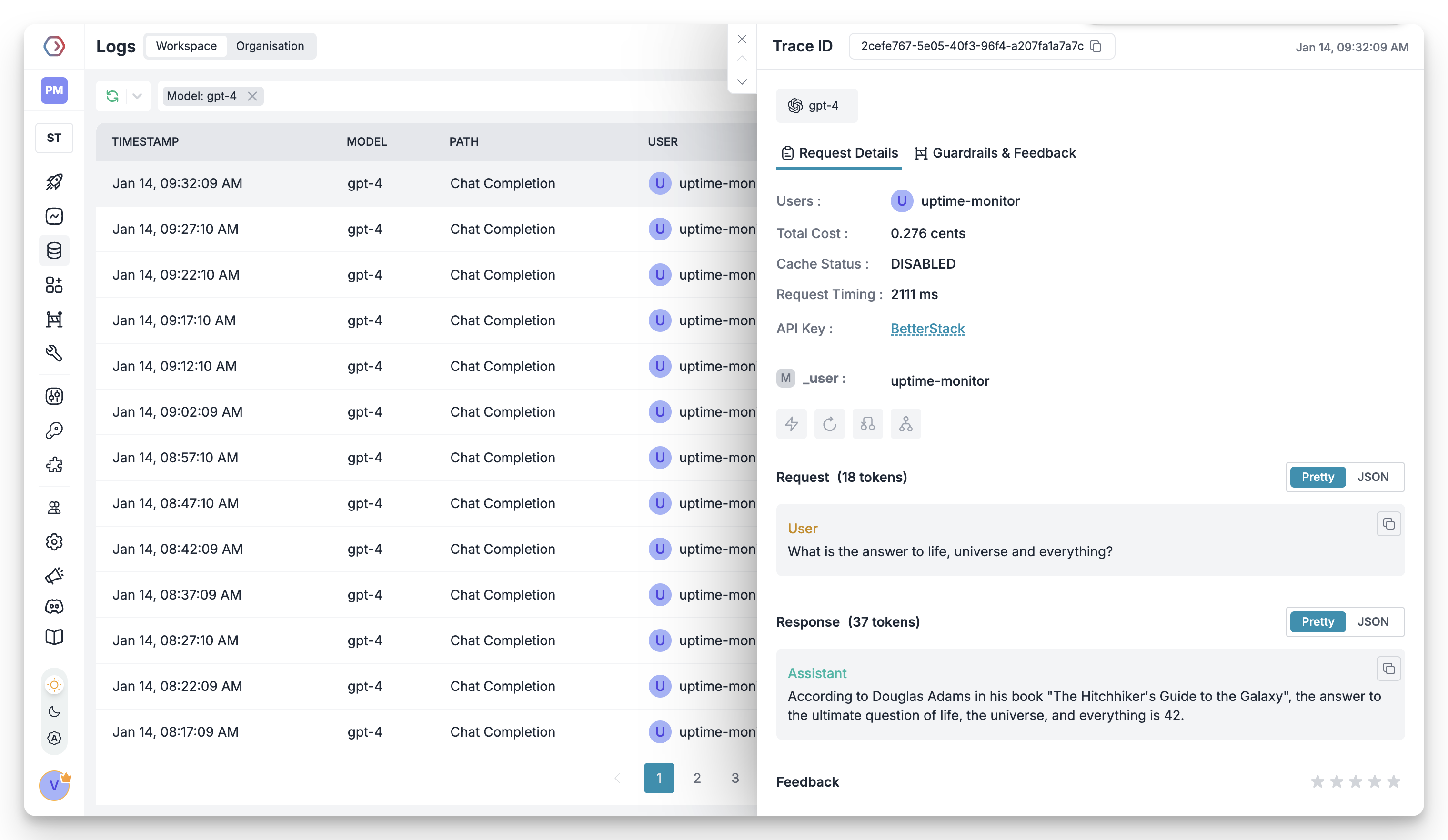
Portkey will log your request and give you useful data such as timestamp, request type, LLM used, tokens generated, and cost. For multimodal models, Portkey will also show the image sent with vision/image models, as well as the image generated.
 ## Local Setup
If you do not want to use Portkey's hosted API, you can also run Portkey locally:
## Local Setup
If you do not want to use Portkey's hosted API, you can also run Portkey locally:
 Portkey runs on our popular [open source Gateway](https://git.new/portkey). You can spin it up locally to make requests without sending them to the Portkey API.
```sh Install the Gateway theme={"system"}
npx @portkey-ai/gateway
```
```sh Docker Image theme={"system"}
npx @portkey-ai/gateway
```
| Your Gateway is running on [http://localhost:8080/v1](http://localhost:8080/v1) 🚀 | |
| ---------------------------------------------------------------------------------- | - |
Then, just change the `baseURL` to the local Gateway URL, and make requests:
```ts NodeJS theme={"system"}
import Portkey from 'portkey-ai';
const client = new Portkey({
baseUrl: 'http://localhost:8080/v1',
apiKey: 'PORTKEY_API_KEY',
provider:'@PROVIDER'
});
async function main() {
const response = await client.chat.completions.create({
messages: [{ role: "user", content: "Bob the builder.." }],
model: "gpt-4o",
});
console.log(response.choices[0].message.content);
}
main();
```
```py Python theme={"system"}
from portkey_ai import Portkey
client = Portkey(
base_url = 'http://localhost:8080/v1',
api_key = "PORTKEY_API_KEY",
provider = "@openai-prod" # Your AI Provider slug from Model Catalog
)
response = client.chat.completions.create(
model="gpt-4o",
messages=[
{"role": "system", "content": "You are a helpful assistant."},
{"role": "user", "content": "Hello!"}
]
)
print(response.choices[0].message)
```
```sh cURL theme={"system"}
curl http://localhost:8080/v1/chat/completions \
-H "Content-Type: application/json" \
-H "x-portkey-api-key: $PORTKEY_API_KEY" \
-H "x-portkey-provider: $PORTKEY_PROVIDER" \
-d '{
"model": "gpt-4o",
"messages": [
{ "role": "user", "content": "Hello!" }
]
}'
```
```py OpenAI Python SDK theme={"system"}
from openai import OpenAI
from portkey_ai import createHeaders, PORTKEY_GATEWAY_URL
client = OpenAI(
api_key="xx",
base_url="https://localhost:8080/v1",
default_headers=createHeaders(
api_key="PORTKEY_API_KEY",
provider="@OPENAI_PROVIDER"
)
)
completion = client.chat.completions.create(
model="gpt-4o",
messages=[
{"role": "system", "content": "You are a helpful assistant."},
{"role": "user", "content": "Hello!"}
]
)
print(completion.choices[0].message)
```
```ts OpenAI NodeJS SDK theme={"system"}
import OpenAI from 'openai';
import { PORTKEY_GATEWAY_URL, createHeaders } from 'portkey-ai'
const openai = new OpenAI({
apiKey: 'xx',
baseURL: 'https://localhost:8080/v1',
defaultHeaders: createHeaders({
apiKey: "PORTKEY_API_KEY",
provider:"@OPENAI_PROVIDER"
})
});
async function main() {
const completion = await openai.chat.completions.create({
messages: [{ role: 'user', content: 'Say this is a test' }],
model: 'gpt-4o',
});
console.log(chatCompletion.choices);
}
main();
```
**On-Prem Deployment (AWS, GCP, Azure)**
Portkey's data & control planes can be fully deployed on-prem with the Enterprise license.
***
## Support for OpenAI Capabilities
Portkey works with *all* of OpenAI's endpoints and supports all OpenAI capabilities like prompt caching, structured outputs, and more.
Enables models to interact with external tools by declaring functions that the model can invoke based on conversation context.
Returns model responses in predefined formats (JSON/XML) for consistent, parseable application integration.
Analyzes images alongside text, enabling visual understanding and question-answering through URL or base64 inputs.
Transforms text into numerical vectors for semantic search, clustering, and recommendations.
Automatically reuses results from similar API requests to reduce latency and costs, with no setup required.
Creates and modifies images using DALL·E models, with DALL·E 3 for generation and DALL·E 2 for editing.
Converts audio to text using Whisper model, supporting multiple languages and formats.
Transforms text into natural speech using six voices, with streaming support and multiple audio formats.
Powers low-latency, multi-modal conversations through WebRTC and WebSocket connections.
Screens text content for harmful or inappropriate material.
Provides step-by-step problem-solving through structured logical analysis.
Shows probability distributions of possible responses with confidence levels.
Customizes models on specific datasets for improved domain performance.
Offers managed, stateful AI agents with tool use and conversation memory.
Processes large volumes of requests efficiently in batch mode.
Find examples for each below:
***
### OpenAI Tool Calling
Tool calling feature lets models trigger external tools based on conversation context. You define available functions, the model chooses when to use them, and your application executes them and returns results.
Portkey supports OpenAI Tool Calling and makes it interoperable across multiple providers. With Portkey Prompts, you can templatize various your prompts & tool schemas as well.
```javascript Get Weather Tool theme={"system"}
let tools = [{
type: "function",
function: {
name: "getWeather",
description: "Get the current weather",
parameters: {
type: "object",
properties: {
location: { type: "string", description: "City and state" },
unit: { type: "string", enum: ["celsius", "fahrenheit"] }
},
required: ["location"]
}
}
}];
let response = await portkey.chat.completions.create({
model: "gpt-4o",
messages: [
{ role: "system", content: "You are a helpful assistant." },
{ role: "user", content: "What's the weather like in Delhi - respond in JSON" }
],
tools,
tool_choice: "auto",
});
console.log(response.choices[0].finish_reason);
```
```python Get Weather Tool theme={"system"}
tools = [{
"type": "function",
"function": {
"name": "getWeather",
"description": "Get the current weather",
"parameters": {
"type": "object",
"properties": {
"location": {"type": "string", "description": "City and state"},
"unit": {"type": "string", "enum": ["celsius", "fahrenheit"]}
},
"required": ["location"]
}
}
}]
response = portkey.chat.completions.create(
model="gpt-4o",
messages=[
{"role": "system", "content": "You are a helpful assistant."},
{"role": "user", "content": "What's the weather like in Delhi - respond in JSON"}
],
tools=tools,
tool_choice="auto"
)
print(response.choices[0].finish_reason)
```
```curl Get Weather Tool theme={"system"}
curl -X POST "https://api.portkey.ai/v1/chat/completions" \
-H "Content-Type: application/json" \
-H "Authorization: Bearer YOUR_PORTKEY_API_KEY" \
-d '{
"model": "gpt-4o",
"messages": [
{"role": "system", "content": "You are a helpful assistant."},
{"role": "user", "content": "What'\''s the weather like in Delhi - respond in JSON"}
],
"tools": [{
"type": "function",
"function": {
"name": "getWeather",
"description": "Get the current weather",
"parameters": {
"type": "object",
"properties": {
"location": {"type": "string", "description": "City and state"},
"unit": {"type": "string", "enum": ["celsius", "fahrenheit"]}
},
"required": ["location"]
}
}
}],
"tool_choice": "auto"
}'
```
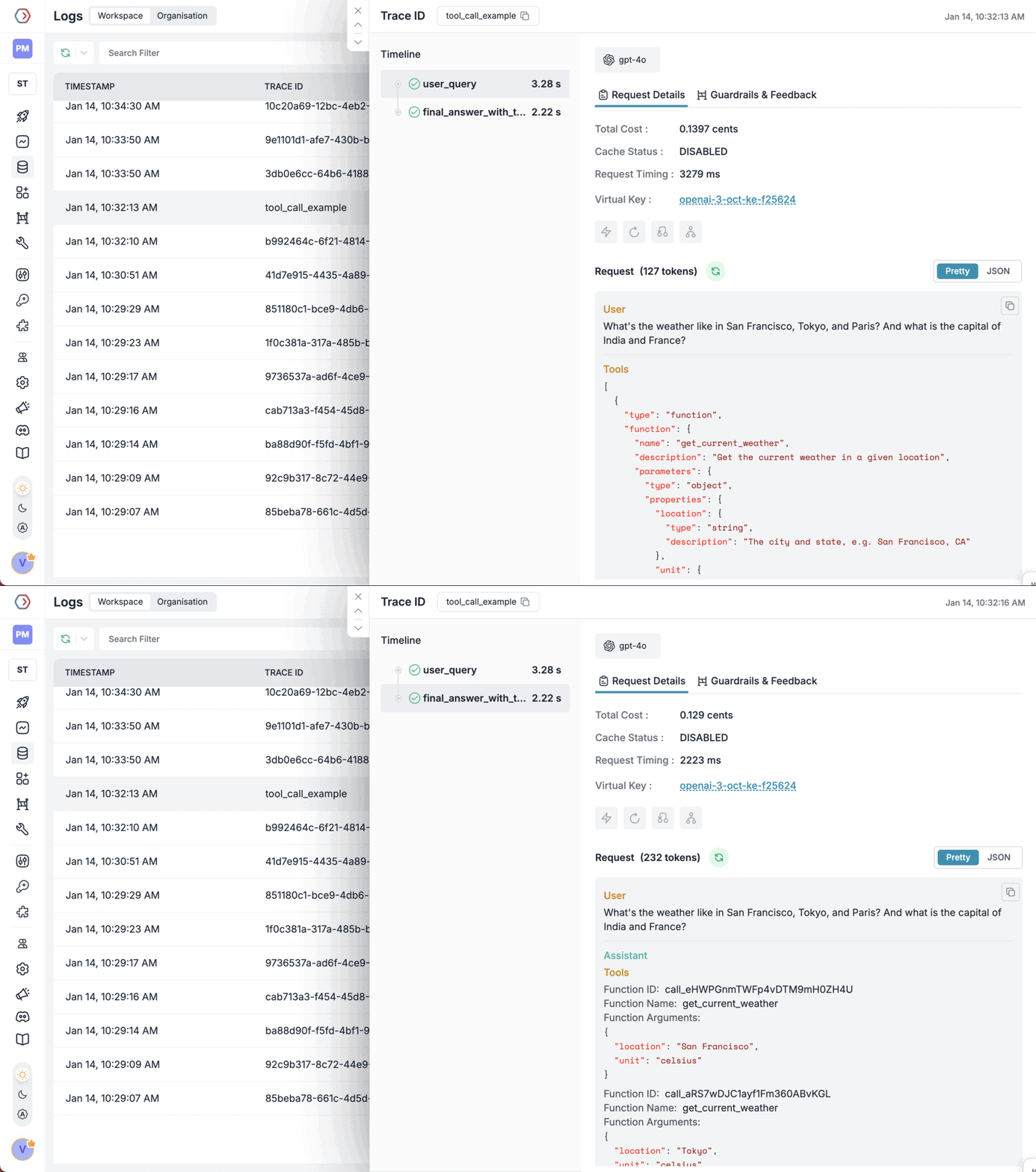
**Tracing the Request**
On Portkey you can easily trace the whole tool call - from defining tool schemas to getting the final LLM output:
Portkey runs on our popular [open source Gateway](https://git.new/portkey). You can spin it up locally to make requests without sending them to the Portkey API.
```sh Install the Gateway theme={"system"}
npx @portkey-ai/gateway
```
```sh Docker Image theme={"system"}
npx @portkey-ai/gateway
```
| Your Gateway is running on [http://localhost:8080/v1](http://localhost:8080/v1) 🚀 | |
| ---------------------------------------------------------------------------------- | - |
Then, just change the `baseURL` to the local Gateway URL, and make requests:
```ts NodeJS theme={"system"}
import Portkey from 'portkey-ai';
const client = new Portkey({
baseUrl: 'http://localhost:8080/v1',
apiKey: 'PORTKEY_API_KEY',
provider:'@PROVIDER'
});
async function main() {
const response = await client.chat.completions.create({
messages: [{ role: "user", content: "Bob the builder.." }],
model: "gpt-4o",
});
console.log(response.choices[0].message.content);
}
main();
```
```py Python theme={"system"}
from portkey_ai import Portkey
client = Portkey(
base_url = 'http://localhost:8080/v1',
api_key = "PORTKEY_API_KEY",
provider = "@openai-prod" # Your AI Provider slug from Model Catalog
)
response = client.chat.completions.create(
model="gpt-4o",
messages=[
{"role": "system", "content": "You are a helpful assistant."},
{"role": "user", "content": "Hello!"}
]
)
print(response.choices[0].message)
```
```sh cURL theme={"system"}
curl http://localhost:8080/v1/chat/completions \
-H "Content-Type: application/json" \
-H "x-portkey-api-key: $PORTKEY_API_KEY" \
-H "x-portkey-provider: $PORTKEY_PROVIDER" \
-d '{
"model": "gpt-4o",
"messages": [
{ "role": "user", "content": "Hello!" }
]
}'
```
```py OpenAI Python SDK theme={"system"}
from openai import OpenAI
from portkey_ai import createHeaders, PORTKEY_GATEWAY_URL
client = OpenAI(
api_key="xx",
base_url="https://localhost:8080/v1",
default_headers=createHeaders(
api_key="PORTKEY_API_KEY",
provider="@OPENAI_PROVIDER"
)
)
completion = client.chat.completions.create(
model="gpt-4o",
messages=[
{"role": "system", "content": "You are a helpful assistant."},
{"role": "user", "content": "Hello!"}
]
)
print(completion.choices[0].message)
```
```ts OpenAI NodeJS SDK theme={"system"}
import OpenAI from 'openai';
import { PORTKEY_GATEWAY_URL, createHeaders } from 'portkey-ai'
const openai = new OpenAI({
apiKey: 'xx',
baseURL: 'https://localhost:8080/v1',
defaultHeaders: createHeaders({
apiKey: "PORTKEY_API_KEY",
provider:"@OPENAI_PROVIDER"
})
});
async function main() {
const completion = await openai.chat.completions.create({
messages: [{ role: 'user', content: 'Say this is a test' }],
model: 'gpt-4o',
});
console.log(chatCompletion.choices);
}
main();
```
**On-Prem Deployment (AWS, GCP, Azure)**
Portkey's data & control planes can be fully deployed on-prem with the Enterprise license.
***
## Support for OpenAI Capabilities
Portkey works with *all* of OpenAI's endpoints and supports all OpenAI capabilities like prompt caching, structured outputs, and more.
Enables models to interact with external tools by declaring functions that the model can invoke based on conversation context.
Returns model responses in predefined formats (JSON/XML) for consistent, parseable application integration.
Analyzes images alongside text, enabling visual understanding and question-answering through URL or base64 inputs.
Transforms text into numerical vectors for semantic search, clustering, and recommendations.
Automatically reuses results from similar API requests to reduce latency and costs, with no setup required.
Creates and modifies images using DALL·E models, with DALL·E 3 for generation and DALL·E 2 for editing.
Converts audio to text using Whisper model, supporting multiple languages and formats.
Transforms text into natural speech using six voices, with streaming support and multiple audio formats.
Powers low-latency, multi-modal conversations through WebRTC and WebSocket connections.
Screens text content for harmful or inappropriate material.
Provides step-by-step problem-solving through structured logical analysis.
Shows probability distributions of possible responses with confidence levels.
Customizes models on specific datasets for improved domain performance.
Offers managed, stateful AI agents with tool use and conversation memory.
Processes large volumes of requests efficiently in batch mode.
Find examples for each below:
***
### OpenAI Tool Calling
Tool calling feature lets models trigger external tools based on conversation context. You define available functions, the model chooses when to use them, and your application executes them and returns results.
Portkey supports OpenAI Tool Calling and makes it interoperable across multiple providers. With Portkey Prompts, you can templatize various your prompts & tool schemas as well.
```javascript Get Weather Tool theme={"system"}
let tools = [{
type: "function",
function: {
name: "getWeather",
description: "Get the current weather",
parameters: {
type: "object",
properties: {
location: { type: "string", description: "City and state" },
unit: { type: "string", enum: ["celsius", "fahrenheit"] }
},
required: ["location"]
}
}
}];
let response = await portkey.chat.completions.create({
model: "gpt-4o",
messages: [
{ role: "system", content: "You are a helpful assistant." },
{ role: "user", content: "What's the weather like in Delhi - respond in JSON" }
],
tools,
tool_choice: "auto",
});
console.log(response.choices[0].finish_reason);
```
```python Get Weather Tool theme={"system"}
tools = [{
"type": "function",
"function": {
"name": "getWeather",
"description": "Get the current weather",
"parameters": {
"type": "object",
"properties": {
"location": {"type": "string", "description": "City and state"},
"unit": {"type": "string", "enum": ["celsius", "fahrenheit"]}
},
"required": ["location"]
}
}
}]
response = portkey.chat.completions.create(
model="gpt-4o",
messages=[
{"role": "system", "content": "You are a helpful assistant."},
{"role": "user", "content": "What's the weather like in Delhi - respond in JSON"}
],
tools=tools,
tool_choice="auto"
)
print(response.choices[0].finish_reason)
```
```curl Get Weather Tool theme={"system"}
curl -X POST "https://api.portkey.ai/v1/chat/completions" \
-H "Content-Type: application/json" \
-H "Authorization: Bearer YOUR_PORTKEY_API_KEY" \
-d '{
"model": "gpt-4o",
"messages": [
{"role": "system", "content": "You are a helpful assistant."},
{"role": "user", "content": "What'\''s the weather like in Delhi - respond in JSON"}
],
"tools": [{
"type": "function",
"function": {
"name": "getWeather",
"description": "Get the current weather",
"parameters": {
"type": "object",
"properties": {
"location": {"type": "string", "description": "City and state"},
"unit": {"type": "string", "enum": ["celsius", "fahrenheit"]}
},
"required": ["location"]
}
}
}],
"tool_choice": "auto"
}'
```
**Tracing the Request**
On Portkey you can easily trace the whole tool call - from defining tool schemas to getting the final LLM output:
 ***
### OpenAI Structured Outputs
Use structured outputs for more consistent and parseable responses:
Discover how to use structured outputs with OpenAI models in Portkey.
***
### OpenAI Vision
OpenAI's vision models can analyze images alongside text, enabling visual question-answering capabilities. Images can be provided via URLs or base64 encoding in user messages.
```py Python theme={"system"}
response = portkey.chat.completions.create(
model="gpt-4-vision-preview",
messages=[
{
"role": "user",
"content": [
{"type": "text", "text": "What's in this image?"},
{
"type": "image_url",
"image_url": "https://upload.wikimedia.org/wikipedia/commons/thumb/d/dd/Gfp-wisconsin-madison-the-nature-boardwalk.jpg/2560px-Gfp-wisconsin-madison-the-nature-boardwalk.jpg",
},
],
}
],
max_tokens=300,
)
print(response)
```
```ts Node.js theme={"system"}
const response = await portkey.chat.completions.create({
model: "gpt-4-vision-preview",
messages: [
{
role: "user",
content: [
{ type: "text", text: "What's in this image?" },
{
type: "image_url",
image_url: "https://upload.wikimedia.org/wikipedia/commons/thumb/d/dd/Gfp-wisconsin-madison-the-nature-boardwalk.jpg/2560px-Gfp-wisconsin-madison-the-nature-boardwalk.jpg",
},
],
},
],
max_tokens: 300,
});
console.log(response);
```
```sh cURL theme={"system"}
curl -X POST "https://api.portkey.ai/v1/chat/completions" \
-H "Content-Type: application/json" \
-H "Authorization: Bearer YOUR_PORTKEY_API_KEY" \
-d '{
"model": "gpt-4-vision-preview",
"messages": [
{
"role": "user",
"content": [
{"type": "text", "text": "What'\''s in this image?"},
{
"type": "image_url",
"image_url": "https://upload.wikimedia.org/wikipedia/commons/thumb/d/dd/Gfp-wisconsin-madison-the-nature-boardwalk.jpg/2560px-Gfp-wisconsin-madison-the-nature-boardwalk.jpg"
}
]
}
],
"max_tokens": 300
}'
```
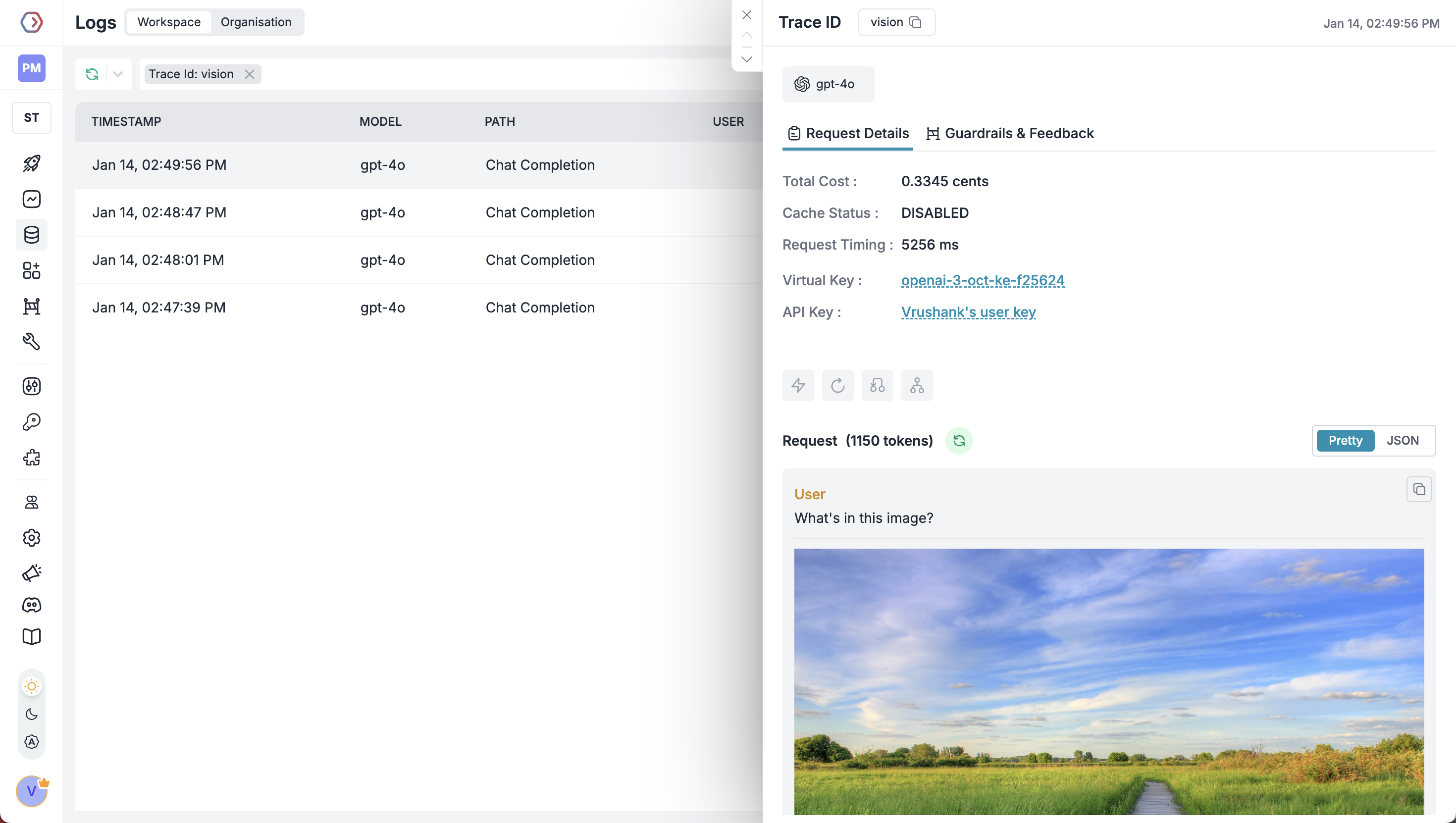
**Tracing Vision Requests**
You can see the image(s) sent on your Portkey log:
***
### OpenAI Structured Outputs
Use structured outputs for more consistent and parseable responses:
Discover how to use structured outputs with OpenAI models in Portkey.
***
### OpenAI Vision
OpenAI's vision models can analyze images alongside text, enabling visual question-answering capabilities. Images can be provided via URLs or base64 encoding in user messages.
```py Python theme={"system"}
response = portkey.chat.completions.create(
model="gpt-4-vision-preview",
messages=[
{
"role": "user",
"content": [
{"type": "text", "text": "What's in this image?"},
{
"type": "image_url",
"image_url": "https://upload.wikimedia.org/wikipedia/commons/thumb/d/dd/Gfp-wisconsin-madison-the-nature-boardwalk.jpg/2560px-Gfp-wisconsin-madison-the-nature-boardwalk.jpg",
},
],
}
],
max_tokens=300,
)
print(response)
```
```ts Node.js theme={"system"}
const response = await portkey.chat.completions.create({
model: "gpt-4-vision-preview",
messages: [
{
role: "user",
content: [
{ type: "text", text: "What's in this image?" },
{
type: "image_url",
image_url: "https://upload.wikimedia.org/wikipedia/commons/thumb/d/dd/Gfp-wisconsin-madison-the-nature-boardwalk.jpg/2560px-Gfp-wisconsin-madison-the-nature-boardwalk.jpg",
},
],
},
],
max_tokens: 300,
});
console.log(response);
```
```sh cURL theme={"system"}
curl -X POST "https://api.portkey.ai/v1/chat/completions" \
-H "Content-Type: application/json" \
-H "Authorization: Bearer YOUR_PORTKEY_API_KEY" \
-d '{
"model": "gpt-4-vision-preview",
"messages": [
{
"role": "user",
"content": [
{"type": "text", "text": "What'\''s in this image?"},
{
"type": "image_url",
"image_url": "https://upload.wikimedia.org/wikipedia/commons/thumb/d/dd/Gfp-wisconsin-madison-the-nature-boardwalk.jpg/2560px-Gfp-wisconsin-madison-the-nature-boardwalk.jpg"
}
]
}
],
"max_tokens": 300
}'
```
**Tracing Vision Requests**
You can see the image(s) sent on your Portkey log:
 **Uploading Base64 encoded images**
If you have an image or set of images locally, you can pass those to the model in base 64 encoded format. [Check out this example from OpenAI on how to do this](https://platform.openai.com/docs/guides/vision#uploading-base64-encoded-images).
[Vision Model Limitation](#limitations-for-vision-requests) | [Vision FAQs](#vision-faqs)
***
### OpenAI Embeddings
OpenAI's embedding models (like `text-embedding-3-small`) transform text inputs into lists of floating point numbers - smaller distances between vectors indicate higher text similarity. They power use cases like semantic search, content clustering, recommendations, and anomaly detection.
Simply send text to the embeddings API endpoint to generate these vectors for your applications.
```python Python theme={"system"}
response = portkey.embeddings.create(
input="Your text string goes here",
model="text-embedding-3-small"
)
print(response.data[0].embedding)
```
```javascript Node.js theme={"system"}
const response = await portkey.embeddings.create({
input: "Your text string goes here",
model: "text-embedding-3-small"
});
console.log(response.data[0].embedding);
```
```curl REST theme={"system"}
curl -X POST "https://api.portkey.ai/v1/embeddings" \
-H "Content-Type: application/json" \
-H "Authorization: Bearer YOUR_PORTKEY_API_KEY" \
-d '{
"input": "Your text string goes here",
"model": "text-embedding-3-small"
}'
```
[Embedding FAQs](#embedding-faqs)
***
### OpenAI Prompt Caching
Prompt caching automatically reuses results from similar API requests, reducing latency by up to 80% and costs by 50%. This feature works by default for all OpenAI API calls, requires no setup, and has no additional fees.
Portkey accurately logs the usage statistics and costs for your cached requests.
Read more about OpenAI Prompt Caching here.
[Prompt Caching Limitations](/docs/integrations/llms/openai/prompt-caching-openai#what-can-be-cached) | [Prompt Caching FAQs](#prompt-caching-faqs)
***
### OpenAI Image Generations (DALL-E)
OpenAI's Images API enables AI-powered image generation, manipulation, and variation creation for creative and commercial applications. Whether you're building image generation features, editing tools, or creative applications, the API provides powerful visual AI capabilities through DALL·E models.
The API offers three core capabilities:
* Generate new images from text prompts (DALL·E 3, DALL·E 2)
* Edit existing images with text-guided replacements (DALL·E 2)
* Create variations of existing images (DALL·E 2)
```ts Node.js theme={"system"}
import Portkey from 'portkey-ai';
const client = new Portkey({
apiKey: 'PORTKEY_API_KEY',
provider:'@PROVIDER'
});
async function main() {
const image = await client.images.generate({
model: "dall-e-3",
prompt: "Lucy in the sky with diamonds"
});
console.log(image.data);
}
main();
```
```py Python theme={"system"}
from portkey_ai import Portkey
client = Portkey(
api_key = "PORTKEY_API_KEY",
provider = "@openai-prod" # Your AI Provider slug from Model Catalog
)
client.images.generate(
model="dall-e-3",
prompt="Lucy in the sky with diamonds",
n=1,
size="1024x1024"
)
```
```sh cURL theme={"system"}
curl https://api.portkey.ai/v1/images/generations \
-H "Content-Type: application/json" \
-H "x-portkey-api-key: $PORTKEY_API_KEY" \
-H "x-portkey-provider: $PORTKEY_PROVIDER" \
-d '{
"model": "dall-e-3",
"prompt": "Lucy in the sky with diamonds",
"n": 1,
"size": "1024x1024"
}'
```
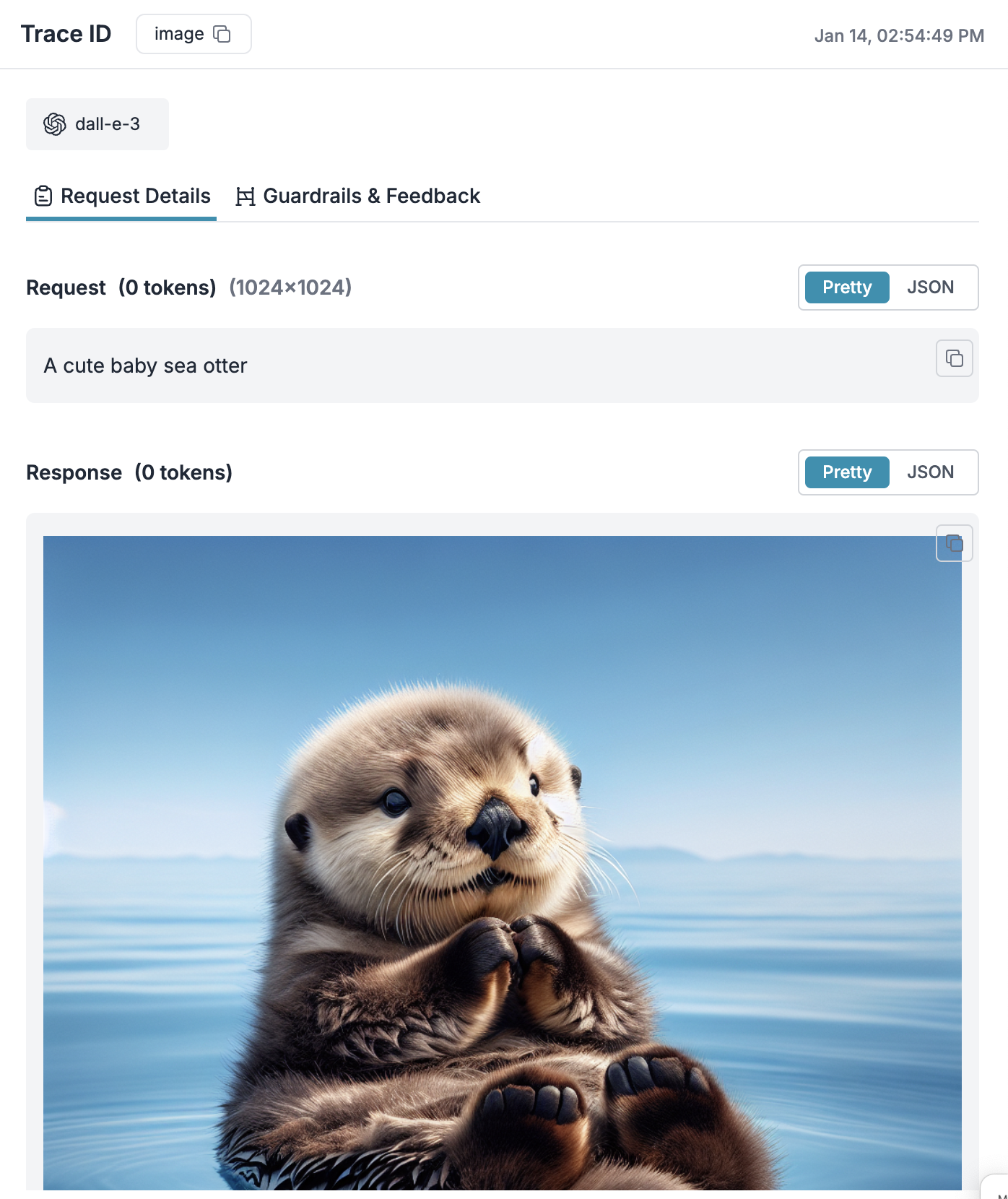
**Tracing Image Generation Requests**
Portkey logs the generated image along with your whole request:
**Uploading Base64 encoded images**
If you have an image or set of images locally, you can pass those to the model in base 64 encoded format. [Check out this example from OpenAI on how to do this](https://platform.openai.com/docs/guides/vision#uploading-base64-encoded-images).
[Vision Model Limitation](#limitations-for-vision-requests) | [Vision FAQs](#vision-faqs)
***
### OpenAI Embeddings
OpenAI's embedding models (like `text-embedding-3-small`) transform text inputs into lists of floating point numbers - smaller distances between vectors indicate higher text similarity. They power use cases like semantic search, content clustering, recommendations, and anomaly detection.
Simply send text to the embeddings API endpoint to generate these vectors for your applications.
```python Python theme={"system"}
response = portkey.embeddings.create(
input="Your text string goes here",
model="text-embedding-3-small"
)
print(response.data[0].embedding)
```
```javascript Node.js theme={"system"}
const response = await portkey.embeddings.create({
input: "Your text string goes here",
model: "text-embedding-3-small"
});
console.log(response.data[0].embedding);
```
```curl REST theme={"system"}
curl -X POST "https://api.portkey.ai/v1/embeddings" \
-H "Content-Type: application/json" \
-H "Authorization: Bearer YOUR_PORTKEY_API_KEY" \
-d '{
"input": "Your text string goes here",
"model": "text-embedding-3-small"
}'
```
[Embedding FAQs](#embedding-faqs)
***
### OpenAI Prompt Caching
Prompt caching automatically reuses results from similar API requests, reducing latency by up to 80% and costs by 50%. This feature works by default for all OpenAI API calls, requires no setup, and has no additional fees.
Portkey accurately logs the usage statistics and costs for your cached requests.
Read more about OpenAI Prompt Caching here.
[Prompt Caching Limitations](/docs/integrations/llms/openai/prompt-caching-openai#what-can-be-cached) | [Prompt Caching FAQs](#prompt-caching-faqs)
***
### OpenAI Image Generations (DALL-E)
OpenAI's Images API enables AI-powered image generation, manipulation, and variation creation for creative and commercial applications. Whether you're building image generation features, editing tools, or creative applications, the API provides powerful visual AI capabilities through DALL·E models.
The API offers three core capabilities:
* Generate new images from text prompts (DALL·E 3, DALL·E 2)
* Edit existing images with text-guided replacements (DALL·E 2)
* Create variations of existing images (DALL·E 2)
```ts Node.js theme={"system"}
import Portkey from 'portkey-ai';
const client = new Portkey({
apiKey: 'PORTKEY_API_KEY',
provider:'@PROVIDER'
});
async function main() {
const image = await client.images.generate({
model: "dall-e-3",
prompt: "Lucy in the sky with diamonds"
});
console.log(image.data);
}
main();
```
```py Python theme={"system"}
from portkey_ai import Portkey
client = Portkey(
api_key = "PORTKEY_API_KEY",
provider = "@openai-prod" # Your AI Provider slug from Model Catalog
)
client.images.generate(
model="dall-e-3",
prompt="Lucy in the sky with diamonds",
n=1,
size="1024x1024"
)
```
```sh cURL theme={"system"}
curl https://api.portkey.ai/v1/images/generations \
-H "Content-Type: application/json" \
-H "x-portkey-api-key: $PORTKEY_API_KEY" \
-H "x-portkey-provider: $PORTKEY_PROVIDER" \
-d '{
"model": "dall-e-3",
"prompt": "Lucy in the sky with diamonds",
"n": 1,
"size": "1024x1024"
}'
```
**Tracing Image Generation Requests**
Portkey logs the generated image along with your whole request:
 [Image Generations Limitations](#image-generations-limitations) | [Image Generations FAQs](#image-generations-faqs)
***
### OpenAI Transcription & Translation (Whisper)
OpenAI's Audio API converts speech to text using the Whisper model. It offers transcription in the original language and translation to English, supporting multiple file formats and languages with high accuracy.
```python Python theme={"system"}
audio_file= open("/path/to/file.mp3", "rb")
# Transcription
transcription = portkey.audio.transcriptions.create(
model="whisper-1",
file=audio_file
)
print(transcription.text)
# Translation
translation = portkey.audio.translations.create(
model="whisper-1",
file=audio_file
)
print(translation.text)
```
```javascript Node.js theme={"system"}
import fs from "fs";
// Transcription
async function transcribe() {
const transcription = await portkey.audio.transcriptions.create({
file: fs.createReadStream("/path/to/file.mp3"),
model: "whisper-1",
});
console.log(transcription.text);
}
transcribe();
// Translation
async function translate() {
const translation = await portkey.audio.translations.create({
file: fs.createReadStream("/path/to/file.mp3"),
model: "whisper-1",
});
console.log(translation.text);
}
translate();
```
```curl REST theme={"system"}
# Transcription
curl -X POST "https://api.portkey.ai/v1/audio/transcriptions" \
-H "Authorization: Bearer YOUR_PORTKEY_API_KEY" \
-H "Content-Type: multipart/form-data" \
-F "file=@/path/to/file.mp3" \
-F "model=whisper-1"
# Translation
curl -X POST "https://api.portkey.ai/v1/audio/translations" \
-H "Authorization: Bearer YOUR_PORTKEY_API_KEY" \
-H "Content-Type: multipart/form-data" \
-F "file=@/path/to/file.mp3" \
-F "model=whisper-1"
```
[Speech-to-Text Limitations](#speech-to-text-limitations) | [Speech-to-text FAQs](#speech-to-text-faqs)
***
### OpenAI Text to Speech
OpenAI's Text to Speech (TTS) API converts written text into natural-sounding audio using six distinct voices. It supports multiple languages, streaming capabilities, and various audio formats for different use cases.
```python Python theme={"system"}
from pathlib import Path
speech_file_path = Path(__file__).parent / "speech.mp3"
response = portkey.audio.speech.create(
model="tts-1",
voice="alloy",
input="Today is a wonderful day to build something people love!"
)
with open(speech_file_path, "wb") as f:
f.write(response.content)
```
````javascript Node.js theme={"system"}
import path from 'path';
import fs from 'fs';
const speechFile = path.resolve("./speech.mp3");
async function main() {
const mp3 = await portkey.audio.speech.createCertainly! I'll continue with the Text to Speech section and then move on to the additional features and sections:
```javascript Node.js
({
model: "tts-1",
voice: "alloy",
input: "Today is a wonderful day to build something people love!",
});
const buffer = Buffer.from(await mp3.arrayBuffer());
await fs.promises.writeFile(speechFile, buffer);
}
main();
````
```curl REST theme={"system"}
curl -X POST "https://api.portkey.ai/v1/audio/speech" \
-H "Authorization: Bearer YOUR_PORTKEY_API_KEY" \
-H "Content-Type: application/json" \
-d '{
"model": "tts-1",
"voice": "alloy",
"input": "Today is a wonderful day to build something people love!"
}' \
--output speech.mp3
```
[Text-to-Speech Limitations](#text-to-speech-limitations) | [Text-to-Speech FAQs](#text-to-speech-faqs)
***
### OpenAI Realtime API
OpenAI's Realtime API enables dynamic, low-latency conversations combining text, voice, and function calling capabilities. Built on GPT-4o models optimized for realtime interactions, it supports both WebRTC for client-side applications and WebSockets for server-side implementations.
Portkey enhances OpenAI's Realtime API with production-ready features:
* Complete request/response logging for realtime streams
* Cost tracking and budget management for streaming sessions
* Multi-modal conversation monitoring
* Session-based analytics and debugging
The API bridges the gap between traditional request-response patterns and interactive, real-time AI experiences, with Portkey adding the reliability and observability needed for production deployments. Developers can access this functionality through two model variants:
* `gpt-4o-realtime` for full capabilities
* `gpt-4o-mini-realtime` for lighter applications
***
### More Capabilities
***
## Portkey Features
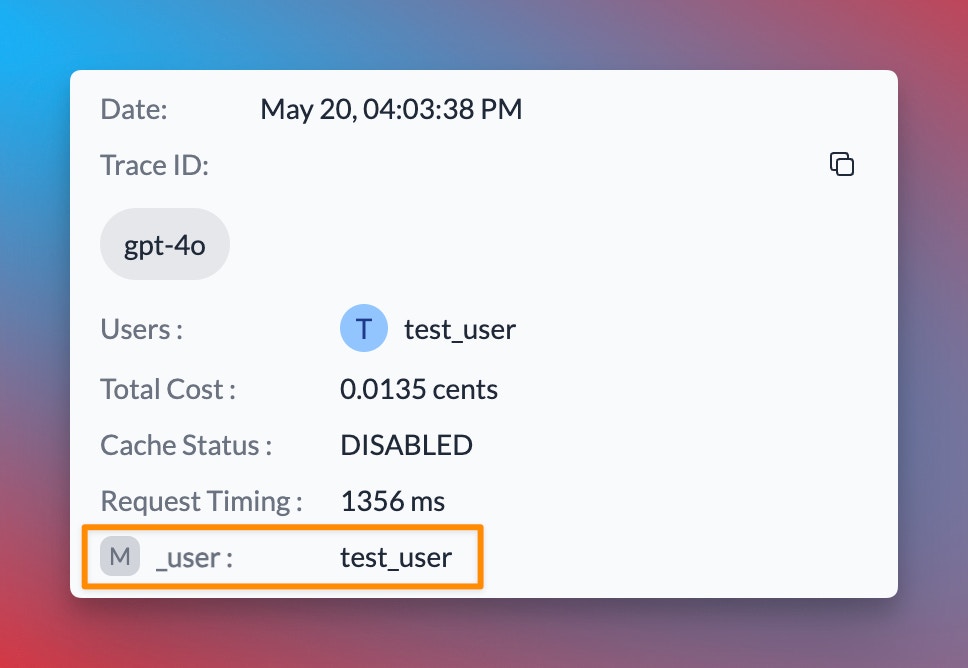
Portkey allows you to track user IDs passed with the user parameter in OpenAI requests, enabling you to monitor user-level costs, requests, and more:
```python Python theme={"system"}
response = portkey.chat.completions.create(
model="gpt-4o",
messages=[{"role": "user", "content": "Say this is a test"}],
user="user_123456"
)
```
```javascript Node.js theme={"system"}
const chatCompletion = await portkey.chat.completions.create({
messages: [{ role: "user", content: "Say this is a test" }],
model: "gpt-4o",
user: "user_12345",
});
```
```curl REST theme={"system"}
curl -X POST "https://api.portkey.ai/v1/chat/completions" \
-H "Content-Type: application/json" \
-H "Authorization: Bearer YOUR_PORTKEY_API_KEY" \
-d '{
"model": "gpt-4o",
"messages": [{"role": "user", "content": "Say this is a test"}],
"user": "user_123456"
}'
```
When you include the user parameter in your requests, Portkey logs will display the associated user ID, as shown in the image below:
[Image Generations Limitations](#image-generations-limitations) | [Image Generations FAQs](#image-generations-faqs)
***
### OpenAI Transcription & Translation (Whisper)
OpenAI's Audio API converts speech to text using the Whisper model. It offers transcription in the original language and translation to English, supporting multiple file formats and languages with high accuracy.
```python Python theme={"system"}
audio_file= open("/path/to/file.mp3", "rb")
# Transcription
transcription = portkey.audio.transcriptions.create(
model="whisper-1",
file=audio_file
)
print(transcription.text)
# Translation
translation = portkey.audio.translations.create(
model="whisper-1",
file=audio_file
)
print(translation.text)
```
```javascript Node.js theme={"system"}
import fs from "fs";
// Transcription
async function transcribe() {
const transcription = await portkey.audio.transcriptions.create({
file: fs.createReadStream("/path/to/file.mp3"),
model: "whisper-1",
});
console.log(transcription.text);
}
transcribe();
// Translation
async function translate() {
const translation = await portkey.audio.translations.create({
file: fs.createReadStream("/path/to/file.mp3"),
model: "whisper-1",
});
console.log(translation.text);
}
translate();
```
```curl REST theme={"system"}
# Transcription
curl -X POST "https://api.portkey.ai/v1/audio/transcriptions" \
-H "Authorization: Bearer YOUR_PORTKEY_API_KEY" \
-H "Content-Type: multipart/form-data" \
-F "file=@/path/to/file.mp3" \
-F "model=whisper-1"
# Translation
curl -X POST "https://api.portkey.ai/v1/audio/translations" \
-H "Authorization: Bearer YOUR_PORTKEY_API_KEY" \
-H "Content-Type: multipart/form-data" \
-F "file=@/path/to/file.mp3" \
-F "model=whisper-1"
```
[Speech-to-Text Limitations](#speech-to-text-limitations) | [Speech-to-text FAQs](#speech-to-text-faqs)
***
### OpenAI Text to Speech
OpenAI's Text to Speech (TTS) API converts written text into natural-sounding audio using six distinct voices. It supports multiple languages, streaming capabilities, and various audio formats for different use cases.
```python Python theme={"system"}
from pathlib import Path
speech_file_path = Path(__file__).parent / "speech.mp3"
response = portkey.audio.speech.create(
model="tts-1",
voice="alloy",
input="Today is a wonderful day to build something people love!"
)
with open(speech_file_path, "wb") as f:
f.write(response.content)
```
````javascript Node.js theme={"system"}
import path from 'path';
import fs from 'fs';
const speechFile = path.resolve("./speech.mp3");
async function main() {
const mp3 = await portkey.audio.speech.createCertainly! I'll continue with the Text to Speech section and then move on to the additional features and sections:
```javascript Node.js
({
model: "tts-1",
voice: "alloy",
input: "Today is a wonderful day to build something people love!",
});
const buffer = Buffer.from(await mp3.arrayBuffer());
await fs.promises.writeFile(speechFile, buffer);
}
main();
````
```curl REST theme={"system"}
curl -X POST "https://api.portkey.ai/v1/audio/speech" \
-H "Authorization: Bearer YOUR_PORTKEY_API_KEY" \
-H "Content-Type: application/json" \
-d '{
"model": "tts-1",
"voice": "alloy",
"input": "Today is a wonderful day to build something people love!"
}' \
--output speech.mp3
```
[Text-to-Speech Limitations](#text-to-speech-limitations) | [Text-to-Speech FAQs](#text-to-speech-faqs)
***
### OpenAI Realtime API
OpenAI's Realtime API enables dynamic, low-latency conversations combining text, voice, and function calling capabilities. Built on GPT-4o models optimized for realtime interactions, it supports both WebRTC for client-side applications and WebSockets for server-side implementations.
Portkey enhances OpenAI's Realtime API with production-ready features:
* Complete request/response logging for realtime streams
* Cost tracking and budget management for streaming sessions
* Multi-modal conversation monitoring
* Session-based analytics and debugging
The API bridges the gap between traditional request-response patterns and interactive, real-time AI experiences, with Portkey adding the reliability and observability needed for production deployments. Developers can access this functionality through two model variants:
* `gpt-4o-realtime` for full capabilities
* `gpt-4o-mini-realtime` for lighter applications
***
### More Capabilities
***
## Portkey Features
Portkey allows you to track user IDs passed with the user parameter in OpenAI requests, enabling you to monitor user-level costs, requests, and more:
```python Python theme={"system"}
response = portkey.chat.completions.create(
model="gpt-4o",
messages=[{"role": "user", "content": "Say this is a test"}],
user="user_123456"
)
```
```javascript Node.js theme={"system"}
const chatCompletion = await portkey.chat.completions.create({
messages: [{ role: "user", content: "Say this is a test" }],
model: "gpt-4o",
user: "user_12345",
});
```
```curl REST theme={"system"}
curl -X POST "https://api.portkey.ai/v1/chat/completions" \
-H "Content-Type: application/json" \
-H "Authorization: Bearer YOUR_PORTKEY_API_KEY" \
-d '{
"model": "gpt-4o",
"messages": [{"role": "user", "content": "Say this is a test"}],
"user": "user_123456"
}'
```
When you include the user parameter in your requests, Portkey logs will display the associated user ID, as shown in the image below:
 In addition to the `user` parameter, Portkey allows you to send arbitrary custom metadata with your requests. This powerful feature enables you to associate additional context or information with each request, which can be useful for analysis, debugging, or other custom use cases.
Explore how to use custom metadata to enhance your request tracking and analysis.
Here's a simplified version of how to use Portkey's Gateway Configuration:
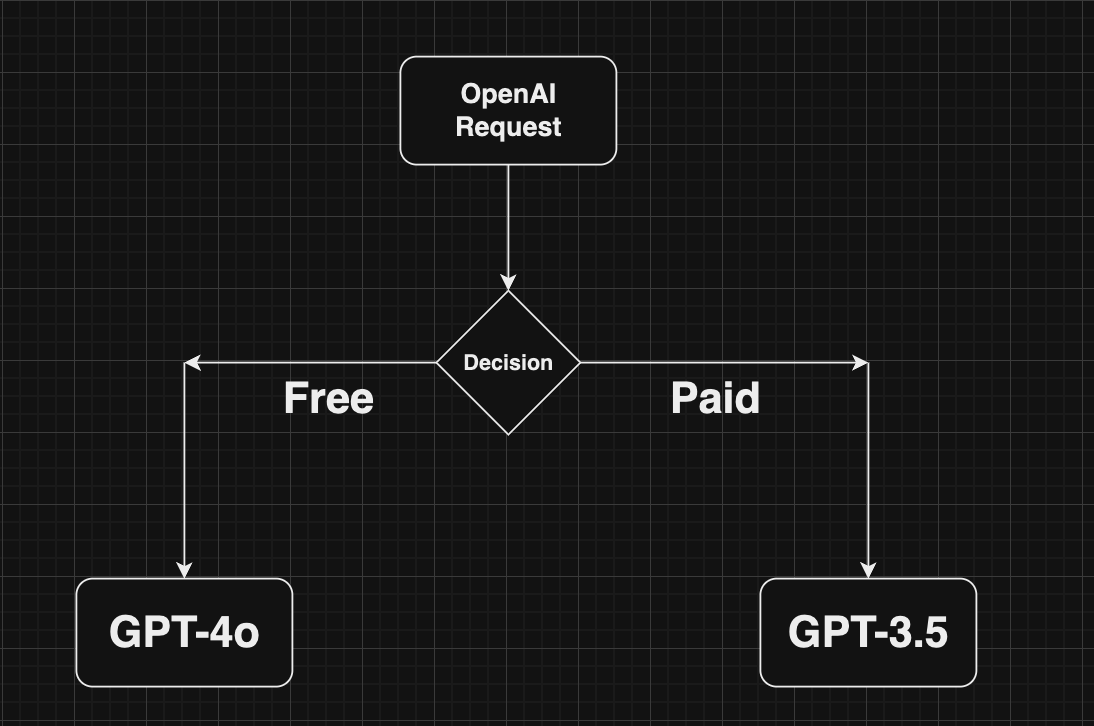
You can create a Gateway configuration using the Portkey Config Dashboard or by writing a JSON configuration in your code. In this example, requests are routed based on the user's subscription plan (paid or free).
```json theme={"system"}
config = {
"strategy": {
"mode": "conditional",
"conditions": [
{
"query": { "metadata.user_plan": { "$eq": "paid" } },
"then": "gpt4o"
},
{
"query": { "metadata.user_plan": { "$eq": "free" } },
"then": "gpt-3.5"
}
],
"default": "base-gpt4"
},
"targets": [
{
"name": "gpt4o",
"provider":"@xx"
},
{
"name": "gpt-3.5",
"provider":"@yy"
}
]
}
```
When a user makes a request, it will pass through Portkey's AI Gateway. Based on the configuration, the Gateway routes the request according to the user's metadata.
In addition to the `user` parameter, Portkey allows you to send arbitrary custom metadata with your requests. This powerful feature enables you to associate additional context or information with each request, which can be useful for analysis, debugging, or other custom use cases.
Explore how to use custom metadata to enhance your request tracking and analysis.
Here's a simplified version of how to use Portkey's Gateway Configuration:
You can create a Gateway configuration using the Portkey Config Dashboard or by writing a JSON configuration in your code. In this example, requests are routed based on the user's subscription plan (paid or free).
```json theme={"system"}
config = {
"strategy": {
"mode": "conditional",
"conditions": [
{
"query": { "metadata.user_plan": { "$eq": "paid" } },
"then": "gpt4o"
},
{
"query": { "metadata.user_plan": { "$eq": "free" } },
"then": "gpt-3.5"
}
],
"default": "base-gpt4"
},
"targets": [
{
"name": "gpt4o",
"provider":"@xx"
},
{
"name": "gpt-3.5",
"provider":"@yy"
}
]
}
```
When a user makes a request, it will pass through Portkey's AI Gateway. Based on the configuration, the Gateway routes the request according to the user's metadata.
 Pass the Gateway configuration to your Portkey client. You can either use the config object or the Config ID from Portkey's hosted version.
```python Python theme={"system"}
from portkey_ai import Portkey
portkey = Portkey(
api_key="PORTKEY_API_KEY",
provider="@PROVIDER",
config=portkey_config
)
```
```javascript Node.js theme={"system"}
import Portkey from 'portkey-ai'
const portkey = new Portkey({
apiKey: "PORTKEY_API_KEY",
provider:"@PROVIDER",
config: portkeyConfig
})
```
That's it! Portkey seamlessly allows you to make your AI app more robust using built-in gateway features. Learn more about advanced gateway features:
Distribute requests across multiple targets based on defined weights.
Automatically switch to backup targets if the primary target fails.
Route requests to different targets based on specified conditions.
Enable caching of responses to improve performance and reduce costs.
Portkey's AI gateway enables you to enforce input/output checks on requests by applying custom hooks before and after processing. Protect your user's/company's data by using PII guardrails and many more available on Portkey Guardrails:
```json theme={"system"}
{
"provider:"@openai-xxx",
"before_request_hooks": [{
"id": "input-guardrail-id-xx"
}],
"after_request_hooks": [{
"id": "output-guardrail-id-xx"
}]
}
```
Explore Portkey's guardrail features to enhance the security and reliability of your AI applications.
## Popular Libraries
You can make your OpenAI integrations with popular libraries also production-ready and reliable with native integrations.
### OpenAI with Langchain
```
```
### OpenAI with LangGraph
```
```
### OpenAI with LibreChat
### OpenAI with CrewAI
### OpenAI with Llamaindex
### OpenAI with Vercel
***
### More Libraries
***
## Cookbooks
***
## Appendix
### OpenAI Projects & Organizations
Organization management is particularly useful if you belong to multiple organizations or are accessing projects through a legacy OpenAI user API key. Specifying the organization and project IDs also helps you maintain better control over your access rules, usage, and costs.
In Portkey, you can add your OpenAI Org & Project details by **Using Model Catalog**, **Using Configs**, or **While Making a Request**.
When adding an OpenAI provider in [Model Catalog](https://app.portkey.ai/model-catalog), Portkey displays optional fields for the organization ID and project ID alongside the API key field.
Portkey goes further than OpenAI's project-level budget limits — you can set budget and rate limits per AI Provider in Model Catalog. [Learn more](/product/model-catalog/integrations#3-budget-%26-rate-limits)
You can also specify the organization and project details in your request config, either at the root level or within a specific target.
```json {3,4} theme={"system"}
{
"provider": "openai",
"api_key": "OPENAI_API_KEY",
"openai_organization": "org-xxxxxx",
"openai_project": "proj_xxxxxxxx"
}
```
Pass OpenAI organization and project details directly when making a request:
```python OpenAI Python theme={"system"}
from openai import OpenAI
from portkey_ai import PORTKEY_GATEWAY_URL, createHeaders
client = OpenAI(
api_key="OPENAI_API_KEY",
organization="org-xxxxxxxxxx",
project="proj_xxxxxxxxx",
base_url=PORTKEY_GATEWAY_URL,
default_headers=createHeaders(
provider="openai",
api_key="PORTKEY_API_KEY"
)
)
chat_complete = client.chat.completions.create(
model="gpt-4o",
messages=[{"role": "user", "content": "Say this is a test"}],
)
print(chat_complete.choices[0].message.content)
```
```js OpenAI NodeJS theme={"system"}
import OpenAI from "openai";
import { PORTKEY_GATEWAY_URL, createHeaders } from "portkey-ai";
const openai = new OpenAI({
apiKey: "OPENAI_API_KEY",
organization: "org-xxxxxx",
project: "proj_xxxxxxx",
baseURL: PORTKEY_GATEWAY_URL,
defaultHeaders: createHeaders({
provider: "openai",
apiKey: "PORTKEY_API_KEY",
}),
});
async function main() {
const chatCompletion = await openai.chat.completions.create({
messages: [{ role: "user", content: "Say this is a test" }],
model: "gpt-4o",
});
console.log(chatCompletion.choices);
}
main();
```
```sh cURL theme={"system"}
curl https://api.portkey.ai/v1/chat/completions \
-H "Content-Type: application/json" \
-H "Authorization: Bearer $OPENAI_API_KEY" \
-H "x-portkey-openai-organization: org-xxxxxxx" \
-H "x-portkey-openai-project: proj_xxxxxxx" \
-H "x-portkey-api-key: $PORTKEY_API_KEY" \
-H "x-portkey-provider: openai" \
-d '{
"model": "gpt-4o",
"messages": [{"role": "user","content": "Hello!"}]
}'
```
```python Portkey Python theme={"system"}
from portkey_ai import Portkey
portkey = Portkey(
api_key="PORTKEY_API_KEY",
provider="openai",
Authorization="Bearer OPENAI_API_KEY",
openai_organization="org-xxxxxxxxx",
openai_project="proj_xxxxxxxxx",
)
chat_complete = portkey.chat.completions.create(
model="gpt-4o",
messages=[{"role": "user", "content": "Say this is a test"}],
)
print(chat_complete.choices[0].message.content)
```
```js Portkey NodeJS theme={"system"}
import Portkey from "portkey-ai";
const portkey = new Portkey({
apiKey: "PORTKEY_API_KEY",
provider: "openai",
Authorization: "Bearer OPENAI_API_KEY",
openaiOrganization: "org-xxxxxxxxxxx",
openaiProject: "proj_xxxxxxxxxxxxx",
});
async function main() {
const chatCompletion = await portkey.chat.completions.create({
messages: [{ role: "user", content: "Say this is a test" }],
model: "gpt-4o",
});
console.log(chatCompletion.choices);
}
main();
```
### Supported Parameters
| Method / Endpoint | Supported Parameters |
| ---------------------- | ------------------------------------------------------------------------------------------------------------------------------------------------------------------------------------------------------------------------------------------------------------------------------------------------------------- |
| `completions` | model, prompt, max\_tokens, temperature, top\_p, n, stream, logprobs, echo, stop, presence\_penalty, frequency\_penalty, best\_of, logit\_bias, user, seed, suffix |
| `embeddings` | model, input, encoding\_format, dimensions, user |
| `chat.completions` | model, messages, functions, function\_call, max\_tokens, temperature, top\_p, n, stream, stop, presence\_penalty, frequency\_penalty, logit\_bias, user, seed, tools, tool\_choice, response\_format, logprobs, top\_logprobs, stream\_options, service\_tier, parallel\_tool\_calls, max\_completion\_tokens |
| `responses` | model, input, tools, max\_output\_tokens, temperature, top\_p, stream, metadata, seed, conversation, modalities |
| `image.generations` | prompt, model, n, quality, response\_format, size, style, user |
| `create.speech` | model, input, voice, response\_format, speed |
| `create.transcription` | All parameters supported |
| `create.translation` | All parameters supported |
### Supported Models
### Limitations
Portkey does not support the following OpenAI features:
* Streaming for audio endpoints
#### Limitations for Vision Requests
* Medical images: Vision models are not suitable for interpreting specialized medical images like CT scans and shouldn't be used for medical advice.
* Non-English: The models may not perform optimally when handling images with text of non-Latin alphabets, such as Japanese or Korean.
* Small text: Enlarge text within the image to improve readability, but avoid cropping important details.
* Rotation: The models may misinterpret rotated / upside-down text or images.
* Visual elements: The models may struggle to understand graphs or text where colors or styles like solid, dashed, or dotted lines vary.
* Spatial reasoning: The models struggle with tasks requiring precise spatial localization, such as identifying chess positions.
* Accuracy: The models may generate incorrect descriptions or captions in certain scenarios.
* Image shape: The models struggle with panoramic and fisheye images.
* Metadata and resizing: The models do not process original file names or metadata, and images are resized before analysis, affecting their original dimensions.
* Counting: May give approximate counts for objects in images.
* CAPTCHAS: For safety reasons, CAPTCHA submissions are blocked by OpenAI.
#### Image Generations Limitations
* **DALL·E 3 Restrictions:**
* Only supports image generation (no editing or variations)
* Limited to one image per request
* Fixed size options: 1024x1024, 1024x1792, or 1792x1024 pixels
* Automatic prompt enhancement cannot be disabled
* **Image Requirements:**
* Must be PNG format
* Maximum file size: 4MB
* Must be square dimensions
* For edits/variations: input images must meet same requirements
* **Content Restrictions:**
* All prompts and images are filtered based on OpenAI's content policy
* Violating content will return an error
* Edited areas must be described in full context, not just the edited portion
* **Technical Limitations:**
* Image URLs expire after 1 hour
* Image editing (inpainting) and variations only available in DALL·E 2
* Response format limited to URL or Base64 data
#### Speech-to-text Limitations
* **File Restrictions:**
* Maximum file size: 25 MB
* Supported formats: mp3, mp4, mpeg, mpga, m4a, wav, webm
* No streaming support
* **Language Limitations:**
* Translation output available only in English
* Variable accuracy for non-listed languages
* Limited control over generated audio compared to other language models
* **Technical Constraints:**
* Prompt limited to first 244 tokens
* Restricted processing for longer audio files
* No real-time transcription support
#### Text-to-Speech Limitations
* **Voice Restrictions:**
* Limited to 6 pre-built voices (alloy, echo, fable, onyx, nova, shimmer)
* Voices optimized primarily for English
* No custom voice creation support
* No direct control over emotional range or tone
* **Audio Quality Trade-offs:**
* tts-1: Lower latency but potentially more static
* tts-1-hd: Higher quality but increased latency
* Quality differences may vary by listening device
* **Usage Requirements:**
* Must disclose AI-generated nature to end users
* Cannot create custom voice clones
* Performance varies for non-English languages
### FAQs
#### General
You can sign up to OpenAI [here](https://platform.openai.com/docs/overview) and grab your scoped API key [here](https://platform.openai.com/api-keys).
The OpenAI API can be used by signing up to the OpenAI platform. You can find the pricing info [here](https://openai.com/api/pricing/)
You can find your current rate limits imposed by OpenAI [here](https://platform.openai.com/settings/organization/limits). For more tips, check out [this guide](/docs/guides/getting-started/tackling-rate-limiting#tackling-rate-limiting).
#### Vision FAQs
Vision fine-tuning is available for [some OpenAI models](https://platform.openai.com/docs/guides/fine-tuning#vision).
No, you can use dall-e-3 to generate images and gpt-4o and other chat models to understand images.
OpenAI currently supports PNG (.png), JPEG (.jpeg and .jpg), WEBP (.webp), and non-animated GIF (.gif).
OpenAI currently restricts image uploads to 20MB per image.
OpenAI processes images at the token level, so each image that's processed counts towards your tokens per minute (TPM) limit. See how OpenAI [calculates costs here](https://platform.openai.com/docs/guides/vision#calculating-costs) for details on the formula used to determine token count per image.
No, the models do not receive image metadata.
#### Embedding FAQs
[This cookbook by OpenAI](https://cookbook.openai.com/examples/how_to_count_tokens_with_tiktoken) illustrates how to leverage their Tiktoken library to count tokens for various embedding requests.
Using a specialized vector database helps here. [Check out this cookbook by OpenAI](https://cookbook.openai.com/examples/vector_databases/readme) for a deep dive.
The cutoff date for V3 embedding models (`text-embedding-3-large` & `text-embedding-3-small`) is **September 2021** - so they do not know about the most recent events.
#### Prompt Caching FAQs
OpenAI Prompt caches are not shared between organizations. Only members of the same organization can access caches of identical prompts.
Prompt Caching does not influence the generation of output tokens or the final response provided by the API. Regardless of whether caching is used, the output generated will be identical. This is because only the prompt itself is cached, while the actual response is computed anew each time based on the cached prompt.
Manual cache clearing is not currently available. Prompts that have not been encountered recently are automatically cleared from the cache. Typical cache evictions occur after 5-10 minutes of inactivity, though sometimes lasting up to a maximum of one hour during off-peak periods.
No. Caching happens automatically, with no explicit action needed or extra cost paid to use the caching feature.
Yes, as caching does not affect rate limits.
Discounting for Prompt Caching is not available on the Batch API but is available on Scale Tier. With Scale Tier, any tokens that are spilled over to the shared API will also be eligible for caching.
Yes, Prompt Caching is compliant with existing Zero Data Retention policies.
#### Image Generations FAQs
DALL·E 3 offers higher quality images and enhanced capabilities, but only supports image generation. DALL·E 2 supports all three capabilities: generation, editing, and variations.
Generated image URLs expire after one hour. Download or process the images before expiration.
Images must be square PNG files under 4MB. For editing features, both the image and mask must have identical dimensions.
While you can't completely disable it, you can add "I NEED to test how the tool works with extremely simple prompts. DO NOT add any detail, just use it AS-IS:" to your prompt.
DALL·E 3 supports 1 image per request (use parallel requests for more), while DALL·E 2 supports up to 10 images per request.
The API requires PNG format for all image uploads and manipulations. Generated images can be returned as either a URL or Base64 data.
Available only in DALL·E 2, inpainting requires both an original image and a mask. The transparent areas of the mask indicate where the image should be edited, and your prompt should describe the complete new image, not just the edited area.
#### Speech-to-text FAQs
The API supports mp3, mp4, mpeg, mpga, m4a, wav, and webm formats, with a maximum file size of 25 MB.
No, currently the translation API only supports output in English, regardless of the input language.
You'll need to either compress the audio file or split it into smaller chunks. Tools like PyDub can help split audio files while avoiding mid-sentence breaks.
While the model was trained on 98 languages, only languages with less than 50% word error rate are officially supported. Other languages may work but with lower accuracy.
Yes, using the `timestamp_granularities` parameter, you can get timestamps at the segment level, word level, or both.
You can use the prompt parameter to provide context or correct spellings of specific terms, or use post-processing with GPT-4 for more extensive corrections.
Transcription provides output in the original language, while translation always converts the audio to English text.
#### Text-to-Speech FAQs
TTS-1 offers lower latency for real-time applications but may include more static. TTS-1-HD provides higher quality audio but with increased generation time.
The API supports multiple formats: MP3 (default), Opus (for streaming), AAC (for mobile), FLAC (lossless), WAV (uncompressed), and PCM (raw 24kHz samples).
No, the API only supports the six built-in voices (alloy, echo, fable, onyx, nova, and shimmer). Custom voice creation is not available.
While the voices are optimized for English, the API supports multiple languages with varying effectiveness. Performance quality may vary by language.
There's no direct mechanism to control emotional output. While capitalization and grammar might influence the output, results are inconsistent.
Yes, the API supports real-time audio streaming using chunk transfer encoding, allowing audio playback before complete file generation.
Yes, OpenAI's usage policies require clear disclosure to end users that they are hearing AI-generated voices, not human ones.
Pass the Gateway configuration to your Portkey client. You can either use the config object or the Config ID from Portkey's hosted version.
```python Python theme={"system"}
from portkey_ai import Portkey
portkey = Portkey(
api_key="PORTKEY_API_KEY",
provider="@PROVIDER",
config=portkey_config
)
```
```javascript Node.js theme={"system"}
import Portkey from 'portkey-ai'
const portkey = new Portkey({
apiKey: "PORTKEY_API_KEY",
provider:"@PROVIDER",
config: portkeyConfig
})
```
That's it! Portkey seamlessly allows you to make your AI app more robust using built-in gateway features. Learn more about advanced gateway features:
Distribute requests across multiple targets based on defined weights.
Automatically switch to backup targets if the primary target fails.
Route requests to different targets based on specified conditions.
Enable caching of responses to improve performance and reduce costs.
Portkey's AI gateway enables you to enforce input/output checks on requests by applying custom hooks before and after processing. Protect your user's/company's data by using PII guardrails and many more available on Portkey Guardrails:
```json theme={"system"}
{
"provider:"@openai-xxx",
"before_request_hooks": [{
"id": "input-guardrail-id-xx"
}],
"after_request_hooks": [{
"id": "output-guardrail-id-xx"
}]
}
```
Explore Portkey's guardrail features to enhance the security and reliability of your AI applications.
## Popular Libraries
You can make your OpenAI integrations with popular libraries also production-ready and reliable with native integrations.
### OpenAI with Langchain
```
```
### OpenAI with LangGraph
```
```
### OpenAI with LibreChat
### OpenAI with CrewAI
### OpenAI with Llamaindex
### OpenAI with Vercel
***
### More Libraries
***
## Cookbooks
***
## Appendix
### OpenAI Projects & Organizations
Organization management is particularly useful if you belong to multiple organizations or are accessing projects through a legacy OpenAI user API key. Specifying the organization and project IDs also helps you maintain better control over your access rules, usage, and costs.
In Portkey, you can add your OpenAI Org & Project details by **Using Model Catalog**, **Using Configs**, or **While Making a Request**.
When adding an OpenAI provider in [Model Catalog](https://app.portkey.ai/model-catalog), Portkey displays optional fields for the organization ID and project ID alongside the API key field.
Portkey goes further than OpenAI's project-level budget limits — you can set budget and rate limits per AI Provider in Model Catalog. [Learn more](/product/model-catalog/integrations#3-budget-%26-rate-limits)
You can also specify the organization and project details in your request config, either at the root level or within a specific target.
```json {3,4} theme={"system"}
{
"provider": "openai",
"api_key": "OPENAI_API_KEY",
"openai_organization": "org-xxxxxx",
"openai_project": "proj_xxxxxxxx"
}
```
Pass OpenAI organization and project details directly when making a request:
```python OpenAI Python theme={"system"}
from openai import OpenAI
from portkey_ai import PORTKEY_GATEWAY_URL, createHeaders
client = OpenAI(
api_key="OPENAI_API_KEY",
organization="org-xxxxxxxxxx",
project="proj_xxxxxxxxx",
base_url=PORTKEY_GATEWAY_URL,
default_headers=createHeaders(
provider="openai",
api_key="PORTKEY_API_KEY"
)
)
chat_complete = client.chat.completions.create(
model="gpt-4o",
messages=[{"role": "user", "content": "Say this is a test"}],
)
print(chat_complete.choices[0].message.content)
```
```js OpenAI NodeJS theme={"system"}
import OpenAI from "openai";
import { PORTKEY_GATEWAY_URL, createHeaders } from "portkey-ai";
const openai = new OpenAI({
apiKey: "OPENAI_API_KEY",
organization: "org-xxxxxx",
project: "proj_xxxxxxx",
baseURL: PORTKEY_GATEWAY_URL,
defaultHeaders: createHeaders({
provider: "openai",
apiKey: "PORTKEY_API_KEY",
}),
});
async function main() {
const chatCompletion = await openai.chat.completions.create({
messages: [{ role: "user", content: "Say this is a test" }],
model: "gpt-4o",
});
console.log(chatCompletion.choices);
}
main();
```
```sh cURL theme={"system"}
curl https://api.portkey.ai/v1/chat/completions \
-H "Content-Type: application/json" \
-H "Authorization: Bearer $OPENAI_API_KEY" \
-H "x-portkey-openai-organization: org-xxxxxxx" \
-H "x-portkey-openai-project: proj_xxxxxxx" \
-H "x-portkey-api-key: $PORTKEY_API_KEY" \
-H "x-portkey-provider: openai" \
-d '{
"model": "gpt-4o",
"messages": [{"role": "user","content": "Hello!"}]
}'
```
```python Portkey Python theme={"system"}
from portkey_ai import Portkey
portkey = Portkey(
api_key="PORTKEY_API_KEY",
provider="openai",
Authorization="Bearer OPENAI_API_KEY",
openai_organization="org-xxxxxxxxx",
openai_project="proj_xxxxxxxxx",
)
chat_complete = portkey.chat.completions.create(
model="gpt-4o",
messages=[{"role": "user", "content": "Say this is a test"}],
)
print(chat_complete.choices[0].message.content)
```
```js Portkey NodeJS theme={"system"}
import Portkey from "portkey-ai";
const portkey = new Portkey({
apiKey: "PORTKEY_API_KEY",
provider: "openai",
Authorization: "Bearer OPENAI_API_KEY",
openaiOrganization: "org-xxxxxxxxxxx",
openaiProject: "proj_xxxxxxxxxxxxx",
});
async function main() {
const chatCompletion = await portkey.chat.completions.create({
messages: [{ role: "user", content: "Say this is a test" }],
model: "gpt-4o",
});
console.log(chatCompletion.choices);
}
main();
```
### Supported Parameters
| Method / Endpoint | Supported Parameters |
| ---------------------- | ------------------------------------------------------------------------------------------------------------------------------------------------------------------------------------------------------------------------------------------------------------------------------------------------------------- |
| `completions` | model, prompt, max\_tokens, temperature, top\_p, n, stream, logprobs, echo, stop, presence\_penalty, frequency\_penalty, best\_of, logit\_bias, user, seed, suffix |
| `embeddings` | model, input, encoding\_format, dimensions, user |
| `chat.completions` | model, messages, functions, function\_call, max\_tokens, temperature, top\_p, n, stream, stop, presence\_penalty, frequency\_penalty, logit\_bias, user, seed, tools, tool\_choice, response\_format, logprobs, top\_logprobs, stream\_options, service\_tier, parallel\_tool\_calls, max\_completion\_tokens |
| `responses` | model, input, tools, max\_output\_tokens, temperature, top\_p, stream, metadata, seed, conversation, modalities |
| `image.generations` | prompt, model, n, quality, response\_format, size, style, user |
| `create.speech` | model, input, voice, response\_format, speed |
| `create.transcription` | All parameters supported |
| `create.translation` | All parameters supported |
### Supported Models
### Limitations
Portkey does not support the following OpenAI features:
* Streaming for audio endpoints
#### Limitations for Vision Requests
* Medical images: Vision models are not suitable for interpreting specialized medical images like CT scans and shouldn't be used for medical advice.
* Non-English: The models may not perform optimally when handling images with text of non-Latin alphabets, such as Japanese or Korean.
* Small text: Enlarge text within the image to improve readability, but avoid cropping important details.
* Rotation: The models may misinterpret rotated / upside-down text or images.
* Visual elements: The models may struggle to understand graphs or text where colors or styles like solid, dashed, or dotted lines vary.
* Spatial reasoning: The models struggle with tasks requiring precise spatial localization, such as identifying chess positions.
* Accuracy: The models may generate incorrect descriptions or captions in certain scenarios.
* Image shape: The models struggle with panoramic and fisheye images.
* Metadata and resizing: The models do not process original file names or metadata, and images are resized before analysis, affecting their original dimensions.
* Counting: May give approximate counts for objects in images.
* CAPTCHAS: For safety reasons, CAPTCHA submissions are blocked by OpenAI.
#### Image Generations Limitations
* **DALL·E 3 Restrictions:**
* Only supports image generation (no editing or variations)
* Limited to one image per request
* Fixed size options: 1024x1024, 1024x1792, or 1792x1024 pixels
* Automatic prompt enhancement cannot be disabled
* **Image Requirements:**
* Must be PNG format
* Maximum file size: 4MB
* Must be square dimensions
* For edits/variations: input images must meet same requirements
* **Content Restrictions:**
* All prompts and images are filtered based on OpenAI's content policy
* Violating content will return an error
* Edited areas must be described in full context, not just the edited portion
* **Technical Limitations:**
* Image URLs expire after 1 hour
* Image editing (inpainting) and variations only available in DALL·E 2
* Response format limited to URL or Base64 data
#### Speech-to-text Limitations
* **File Restrictions:**
* Maximum file size: 25 MB
* Supported formats: mp3, mp4, mpeg, mpga, m4a, wav, webm
* No streaming support
* **Language Limitations:**
* Translation output available only in English
* Variable accuracy for non-listed languages
* Limited control over generated audio compared to other language models
* **Technical Constraints:**
* Prompt limited to first 244 tokens
* Restricted processing for longer audio files
* No real-time transcription support
#### Text-to-Speech Limitations
* **Voice Restrictions:**
* Limited to 6 pre-built voices (alloy, echo, fable, onyx, nova, shimmer)
* Voices optimized primarily for English
* No custom voice creation support
* No direct control over emotional range or tone
* **Audio Quality Trade-offs:**
* tts-1: Lower latency but potentially more static
* tts-1-hd: Higher quality but increased latency
* Quality differences may vary by listening device
* **Usage Requirements:**
* Must disclose AI-generated nature to end users
* Cannot create custom voice clones
* Performance varies for non-English languages
### FAQs
#### General
You can sign up to OpenAI [here](https://platform.openai.com/docs/overview) and grab your scoped API key [here](https://platform.openai.com/api-keys).
The OpenAI API can be used by signing up to the OpenAI platform. You can find the pricing info [here](https://openai.com/api/pricing/)
You can find your current rate limits imposed by OpenAI [here](https://platform.openai.com/settings/organization/limits). For more tips, check out [this guide](/docs/guides/getting-started/tackling-rate-limiting#tackling-rate-limiting).
#### Vision FAQs
Vision fine-tuning is available for [some OpenAI models](https://platform.openai.com/docs/guides/fine-tuning#vision).
No, you can use dall-e-3 to generate images and gpt-4o and other chat models to understand images.
OpenAI currently supports PNG (.png), JPEG (.jpeg and .jpg), WEBP (.webp), and non-animated GIF (.gif).
OpenAI currently restricts image uploads to 20MB per image.
OpenAI processes images at the token level, so each image that's processed counts towards your tokens per minute (TPM) limit. See how OpenAI [calculates costs here](https://platform.openai.com/docs/guides/vision#calculating-costs) for details on the formula used to determine token count per image.
No, the models do not receive image metadata.
#### Embedding FAQs
[This cookbook by OpenAI](https://cookbook.openai.com/examples/how_to_count_tokens_with_tiktoken) illustrates how to leverage their Tiktoken library to count tokens for various embedding requests.
Using a specialized vector database helps here. [Check out this cookbook by OpenAI](https://cookbook.openai.com/examples/vector_databases/readme) for a deep dive.
The cutoff date for V3 embedding models (`text-embedding-3-large` & `text-embedding-3-small`) is **September 2021** - so they do not know about the most recent events.
#### Prompt Caching FAQs
OpenAI Prompt caches are not shared between organizations. Only members of the same organization can access caches of identical prompts.
Prompt Caching does not influence the generation of output tokens or the final response provided by the API. Regardless of whether caching is used, the output generated will be identical. This is because only the prompt itself is cached, while the actual response is computed anew each time based on the cached prompt.
Manual cache clearing is not currently available. Prompts that have not been encountered recently are automatically cleared from the cache. Typical cache evictions occur after 5-10 minutes of inactivity, though sometimes lasting up to a maximum of one hour during off-peak periods.
No. Caching happens automatically, with no explicit action needed or extra cost paid to use the caching feature.
Yes, as caching does not affect rate limits.
Discounting for Prompt Caching is not available on the Batch API but is available on Scale Tier. With Scale Tier, any tokens that are spilled over to the shared API will also be eligible for caching.
Yes, Prompt Caching is compliant with existing Zero Data Retention policies.
#### Image Generations FAQs
DALL·E 3 offers higher quality images and enhanced capabilities, but only supports image generation. DALL·E 2 supports all three capabilities: generation, editing, and variations.
Generated image URLs expire after one hour. Download or process the images before expiration.
Images must be square PNG files under 4MB. For editing features, both the image and mask must have identical dimensions.
While you can't completely disable it, you can add "I NEED to test how the tool works with extremely simple prompts. DO NOT add any detail, just use it AS-IS:" to your prompt.
DALL·E 3 supports 1 image per request (use parallel requests for more), while DALL·E 2 supports up to 10 images per request.
The API requires PNG format for all image uploads and manipulations. Generated images can be returned as either a URL or Base64 data.
Available only in DALL·E 2, inpainting requires both an original image and a mask. The transparent areas of the mask indicate where the image should be edited, and your prompt should describe the complete new image, not just the edited area.
#### Speech-to-text FAQs
The API supports mp3, mp4, mpeg, mpga, m4a, wav, and webm formats, with a maximum file size of 25 MB.
No, currently the translation API only supports output in English, regardless of the input language.
You'll need to either compress the audio file or split it into smaller chunks. Tools like PyDub can help split audio files while avoiding mid-sentence breaks.
While the model was trained on 98 languages, only languages with less than 50% word error rate are officially supported. Other languages may work but with lower accuracy.
Yes, using the `timestamp_granularities` parameter, you can get timestamps at the segment level, word level, or both.
You can use the prompt parameter to provide context or correct spellings of specific terms, or use post-processing with GPT-4 for more extensive corrections.
Transcription provides output in the original language, while translation always converts the audio to English text.
#### Text-to-Speech FAQs
TTS-1 offers lower latency for real-time applications but may include more static. TTS-1-HD provides higher quality audio but with increased generation time.
The API supports multiple formats: MP3 (default), Opus (for streaming), AAC (for mobile), FLAC (lossless), WAV (uncompressed), and PCM (raw 24kHz samples).
No, the API only supports the six built-in voices (alloy, echo, fable, onyx, nova, and shimmer). Custom voice creation is not available.
While the voices are optimized for English, the API supports multiple languages with varying effectiveness. Performance quality may vary by language.
There's no direct mechanism to control emotional output. While capitalization and grammar might influence the output, results are inconsistent.
Yes, the API supports real-time audio streaming using chunk transfer encoding, allowing audio playback before complete file generation.
Yes, OpenAI's usage policies require clear disclosure to end users that they are hearing AI-generated voices, not human ones.