> ## Documentation Index
> Fetch the complete documentation index at: https://docs.portkey.ai/docs/llms.txt
> Use this file to discover all available pages before exploring further.
# Configure Request Logging
> Control what data is stored for all LLM requests in your organization
This is a Portkey [**Enterprise**](https://portkey.ai/docs/product/enterprise-offering) plan feature.
## Overview
Portkey allows organization owners to control what data is logged for all LLM requests across their organization. This feature provides flexibility between complete observability and privacy compliance, enabling organizations to choose the appropriate logging level based on their security and compliance requirements.
## How It Works
Organization owners can configure two aspects of request logging:
1. **Logging Mode**: Choose between Full Logging or Metrics Only mode
2. **Workspace Override**: Allow or restrict workspace managers from changing the organization-level logging settings
These settings apply to all requests made within the organization, ensuring consistent data handling practices across all teams and projects.
## Configuration
### Setting Up Request Logging
1. Navigate to `Admin Settings` in the Portkey dashboard
2. Go to the `Organization Properties` section
3. Find the `Request Logging` settings
4. Configure your logging preferences
5. Save your changes
 ### Logging Modes
#### Full Logging
When enabled, Portkey stores:
* Complete request payloads
* Full response content
* All associated metrics and metadata
This mode provides comprehensive observability for debugging, monitoring, and optimization purposes.
#### Metrics Only (Privacy Mode)
When enabled, Portkey only tracks:
* Usage statistics (tokens, latency, costs)
* Request metadata
* Error information (without sensitive content)
This mode ensures privacy compliance by not storing any request or response content, while still maintaining essential operational metrics.
### Workspace-Level Control
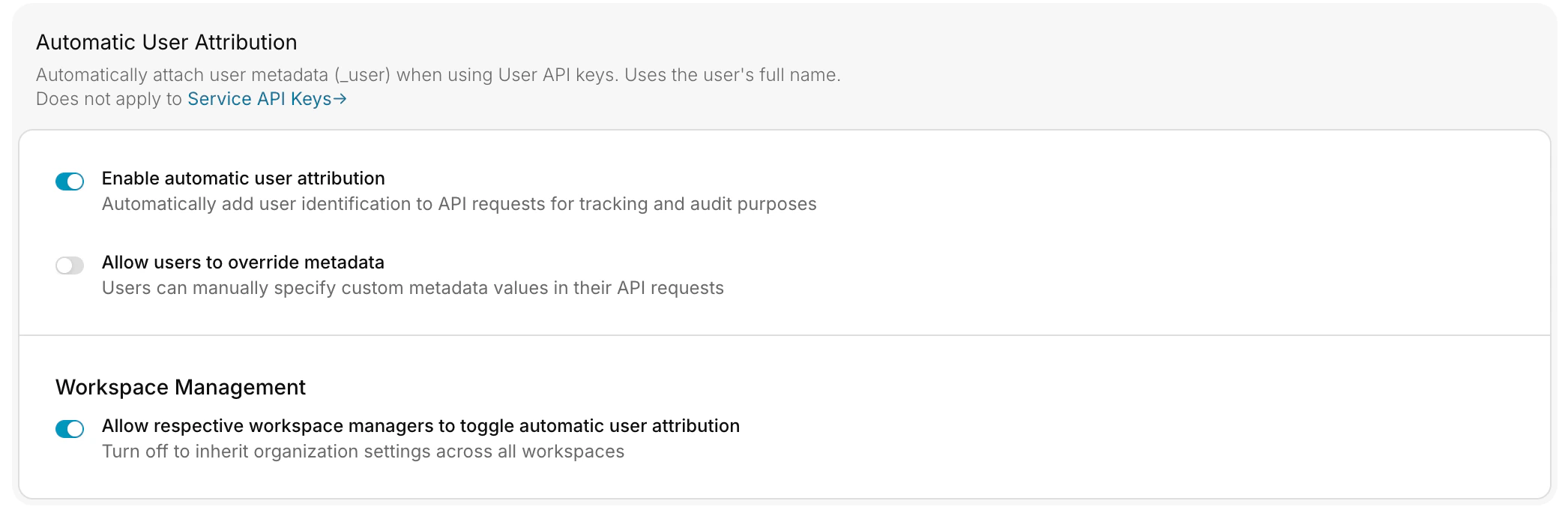
The **"Allow respective workspace managers to toggle Request Logging"** option determines whether workspace managers can override the organization-level settings:
* **When enabled**: Workspace managers can change logging settings for their specific workspace
* **When disabled**: All workspaces inherit and must use the organization-level logging settings
When workspace-level control is disabled, any existing workspace-specific logging settings will be overridden by the organization settings.
## Workspace Configuration
If workspace-level control is enabled, workspace managers can configure logging for their workspace:
1. Navigate to the workspace settings
2. Click on your workspace and select the **Edit (🖊️) option**
3. In the **Edit Workspace** menu, head over to Workspace Properties
4. Configure the **Request Logging** setting
5. Save your changes
Changing from Full Logging to Metrics Only will not retroactively remove previously logged data. [Contact support](mailto:support@portkey.ai) if you need to purge historical logs.
## Precedence Order
When different logging settings exist at multiple levels:
1. **Workspace settings** (highest priority) - if workspace-level control is enabled
2. **Organization settings** (applies when workspace control is disabled)
## Support
For questions about configuring request logging or assistance with compliance requirements, contact [Portkey support](mailto:support@portkey.ai) or reach out on [Discord](https://portkey.sh/reddit-discord).
### Logging Modes
#### Full Logging
When enabled, Portkey stores:
* Complete request payloads
* Full response content
* All associated metrics and metadata
This mode provides comprehensive observability for debugging, monitoring, and optimization purposes.
#### Metrics Only (Privacy Mode)
When enabled, Portkey only tracks:
* Usage statistics (tokens, latency, costs)
* Request metadata
* Error information (without sensitive content)
This mode ensures privacy compliance by not storing any request or response content, while still maintaining essential operational metrics.
### Workspace-Level Control
The **"Allow respective workspace managers to toggle Request Logging"** option determines whether workspace managers can override the organization-level settings:
* **When enabled**: Workspace managers can change logging settings for their specific workspace
* **When disabled**: All workspaces inherit and must use the organization-level logging settings
When workspace-level control is disabled, any existing workspace-specific logging settings will be overridden by the organization settings.
## Workspace Configuration
If workspace-level control is enabled, workspace managers can configure logging for their workspace:
1. Navigate to the workspace settings
2. Click on your workspace and select the **Edit (🖊️) option**
3. In the **Edit Workspace** menu, head over to Workspace Properties
4. Configure the **Request Logging** setting
5. Save your changes
Changing from Full Logging to Metrics Only will not retroactively remove previously logged data. [Contact support](mailto:support@portkey.ai) if you need to purge historical logs.
## Precedence Order
When different logging settings exist at multiple levels:
1. **Workspace settings** (highest priority) - if workspace-level control is enabled
2. **Organization settings** (applies when workspace control is disabled)
## Support
For questions about configuring request logging or assistance with compliance requirements, contact [Portkey support](mailto:support@portkey.ai) or reach out on [Discord](https://portkey.sh/reddit-discord).