> ## Documentation Index
> Fetch the complete documentation index at: https://docs.portkey.ai/docs/llms.txt
> Use this file to discover all available pages before exploring further.
# Enforce Workspace Budget and Rate Limits
> Configure budget and rate limits at the workspace level to effectively manage AI spending and resource allocation
Available on **Enterprise** plan and select **Pro** customers.
## Overview
Workspace Budget Limits provide granular financial and usage control at the workspace level, allowing organization admins/owners and workspace admins to allocate resources effectively across teams and projects. This feature complements API key-level budget controls, creating a comprehensive governance framework for AI spending across your organization.
By implementing budget and rate limits at the workspace level, you can:
* Allocate specific budgets to different departments, teams, or projects
* Prevent individual workspaces from consuming disproportionate resources
* Establish rate limits to ensure equitable API access across workspaces
* Maintain greater visibility and control over organization-wide AI expenditure
## Accessing Workspace Budget Controls
To configure budget limits for a workspace:
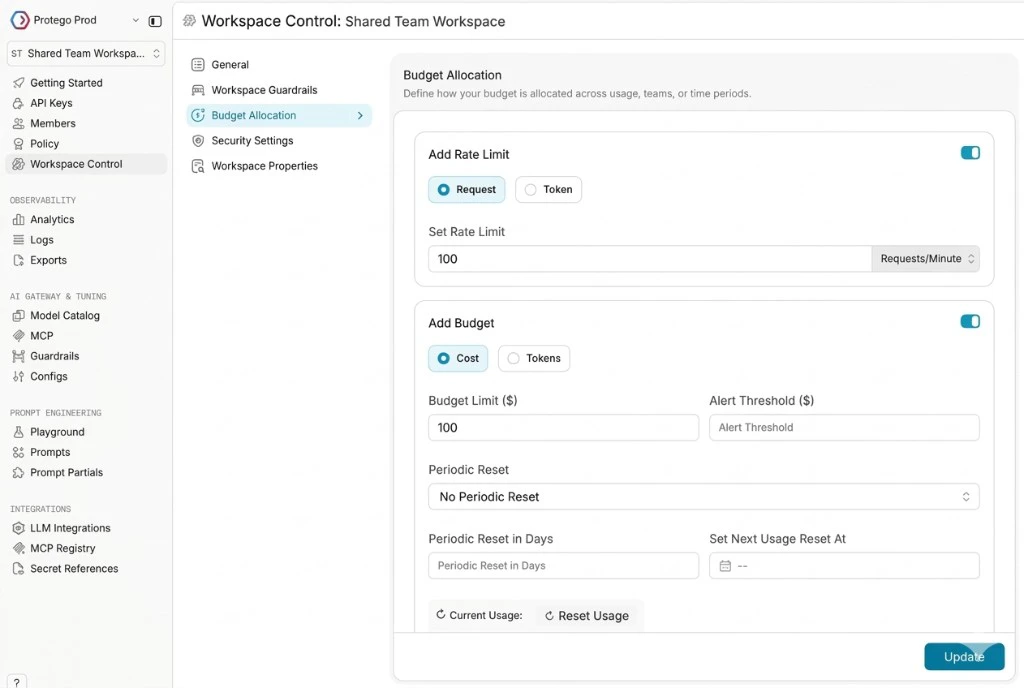
1. In the app sidebar, click **Workspace Control** for the workspace you want to manage
2. Select the **Budget Allocation** tab
3. Add your workspace rate limits and budgets, then click **Update**
### Who can manage workspace budgets
The following roles can configure workspace budgets and rate limits:
* Organization owners and organization admins
* Workspace admins
* Workspace managers (if the org admin has enabled "Workspace Management Permissions" in Admin Settings)
 ## Setting Rate Limits
Rate limits control how frequently requests can be made from a workspace, helping you maintain application performance and prevent unexpected usage spikes.
To set up rate limits for a workspace:
1. Toggle on **Add Rate Limit**
2. Choose your limit type:
* **Requests**: Limit based on number of API calls
* **Tokens**: Limit based on token consumption
3. Specify the limit value in the **Set Rate Limit** field
4. Select a time interval from the dropdown (Requests/Minute, Requests/Hour, Requests/Day)
When a workspace reaches its rate limit, all subsequent requests from that workspace will be rejected until the time interval resets, regardless of which API key is used.
## Setting Budget Limits
Budget limits allow you to set maximum spending or token usage thresholds for an entire workspace, automatically preventing further usage when limits are reached.
To set up budget limits for a workspace:
1. Toggle on **Add Budget**
2. Choose your limit type:
* **Cost**: Set a maximum spend in USD
* **Tokens**: Set a maximum token usage
3. Enter the budget amount in the **Budget Limit (\$)** field
4. Optionally, set an **Alert Threshold (\$)** to receive notifications before reaching the full budget
5. Select a **Periodic Reset** option to determine when the budget refreshes
### Alert Thresholds
Alert thresholds trigger notifications when a percentage of the workspace budget has been consumed:
1. Enter a value in the **Alert Threshold (\$)** field
2. When usage reaches this threshold, notifications will be sent to configured recipients
3. The workspace continues to function until the full budget limit is reached
### Periodic Reset Options
Workspace budgets can be set to automatically reset at regular intervals:
* **No Periodic Reset**: The budget limit applies until exhausted
* **Reset Weekly**: Budget limits reset every Sunday at 12 AM UTC
* **Reset Monthly**: Budget limits reset on the 1st of each month at 12 AM UTC
* **Custom Reset Days**: Set a custom reset interval between 1 and 365 days using `periodic_reset_days` via the API. You can also specify a `next_usage_reset_at` date (ISO 8601) to control when the first reset occurs
`periodic_reset` and `periodic_reset_days` are mutually exclusive. You cannot set both on the same usage limit.
> The configuration options for workspace budgets and rate limits are the same as other budget and rate limit controls in the Portkey app (for API keys and providers). If you're familiar with those, this will feel identical—just applied at the workspace level.
## Notification System
When workspace limits are approached or reached, Portkey automatically sends notifications to:
* Organization administrators and owners
## Use Cases
Workspace budget limits are particularly useful for:
* **Departmental Allocations**: Assign specific AI budgets to different departments (Marketing, Customer Support, R\&D)
* **Project Management**: Allocate resources based on project priority and requirements
* **Cost Center Tracking**: Monitor and control spending across different cost centers
* **Phased Rollouts**: Gradually increase limits as teams demonstrate value and mature their AI use cases
### Set Workspace Budget and Rate Limits using Portkey Admin API
Use the Admin API to programmatically manage workspace budgets and rate limits.
* The endpoint updates a workspace and accepts both `usage_limits` (budgets) and `rate_limits`.
* Budget limits mirror the app controls: cost- or token-based, optional `alert_threshold`, and optional `periodic_reset` of `weekly` or `monthly`.
* Rate limits support request- or token-based throttling with units `rpm` (per minute), `rph` (per hour), or `rpd` (per day).
```python Python SDK theme={"system"}
from portkey_ai import Portkey
portkey = Portkey(api_key="PORTKEY_API_KEY")
workspace = portkey.admin.workspaces.update(
workspace_id="WORKSPACE_ID",
# Workspace budgets (usage_limits): supports multiple entries
usage_limits=[
{
"type": "cost", # or "tokens"
"credit_limit": 500, # integer >= 1; dollars if type == "cost"
"alert_threshold": 400, # optional; integer >= 1
"periodic_reset": "monthly" # optional; "weekly" | "monthly"
# OR use custom reset days:
# "periodic_reset_days": 14, # 1-365; mutually exclusive with periodic_reset
# "next_usage_reset_at": "2026-03-01T00:00:00Z" # optional; ISO 8601 date for first reset
},
],
# Workspace rate limits: supports multiple entries
rate_limits=[
{
"type": "requests", # or "tokens"
"unit": "rpm", # "rpm" | "rph" | "rpd"
"value": 120 # integer
},
],
)
print(workspace)
```
Learn more here:
Portkey Workspace API documentation
## Availability
Workspace Budget Limits are available to Portkey Enterprise customers and select Pro users. To enable these features for your account, please contact [support@portkey.ai](mailto:support@portkey.ai) or join the [Portkey Discord](https://portkey.ai/community) community.
## Setting Rate Limits
Rate limits control how frequently requests can be made from a workspace, helping you maintain application performance and prevent unexpected usage spikes.
To set up rate limits for a workspace:
1. Toggle on **Add Rate Limit**
2. Choose your limit type:
* **Requests**: Limit based on number of API calls
* **Tokens**: Limit based on token consumption
3. Specify the limit value in the **Set Rate Limit** field
4. Select a time interval from the dropdown (Requests/Minute, Requests/Hour, Requests/Day)
When a workspace reaches its rate limit, all subsequent requests from that workspace will be rejected until the time interval resets, regardless of which API key is used.
## Setting Budget Limits
Budget limits allow you to set maximum spending or token usage thresholds for an entire workspace, automatically preventing further usage when limits are reached.
To set up budget limits for a workspace:
1. Toggle on **Add Budget**
2. Choose your limit type:
* **Cost**: Set a maximum spend in USD
* **Tokens**: Set a maximum token usage
3. Enter the budget amount in the **Budget Limit (\$)** field
4. Optionally, set an **Alert Threshold (\$)** to receive notifications before reaching the full budget
5. Select a **Periodic Reset** option to determine when the budget refreshes
### Alert Thresholds
Alert thresholds trigger notifications when a percentage of the workspace budget has been consumed:
1. Enter a value in the **Alert Threshold (\$)** field
2. When usage reaches this threshold, notifications will be sent to configured recipients
3. The workspace continues to function until the full budget limit is reached
### Periodic Reset Options
Workspace budgets can be set to automatically reset at regular intervals:
* **No Periodic Reset**: The budget limit applies until exhausted
* **Reset Weekly**: Budget limits reset every Sunday at 12 AM UTC
* **Reset Monthly**: Budget limits reset on the 1st of each month at 12 AM UTC
* **Custom Reset Days**: Set a custom reset interval between 1 and 365 days using `periodic_reset_days` via the API. You can also specify a `next_usage_reset_at` date (ISO 8601) to control when the first reset occurs
`periodic_reset` and `periodic_reset_days` are mutually exclusive. You cannot set both on the same usage limit.
> The configuration options for workspace budgets and rate limits are the same as other budget and rate limit controls in the Portkey app (for API keys and providers). If you're familiar with those, this will feel identical—just applied at the workspace level.
## Notification System
When workspace limits are approached or reached, Portkey automatically sends notifications to:
* Organization administrators and owners
## Use Cases
Workspace budget limits are particularly useful for:
* **Departmental Allocations**: Assign specific AI budgets to different departments (Marketing, Customer Support, R\&D)
* **Project Management**: Allocate resources based on project priority and requirements
* **Cost Center Tracking**: Monitor and control spending across different cost centers
* **Phased Rollouts**: Gradually increase limits as teams demonstrate value and mature their AI use cases
### Set Workspace Budget and Rate Limits using Portkey Admin API
Use the Admin API to programmatically manage workspace budgets and rate limits.
* The endpoint updates a workspace and accepts both `usage_limits` (budgets) and `rate_limits`.
* Budget limits mirror the app controls: cost- or token-based, optional `alert_threshold`, and optional `periodic_reset` of `weekly` or `monthly`.
* Rate limits support request- or token-based throttling with units `rpm` (per minute), `rph` (per hour), or `rpd` (per day).
```python Python SDK theme={"system"}
from portkey_ai import Portkey
portkey = Portkey(api_key="PORTKEY_API_KEY")
workspace = portkey.admin.workspaces.update(
workspace_id="WORKSPACE_ID",
# Workspace budgets (usage_limits): supports multiple entries
usage_limits=[
{
"type": "cost", # or "tokens"
"credit_limit": 500, # integer >= 1; dollars if type == "cost"
"alert_threshold": 400, # optional; integer >= 1
"periodic_reset": "monthly" # optional; "weekly" | "monthly"
# OR use custom reset days:
# "periodic_reset_days": 14, # 1-365; mutually exclusive with periodic_reset
# "next_usage_reset_at": "2026-03-01T00:00:00Z" # optional; ISO 8601 date for first reset
},
],
# Workspace rate limits: supports multiple entries
rate_limits=[
{
"type": "requests", # or "tokens"
"unit": "rpm", # "rpm" | "rph" | "rpd"
"value": 120 # integer
},
],
)
print(workspace)
```
Learn more here:
Portkey Workspace API documentation
## Availability
Workspace Budget Limits are available to Portkey Enterprise customers and select Pro users. To enable these features for your account, please contact [support@portkey.ai](mailto:support@portkey.ai) or join the [Portkey Discord](https://portkey.ai/community) community.