> ## Documentation Index
> Fetch the complete documentation index at: https://docs.portkey.ai/docs/llms.txt
> Use this file to discover all available pages before exploring further.
# Image Generation
> Portkey's AI gateway supports image generation capabilities that many foundational model providers offer.
The most common use case is that of **text-to-image** where the user sends a prompt which the image model processes and returns an image.
The guide for vision models is [available here](/product/ai-gateway/multimodal-capabilities/vision).
## Text-to-Image Usage
Portkey supports the OpenAI signature to make text-to-image requests.
```js theme={"system"}
import Portkey from 'portkey-ai';
// Initialize the Portkey client
const portkey = new Portkey({
apiKey: "PORTKEY_API_KEY", // Replace with your Portkey API key
provider:"@PROVIDER"
});
async function main() {
const image = await portkey.images.generate({
model: "dall-e-3",
prompt: "Lucy in the sky with diamonds"
});
console.log(image.data);
}
main();
```
```py theme={"system"}
from portkey_ai import Portkey
from IPython.display import display, Image
# Initialize the Portkey client
portkey = Portkey(
api_key="PORTKEY_API_KEY", # Replace with your Portkey API key
provider="@PROVIDER"
)
image = portkey.images.generate(
model="dall-e-3",
prompt="Lucy in the sky with diamonds"
)
# Display the image
display(Image(url=image.data[0].url))
```
```js theme={"system"}
import OpenAI from 'openai'; // We're using the v4 SDK
import { PORTKEY_GATEWAY_URL, createHeaders } from 'portkey-ai'
const openai = new OpenAI({
apiKey: 'OPENAI_API_KEY', // defaults to process.env["OPENAI_API_KEY"],
baseURL: PORTKEY_GATEWAY_URL,
defaultHeaders: createHeaders({
provider: "openai",
apiKey: "PORTKEY_API_KEY" // defaults to process.env["PORTKEY_API_KEY"]
})
});
async function main() {
const image = await openai.images.generate({
model: "dall-e-3",
prompt: "Lucy in the sky with diamonds"
});
console.log(image.data);
}
main();
```
```py theme={"system"}
from openai import OpenAI
from portkey_ai import PORTKEY_GATEWAY_URL, createHeaders
from IPython.display import display, Image
client = OpenAI(
api_key='OPENAI_API_KEY',
base_url=PORTKEY_GATEWAY_URL,
default_headers=createHeaders(
provider="openai",
api_key="PORTKEY_API_KEY"
)
)
image = client.images.generate(
model="dall-e-3",
prompt="Lucy in the sky with diamonds",
n=1,
size="1024x1024"
)
# Display the image
display(Image(url=image.data[0].url))
```
```sh theme={"system"}
curl "https://api.portkey.ai/v1/images/generations" \
-H "Content-Type: application/json" \
-H "x-portkey-api-key: $PORTKEY_API_KEY" \
-H "x-portkey-provider: $OPENAI_PROVIDER" \
-d '{
"model": "dall-e-3",
"prompt": "Lucy in the sky with diamonds"
}'
```
## Image Editing
Portkey supports the OpenAI signature to make image edit requests using multipart form data.
```python theme={"system"}
from portkey_ai import Portkey
portkey = Portkey(api_key="PORTKEY_API_KEY", provider="openai")
with open("image.png", "rb") as image_file:
image = portkey.images.edit(
model="gpt-image-2",
prompt="Add snow",
image=[("image.png", image_file.read(), "image/png")],
size="1024x1024",
)
```
Image edit models currently do not support provider-prefixed model slugs in the request body. Pass the provider in headers and keep `model` as the raw provider model name.
### API Reference
* [Create Image](/provider-endpoints/images/create-image)
* [Create Image Edit](/provider-endpoints/images/create-image-edit)
### OpenAI gpt-image-1 Parameters
For OpenAI's `gpt-image-1` model, additional parameters are supported:
| Parameter | Type | Description |
| -------------------- | ------- | ---------------------------------------------- |
| `moderation` | string | Content moderation level for generated images |
| `output_format` | string | Output format for the generated image |
| `output_compression` | number | Compression level (0-100) for the output image |
| `background` | string | Background style for the generated image |
| `partial_images` | number | Number of partial images to return (0-3) |
| `stream` | boolean | Whether to stream partial image results |
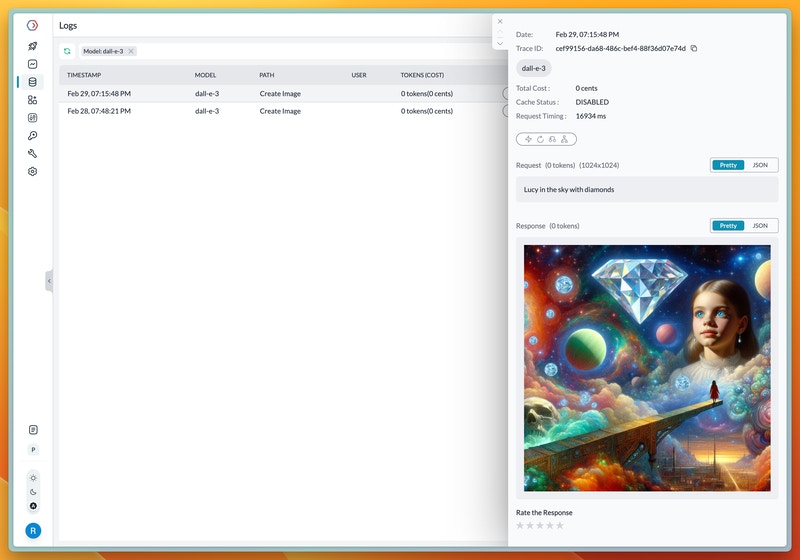
On completion, the request will get logged in the logs UI where the image can be viewed.
(*Note that providers may remove the hosted image after a period of time, so some logs might only contain the url*)
 ## Cookbook
[**Here's a detailed cookbook on image generation using Portkey**](https://github.com/Portkey-AI/portkey-cookbook/blob/main/examples/image-generation.ipynb) which demonstrates the use of multiple providers and routing between them through Configs.
## Cookbook
[**Here's a detailed cookbook on image generation using Portkey**](https://github.com/Portkey-AI/portkey-cookbook/blob/main/examples/image-generation.ipynb) which demonstrates the use of multiple providers and routing between them through Configs.