> ## Documentation Index
> Fetch the complete documentation index at: https://docs.portkey.ai/docs/llms.txt
> Use this file to discover all available pages before exploring further.
# Prompt Library
This feature is available on all Portkey [plans](https://portkey.ai/pricing).
Portkey's Prompt Library serves as your central repository for managing, organizing, and collaborating on prompts across your organization. This feature enables teams to maintain consistent prompt strategies while making prompt templates easily accessible to all team members.
The Prompt Library offers a structured way to store and manage your prompt templates. It provides:
* A central location for all your prompt templates
* Folder organization for logical grouping
* Collaboration capabilities for team environments
This centralized approach helps maintain consistency in your AI interactions while making it easy to reuse proven prompt patterns across different applications.
## Accessing the Prompt Library
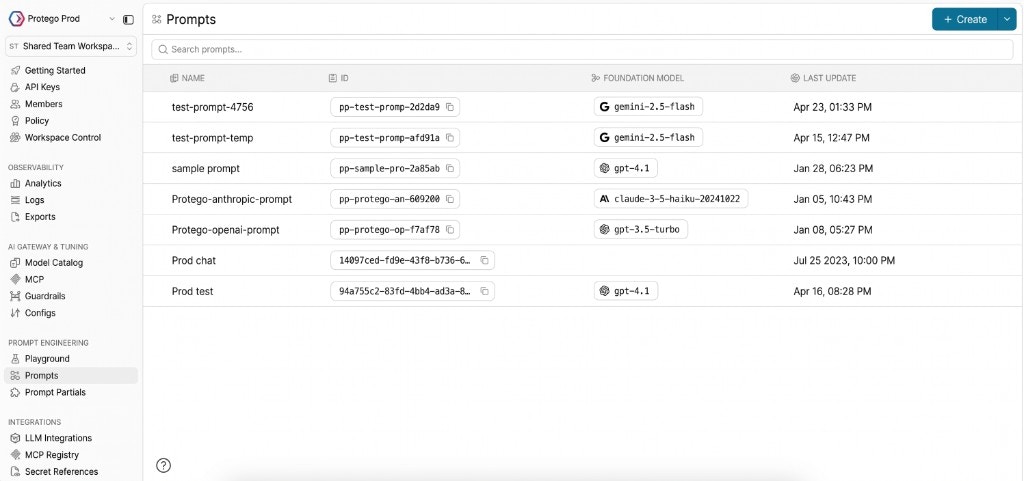
You can access the Prompt Library from the left navigation menu by clicking on "Prompts" under the Prompt Engineering section. This opens the main library view where you can see all your prompt templates and folders.
 ## Library Organization
Prompts can be organized into folders for better categorization. For example, you might create separate folders for:
* Customer service prompts
* Content generation prompts
* Data analysis prompts
* Agent-specific prompts
## Creating New Prompts
To add a new prompt to your library:
1. Click the "Create" button in the top-right corner
2. Select "Prompt" from the dropdown menu
3. Build your prompt in the [Prompt Playground](/product/prompt-engineering-studio/prompt-playground)
4. Save the prompt to add it to your library
New prompts are automatically assigned a unique ID that you can use to reference them in your applications via the [Prompt API](/product/prompt-engineering-studio/prompt-api).
### Organizing with Folders
To create a new folder:
1. Click "Create" in the top-right corner
2. Select "Folder" from the dropdown
3. Name your folder based on its purpose or content type
To move prompts into folders:
1. Select the prompts you want to organize
2. Use the move option to place them in the appropriate folder
## Collaboration Features
The Prompt Library is designed for team collaboration:
* All team members with appropriate permissions can access shared prompts
* Changes are tracked by user and timestamp through [Prompt Versioning](/product/prompt-engineering-studio/prompt-versioning)
* Multiple team members can work on different prompts simultaneously
This collaborative approach ensures that your team maintains consistent prompt strategies while allowing everyone to contribute their expertise.
### Sharing across workspaces
Share prompts with other workspaces in your organization with read-only access. Recipients can use the prompt via the Prompt API or fork it into their own workspace to customize. See [Sharing prompts and partials](/product/prompt-engineering-studio/prompt-sharing) for the full flow.
For more details on implementing prompts in your code, see the [Prompt API](/product/prompt-engineering-studio/prompt-api) documentation.
## Next Steps
Now that you understand the basics of the Prompt Library, explore these related features:
* [Prompt Playground](/product/prompt-engineering-studio/prompt-playground) - Create and test new prompts
* [Prompt Partials](/product/prompt-engineering-studio/prompt-partial) - Create reusable prompt components
* [Sharing prompts and partials](/product/prompt-engineering-studio/prompt-sharing) - Share prompts across workspaces
* [Prompt Versioning](/product/prompt-engineering-studio/prompt-versioning) - Track changes to your prompts
* [Prompt API](/product/prompt-engineering-studio/prompt-api) - Integrate prompts into your applications
* [Prompt Observability](/product/prompt-engineering-studio/prompt-observability) - Monitor prompt performance
## Library Organization
Prompts can be organized into folders for better categorization. For example, you might create separate folders for:
* Customer service prompts
* Content generation prompts
* Data analysis prompts
* Agent-specific prompts
## Creating New Prompts
To add a new prompt to your library:
1. Click the "Create" button in the top-right corner
2. Select "Prompt" from the dropdown menu
3. Build your prompt in the [Prompt Playground](/product/prompt-engineering-studio/prompt-playground)
4. Save the prompt to add it to your library
New prompts are automatically assigned a unique ID that you can use to reference them in your applications via the [Prompt API](/product/prompt-engineering-studio/prompt-api).
### Organizing with Folders
To create a new folder:
1. Click "Create" in the top-right corner
2. Select "Folder" from the dropdown
3. Name your folder based on its purpose or content type
To move prompts into folders:
1. Select the prompts you want to organize
2. Use the move option to place them in the appropriate folder
## Collaboration Features
The Prompt Library is designed for team collaboration:
* All team members with appropriate permissions can access shared prompts
* Changes are tracked by user and timestamp through [Prompt Versioning](/product/prompt-engineering-studio/prompt-versioning)
* Multiple team members can work on different prompts simultaneously
This collaborative approach ensures that your team maintains consistent prompt strategies while allowing everyone to contribute their expertise.
### Sharing across workspaces
Share prompts with other workspaces in your organization with read-only access. Recipients can use the prompt via the Prompt API or fork it into their own workspace to customize. See [Sharing prompts and partials](/product/prompt-engineering-studio/prompt-sharing) for the full flow.
For more details on implementing prompts in your code, see the [Prompt API](/product/prompt-engineering-studio/prompt-api) documentation.
## Next Steps
Now that you understand the basics of the Prompt Library, explore these related features:
* [Prompt Playground](/product/prompt-engineering-studio/prompt-playground) - Create and test new prompts
* [Prompt Partials](/product/prompt-engineering-studio/prompt-partial) - Create reusable prompt components
* [Sharing prompts and partials](/product/prompt-engineering-studio/prompt-sharing) - Share prompts across workspaces
* [Prompt Versioning](/product/prompt-engineering-studio/prompt-versioning) - Track changes to your prompts
* [Prompt API](/product/prompt-engineering-studio/prompt-api) - Integrate prompts into your applications
* [Prompt Observability](/product/prompt-engineering-studio/prompt-observability) - Monitor prompt performance