> ## Documentation Index
> Fetch the complete documentation index at: https://docs.portkey.ai/docs/llms.txt
> Use this file to discover all available pages before exploring further.
# Prompt Versioning & Labels
This feature is available on all Portkey [plans](https://portkey.ai/pricing).
Effective prompt management includes tracking changes, controlling access, and deploying the right version at the right time. Portkey's prompt versioning system helps you maintain a history of your prompt iterations while ensuring production stability.
## Understanding Prompt Versioning
Every time you make changes to a prompt template, Portkey tracks these modifications. The versioning system allows you to:
* Try and test different prompt variations
* Keep a complete history of all prompt changes
* Compare different versions
* Revert to previous versions when needed
* Deploy specific versions to different environments
**Updating vs. Publishing a Prompt Template**
When working with prompts in Portkey, it's important to understand the difference between updating and publishing:
* **Update**: When you edit a prompt, changes are saved as a new version but not pushed to production
* **Publish**: Making a specific version the "production" version that's used by default
## Managing Prompt Versions
### Creating New Versions
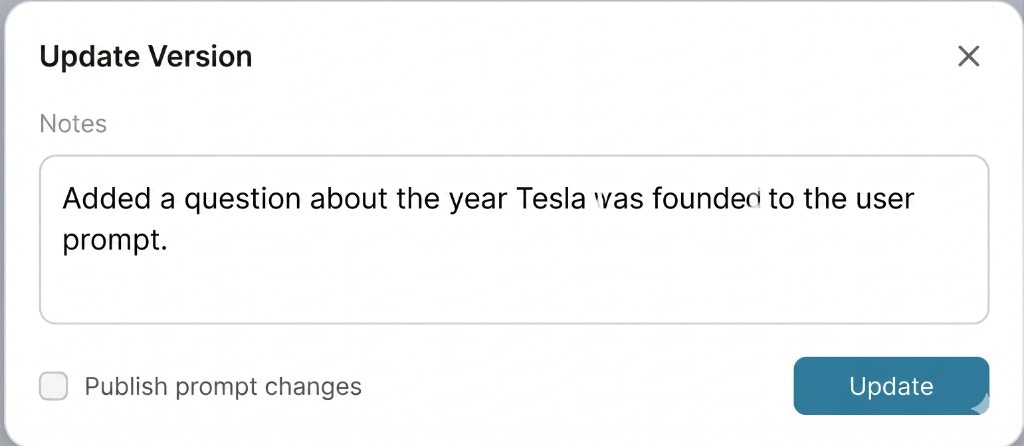
Whenever any changes are made to your prompt template, Portkey saves your changes in the browser **but** they are **not pushed** to production. You can click on the `Update` button on the top right to save the latest version of the prompt on Portkey.
 ### Publishing Prompts
Publishing a prompt version marks it as the default version that will be used when no specific version is requested. This is especially important for production environments.
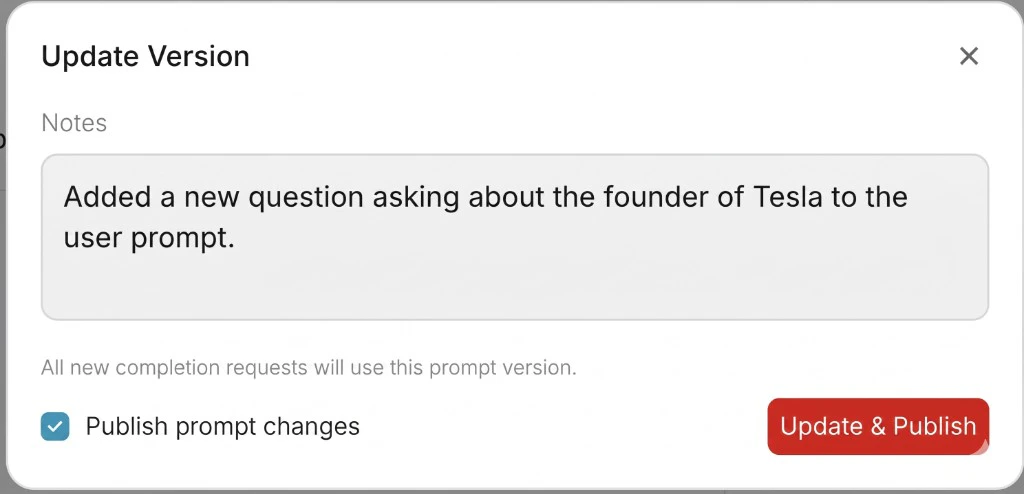
Updating the Prompt does not automatically update your prompt in production. While updating, you can tick `Publish prompt changes` which will also update your prompt deployment to the latest version.
1. Create and test your new prompt version
2. When ready for production, click "Update" and check "Publish prompt changes"
3. Portkey will save the new version and mark it as the published version
4. All default API calls will now use this version
### Publishing Prompts
Publishing a prompt version marks it as the default version that will be used when no specific version is requested. This is especially important for production environments.
Updating the Prompt does not automatically update your prompt in production. While updating, you can tick `Publish prompt changes` which will also update your prompt deployment to the latest version.
1. Create and test your new prompt version
2. When ready for production, click "Update" and check "Publish prompt changes"
3. Portkey will save the new version and mark it as the published version
4. All default API calls will now use this version
 ### Viewing Version History
**All** of your prompt versions can be seen by clicking the `Version History` button on the playground:
### Viewing Version History
**All** of your prompt versions can be seen by clicking the `Version History` button on the playground:
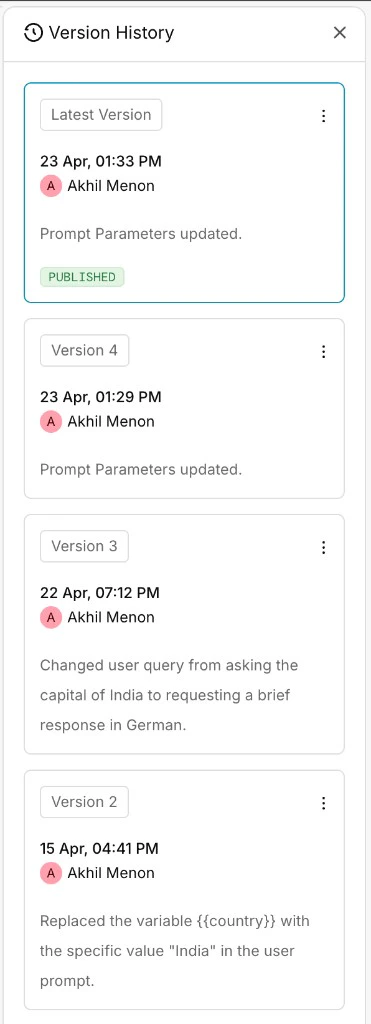 You can `Restore` or `Publish` any of the previous versions by clicking on the ellipsis menu.
### Comparing Versions
To compare different versions of your prompt:
1. Select the versions you want to compare from the version history panel
2. Click "Compare on playground" to see a side-by-side of different prompt versions
This helps you understand how prompts have evolved and which changes might have impacted performance.
## Using Different Prompt Versions
By default, when you pass the `PROMPT_ID` in `prompts.completions.create` method, Portkey sends the request to the `Published` version of your prompt.
You can also call any specific prompt version by appending version identifiers to your `PROMPT_ID`.
### Version Number References
**For example:**
```js theme={"system"}
response = portkey.prompts.completions.create(
prompt_id="pp-classification-prompt@12",
variables={ }
)
```
Here, the request is sent to **Version 12** of the prompt template.
### Special Version References
Portkey supports special version references:
```js theme={"system"}
// Latest version (may not be published)
response = portkey.prompts.completions.create(
prompt_id="pp-classification-prompt@latest",
variables={ }
)
// Published version (default when no suffix is provided)
response = portkey.prompts.completions.create(
prompt_id="pp-classification-prompt",
variables={ }
)
```
**Important Notes:**
* `@latest` refers to the most recent version, regardless of publication status
* When no suffix is provided, Portkey defaults to the `Published` version
* Each version is immutable once created - to make changes, you must create a new version
## Prompt Labels
Labels provide a more flexible and meaningful way to reference prompt versions compared to version numbers. You can add version tags/labels like `platform-team`, `gpt-model-prompt` to any prompt version to track changes and call them directly:
You can `Restore` or `Publish` any of the previous versions by clicking on the ellipsis menu.
### Comparing Versions
To compare different versions of your prompt:
1. Select the versions you want to compare from the version history panel
2. Click "Compare on playground" to see a side-by-side of different prompt versions
This helps you understand how prompts have evolved and which changes might have impacted performance.
## Using Different Prompt Versions
By default, when you pass the `PROMPT_ID` in `prompts.completions.create` method, Portkey sends the request to the `Published` version of your prompt.
You can also call any specific prompt version by appending version identifiers to your `PROMPT_ID`.
### Version Number References
**For example:**
```js theme={"system"}
response = portkey.prompts.completions.create(
prompt_id="pp-classification-prompt@12",
variables={ }
)
```
Here, the request is sent to **Version 12** of the prompt template.
### Special Version References
Portkey supports special version references:
```js theme={"system"}
// Latest version (may not be published)
response = portkey.prompts.completions.create(
prompt_id="pp-classification-prompt@latest",
variables={ }
)
// Published version (default when no suffix is provided)
response = portkey.prompts.completions.create(
prompt_id="pp-classification-prompt",
variables={ }
)
```
**Important Notes:**
* `@latest` refers to the most recent version, regardless of publication status
* When no suffix is provided, Portkey defaults to the `Published` version
* Each version is immutable once created - to make changes, you must create a new version
## Prompt Labels
Labels provide a more flexible and meaningful way to reference prompt versions compared to version numbers. You can add version tags/labels like `platform-team`, `gpt-model-prompt` to any prompt version to track changes and call them directly:
 ### Using Labels in Your Code
```ts @staging {2} theme={"system"}
const promptCompletion = portkey.prompts.completions.create({
promptID: "pp-article-xx@staging",
variables: {"":""}
})
```
```ts @develpoment {2} theme={"system"}
const promptCompletion = portkey.prompts.completions.create({
promptID: "pp-article-xx@development",
variables: {"":""}
})
```
```ts @production {2} theme={"system"}
const promptCompletion = portkey.prompts.completions.create({
promptID: "pp-article-xx@production",
variables: {"":""}
})
```
```ts @lorem-ipsum {2} theme={"system"}
const promptCompletion = portkey.prompts.completions.create({
promptID: "pp-article-xx@lorem-ipsum",
variables: {"":""}
})
```
### Creating and Managing Labels
To create or manage labels:
1. Navigate to the prompt version sidebar
2. Click on "Labels" to view all available labels
3. Select a version and apply the desired label
4. You can move labels between versions as needed
You can now assign multiple custom labels to a single prompt version in Portkey. This makes it easier to promote a prompt version in it's developemtn cycle.
* There are 3 default labels: `production`, `staging`, `development` which cannot be removed.
* Custom labels are unique to the workspace where they are created.
* If you delete a custom label, any prompt completion requests to that label will start failing.
### Best Practices for Using Labels
* Use `development` for experimental versions
* Use `staging` for versions ready for testing
* Use `production` for versions ready for real users
* Create custom labels for specific use cases or experiments
Labels make it easy for you to test prompt versions through different environments.
### Using Labels in Your Code
```ts @staging {2} theme={"system"}
const promptCompletion = portkey.prompts.completions.create({
promptID: "pp-article-xx@staging",
variables: {"":""}
})
```
```ts @develpoment {2} theme={"system"}
const promptCompletion = portkey.prompts.completions.create({
promptID: "pp-article-xx@development",
variables: {"":""}
})
```
```ts @production {2} theme={"system"}
const promptCompletion = portkey.prompts.completions.create({
promptID: "pp-article-xx@production",
variables: {"":""}
})
```
```ts @lorem-ipsum {2} theme={"system"}
const promptCompletion = portkey.prompts.completions.create({
promptID: "pp-article-xx@lorem-ipsum",
variables: {"":""}
})
```
### Creating and Managing Labels
To create or manage labels:
1. Navigate to the prompt version sidebar
2. Click on "Labels" to view all available labels
3. Select a version and apply the desired label
4. You can move labels between versions as needed
You can now assign multiple custom labels to a single prompt version in Portkey. This makes it easier to promote a prompt version in it's developemtn cycle.
* There are 3 default labels: `production`, `staging`, `development` which cannot be removed.
* Custom labels are unique to the workspace where they are created.
* If you delete a custom label, any prompt completion requests to that label will start failing.
### Best Practices for Using Labels
* Use `development` for experimental versions
* Use `staging` for versions ready for testing
* Use `production` for versions ready for real users
* Create custom labels for specific use cases or experiments
Labels make it easy for you to test prompt versions through different environments.