> ## Documentation Index
> Fetch the complete documentation index at: https://docs.portkey.ai/docs/llms.txt
> Use this file to discover all available pages before exploring further.
# JWT Authentication
> Configure JWT-based authentication for your organization in Portkey
This feature is available only on the [Enterprise Plan](/product/enterprise-offering) of Portkey.
Portkey supports JWT-based authentication in addition to API Key authentication. Clients can authenticate API requests using a JWT token, which is validated against a configured JWKS (JSON Web Key Set). This guide explains the requirements and setup process for JWT authentication in Portkey.
Validate your JWT Token before making a LLM request using Portkey.
## Configuring JWT Authentication
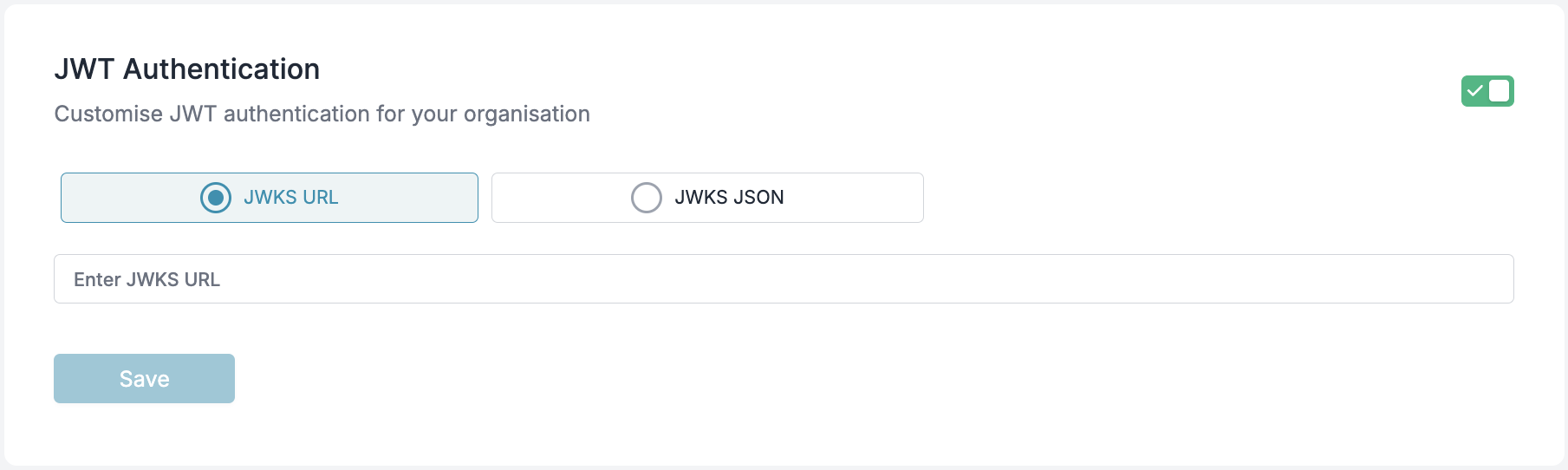
JWT authentication can be configured under **Admin Settings** → **Organisation** → **Authentication**.
 ### JWKS Configuration
To validate JWTs, you must configure one of the following:
* **JWKS URL**: A URL from which the public keys will be dynamically fetched.
* **JWKS JSON**: A static JSON containing public keys.
## JWT Requirements
### Supported Algorithm
* JWTs must be signed using **RS256** (RSA Signature with SHA-256).
### Required Claims
Your JWT payload must contain the following claims:
| **Claim Key** | **Description** |
| -------------------------------------- | --------------------------------------- |
| `portkey_oid` / `organisation_id` | Unique identifier for the organization. |
| `portkey_workspace` / `workspace_slug` | Identifier for the workspace. |
| `scope` / `scopes` | Permissions granted by the token. |
### User Identification
Portkey identifies users in the following order of precedence for logging and metrics:
1. `email_id`
2. `sub`
3. `uid`
## Authentication Process
1. The client sends an HTTP request with the JWT in the `x-portkey-api-key` header:
```http theme={"system"}
x-portkey-api-key:
```
2. The server validates the JWT:
* Verifies the signature using the JWKS.
* Checks if the token is expired.
* Ensures the required claims are present.
3. If valid, the request is authenticated, and user details are extracted for authorization and logging.
4. If invalid, the request is rejected with an HTTP **401 Unauthorized** response.
## Authorization & Scopes
Once the JWT is validated, the server checks for the required **scope**. Scopes can be provided in the JWT as either a single string or an array of strings using the `scope` or `scopes` claim.
View workspace details
Modify workspace settings
List available workspaces
Export logs to external systems
List available logs
View log details
Create and modify logs
Access analytics data
Create new configurations
Update existing configurations
Delete configurations
View configuration details
List available configurations
Create new virtual keys
Update existing virtual keys
Delete virtual keys
Duplicate existing virtual keys
View virtual key details
List available virtual keys
Copy virtual keys between workspaces
Create new workspace users
View workspace user details
Update workspace user settings
Remove users from workspace
List workspace users
Render prompt templates
Create and manage completions
Scopes can also be prefixed with `portkey.` (e.g., `portkey.completions.write`).
JWT tokens with appropriate scopes function identically to workspace API keys, providing access to workspace-specific operations. They cannot be used as organization API keys, which have broader administrative permissions across all workspaces.
## Example JWT Payload
```json theme={"system"}
{
"portkey_oid" : "org_123456",
"portkey_workspace": "workspace_abc",
"scope": ["completions.write", "logs.view"],
"email_id": "user@example.com",
"sub": "user-123",
"exp": 1735689600
}
```
## Making API Calls with JWT Authentication
Once you have a valid JWT token, you can use it to authenticate your API calls to Portkey. Below are examples showing how to use JWT authentication with different SDKs.
Install the Portkey SDK with npm
```sh theme={"system"}
npm install portkey-ai
```
```ts Chat Completions theme={"system"}
import Portkey from 'portkey-ai';
const client = new Portkey({
apiKey: '', // Use JWT token instead of API key
});
async function main() {
const response = await client.chat.completions.create({
messages: [{ role: "user", content: "Hello, how are you today?" }],
model: "gpt-4o",
});
console.log(response.choices[0].message.content);
}
main();
```
Install the Portkey SDK with pip
```sh theme={"system"}
pip install portkey-ai
```
```py Chat Completions theme={"system"}
from portkey_ai import Portkey
client = Portkey(
api_key = "" # Use JWT token instead of API key
)
response = client.chat.completions.create(
model="gpt-4o",
messages=[
{"role": "system", "content": "You are a helpful assistant."},
{"role": "user", "content": "Hello!"}
]
)
print(response.choices[0].message)
```
```sh Chat Completions theme={"system"}
curl https://api.portkey.ai/v1/chat/completions \
-H "Content-Type: application/json" \
-H "x-portkey-api-key: " \
-d '{
"model": "gpt-4o",
"messages": [
{ "role": "user", "content": "Hello!" }
]
}'
```
Install the OpenAI & Portkey SDKs with pip
```sh theme={"system"}
pip install openai portkey-ai
```
```py Chat Completions theme={"system"}
from openai import OpenAI
from portkey_ai import createHeaders, PORTKEY_GATEWAY_URL
client = OpenAI(
api_key="xx",
base_url=PORTKEY_GATEWAY_URL,
default_headers=createHeaders(
api_key="" # Use JWT token instead of API key
)
)
completion = client.chat.completions.create(
model="gpt-4o",
messages=[
{"role": "system", "content": "You are a helpful assistant."},
{"role": "user", "content": "Hello!"}
]
)
print(completion.choices[0].message)
```
Install the OpenAI & Portkey SDKs with npm
```sh theme={"system"}
npm install openai portkey-ai
```
```ts Chat Completions theme={"system"}
import OpenAI from 'openai';
import { PORTKEY_GATEWAY_URL, createHeaders } from 'portkey-ai'
const openai = new OpenAI({
apiKey: 'xx',
baseURL: PORTKEY_GATEWAY_URL,
defaultHeaders: createHeaders({
apiKey: "" // Use JWT token instead of API key
})
});
async function main() {
const completion = await openai.chat.completions.create({
messages: [{ role: 'user', content: 'Say this is a test' }],
model: 'gpt-4o',
});
console.log(completion.choices[0].message);
}
main();
```
## Caching & Token Revocation
* JWTs are cached until they expire to reduce validation overhead.
### JWKS Configuration
To validate JWTs, you must configure one of the following:
* **JWKS URL**: A URL from which the public keys will be dynamically fetched.
* **JWKS JSON**: A static JSON containing public keys.
## JWT Requirements
### Supported Algorithm
* JWTs must be signed using **RS256** (RSA Signature with SHA-256).
### Required Claims
Your JWT payload must contain the following claims:
| **Claim Key** | **Description** |
| -------------------------------------- | --------------------------------------- |
| `portkey_oid` / `organisation_id` | Unique identifier for the organization. |
| `portkey_workspace` / `workspace_slug` | Identifier for the workspace. |
| `scope` / `scopes` | Permissions granted by the token. |
### User Identification
Portkey identifies users in the following order of precedence for logging and metrics:
1. `email_id`
2. `sub`
3. `uid`
## Authentication Process
1. The client sends an HTTP request with the JWT in the `x-portkey-api-key` header:
```http theme={"system"}
x-portkey-api-key:
```
2. The server validates the JWT:
* Verifies the signature using the JWKS.
* Checks if the token is expired.
* Ensures the required claims are present.
3. If valid, the request is authenticated, and user details are extracted for authorization and logging.
4. If invalid, the request is rejected with an HTTP **401 Unauthorized** response.
## Authorization & Scopes
Once the JWT is validated, the server checks for the required **scope**. Scopes can be provided in the JWT as either a single string or an array of strings using the `scope` or `scopes` claim.
View workspace details
Modify workspace settings
List available workspaces
Export logs to external systems
List available logs
View log details
Create and modify logs
Access analytics data
Create new configurations
Update existing configurations
Delete configurations
View configuration details
List available configurations
Create new virtual keys
Update existing virtual keys
Delete virtual keys
Duplicate existing virtual keys
View virtual key details
List available virtual keys
Copy virtual keys between workspaces
Create new workspace users
View workspace user details
Update workspace user settings
Remove users from workspace
List workspace users
Render prompt templates
Create and manage completions
Scopes can also be prefixed with `portkey.` (e.g., `portkey.completions.write`).
JWT tokens with appropriate scopes function identically to workspace API keys, providing access to workspace-specific operations. They cannot be used as organization API keys, which have broader administrative permissions across all workspaces.
## Example JWT Payload
```json theme={"system"}
{
"portkey_oid" : "org_123456",
"portkey_workspace": "workspace_abc",
"scope": ["completions.write", "logs.view"],
"email_id": "user@example.com",
"sub": "user-123",
"exp": 1735689600
}
```
## Making API Calls with JWT Authentication
Once you have a valid JWT token, you can use it to authenticate your API calls to Portkey. Below are examples showing how to use JWT authentication with different SDKs.
Install the Portkey SDK with npm
```sh theme={"system"}
npm install portkey-ai
```
```ts Chat Completions theme={"system"}
import Portkey from 'portkey-ai';
const client = new Portkey({
apiKey: '', // Use JWT token instead of API key
});
async function main() {
const response = await client.chat.completions.create({
messages: [{ role: "user", content: "Hello, how are you today?" }],
model: "gpt-4o",
});
console.log(response.choices[0].message.content);
}
main();
```
Install the Portkey SDK with pip
```sh theme={"system"}
pip install portkey-ai
```
```py Chat Completions theme={"system"}
from portkey_ai import Portkey
client = Portkey(
api_key = "" # Use JWT token instead of API key
)
response = client.chat.completions.create(
model="gpt-4o",
messages=[
{"role": "system", "content": "You are a helpful assistant."},
{"role": "user", "content": "Hello!"}
]
)
print(response.choices[0].message)
```
```sh Chat Completions theme={"system"}
curl https://api.portkey.ai/v1/chat/completions \
-H "Content-Type: application/json" \
-H "x-portkey-api-key: " \
-d '{
"model": "gpt-4o",
"messages": [
{ "role": "user", "content": "Hello!" }
]
}'
```
Install the OpenAI & Portkey SDKs with pip
```sh theme={"system"}
pip install openai portkey-ai
```
```py Chat Completions theme={"system"}
from openai import OpenAI
from portkey_ai import createHeaders, PORTKEY_GATEWAY_URL
client = OpenAI(
api_key="xx",
base_url=PORTKEY_GATEWAY_URL,
default_headers=createHeaders(
api_key="" # Use JWT token instead of API key
)
)
completion = client.chat.completions.create(
model="gpt-4o",
messages=[
{"role": "system", "content": "You are a helpful assistant."},
{"role": "user", "content": "Hello!"}
]
)
print(completion.choices[0].message)
```
Install the OpenAI & Portkey SDKs with npm
```sh theme={"system"}
npm install openai portkey-ai
```
```ts Chat Completions theme={"system"}
import OpenAI from 'openai';
import { PORTKEY_GATEWAY_URL, createHeaders } from 'portkey-ai'
const openai = new OpenAI({
apiKey: 'xx',
baseURL: PORTKEY_GATEWAY_URL,
defaultHeaders: createHeaders({
apiKey: "" // Use JWT token instead of API key
})
});
async function main() {
const completion = await openai.chat.completions.create({
messages: [{ role: 'user', content: 'Say this is a test' }],
model: 'gpt-4o',
});
console.log(completion.choices[0].message);
}
main();
```
## Caching & Token Revocation
* JWTs are cached until they expire to reduce validation overhead.