

How to host an AI Hackathon without losing control of your keys or budget
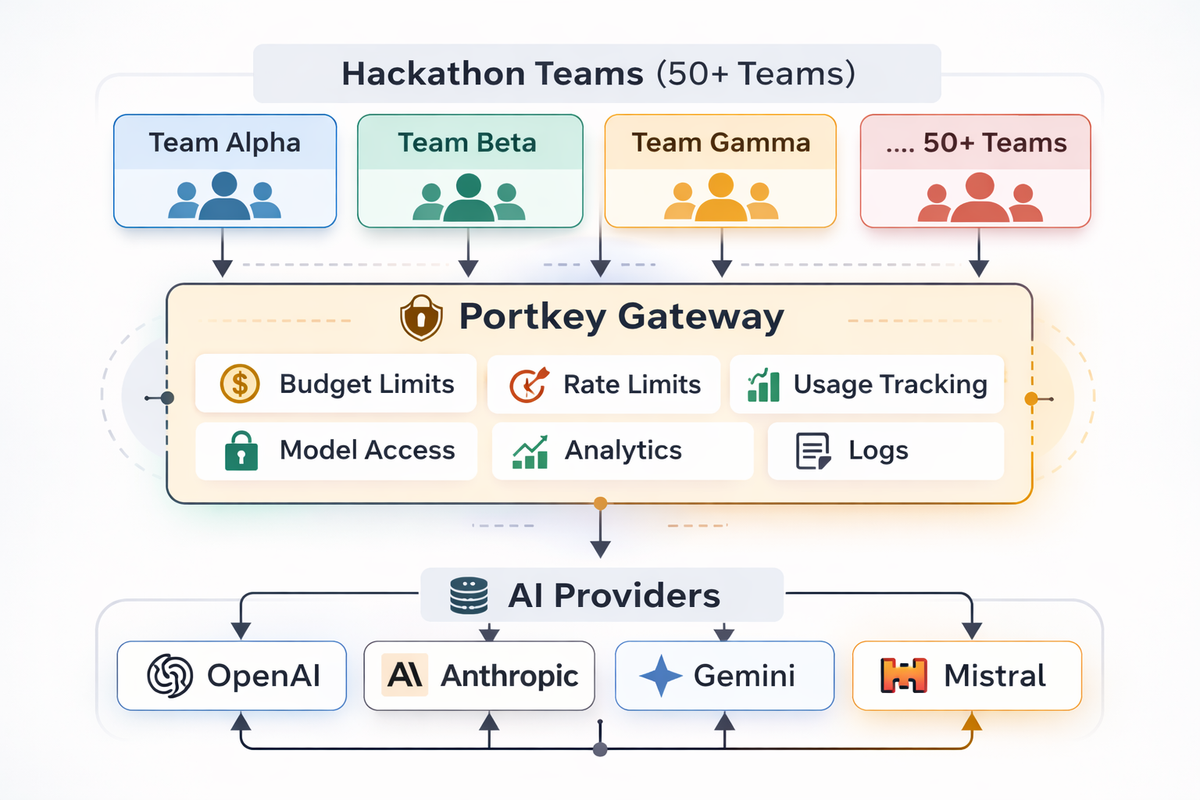
Running an AI hackathon means providing dozens (or hundreds) of teams with access to expensive LLM APIs while maintaining cost control, fair usage, and visibility into what's happening.
Without proper infrastructure, you risk:
- Budget blowouts: A single runaway script consuming your entire API budget- - - No accountability: Unable to track which team used what
- Unfair access: Some teams hogging resources while others wait
- Zero visibility: No way to see usage patterns or debug issues
- Credential chaos: Sharing API keys insecurely across teams
This guide shows you how to use Portkey to run a well-organized hackathon where every team gets fair access, you maintain full control, and you can track everything in real-time.
What You'll Set Up
- Per-team workspaces with isolated environments
- Individual API keys for each team with budget limits
- Real-time dashboards showing usage across all teams
- Automatic cost controls that prevent overspending
- Leaderboard data
Architecture Overview
┌─────────────────────────────────────────────────────────────┐
│                    Hackathon Teams                          │
├─────────────┬─────────────┬─────────────┬──────────────────-┤
│ Team Alpha  │ Team Beta   │ Team Gamma  │  ... 50+ Teams    │
└──────┬──────┴──────┬──────┴──────┬──────┴────────┬──────────┘
       │             │             │               │
       ▼             ▼             ▼               ▼
┌─────────────────────────────────────────────────────────────┐
│                   Portkey Gateway                           │
│  • Budget Limits  • Rate Limits  • Usage Tracking           │
│  • Model Access   • Analytics    • Logs                     │
└─────────────────────────────────┬───────────────────────────┘
                              │
                              ▼
┌─────────────────────────────────────────────────────────────┐
│                    AI Providers                             │
│         OpenAI • Anthropic • Gemini • Mistral               │
└─────────────────────────────────────────────────────────────┘
Each team gets their own workspace and API key. Portkey handles routing, budget enforcement, and tracking, all while you maintain a single set of provider credentials.
Prerequisites
- Portkey account — sign up at app.portkey.ai
- Provider API keys from OpenAI, Anthropic, or your preferred providers
- Budget plan with per-team allocations decided in advance
- Team list ready to go
UI vs API: When to Use Each
This guide covers both UI-based and API-based approaches.
Use the API when:-
You're managing 10+ teams and need automation
- You want to script the entire setup process
- You need to create/update resources programmatically during the hackathon
- You're integrating with your own registration or team management system
- You want repeatable, version-controlled infrastructure
For larger hackathons, the API approach saves significant time. Instead of clicking through the UI 50 times to create workspaces and API keys, you can run a script that does it in seconds.
Step 1: Plan Your Hackathon Structure
Understanding the Hierarchy
Portkey's hierarchy maps perfectly to hackathon organization:
Organization (Your Hackathon)
├── Workspaces (Individual Teams)
│   ├── Team Alpha Workspace
│   ├── Team Beta Workspace
│   └── Team Gamma Workspace
└── Integrations (Shared AI Provider Credentials)
    ├── OpenAI Integration
    ├── Anthropic Integration
└── Gemini Integration- Organization level — set hackathon-wide policies and view aggregate analytics
- Workspace level — isolate each team's logs, usage, and resources
- Integration level — store provider credentials once, share with all teams
Budget Allocation Strategy
A team making ~500–1000 API calls over a 24–48 hour hackathon using models like gpt-4o-mini will typically spend $5–15. We recommend budgets 2–3x higher than expected to avoid disrupting teams mid-hackathon.
| Hackathon Size | Suggested Per-Team Budget | Total Budget Example | Rationale |
|---|---|---|---|
| Small (10 teams) | $20–50 | $200–500 | More buffer per team, fewer teams to manage |
| Medium (30 teams) | $15–30 | $450–900 | Balanced approach |
| Large (100+ teams) | $10–20 | $1,000–2,000 | Tighter limits, more teams |
Tip: Set budgets slightly higher than expected usage. You can always lower limits mid-hackathon, but raising them requires manual intervention.
Step 2: Set Up Your Organization
Creating Your Organization
- Sign up or log in at app.portkey.ai
- If you're new, you'll be prompted to create an organization
- Name it something like "Your Hackathon 2026"
Key aspects of organizations:
- Encompass all users, entities, and workspaces for your hackathon
- Support workspace nesting for team management
- Have hierarchical roles — owners and org admins have access to all workspaces
Get Your Portkey API Key
- Go to Admin Settings > Admin Keys
- Click Create a key
- Name it something like "Hackathon Setup Key"
- Save the key securely
Important: Don't share your admin key with hackathon participants, they get their own workspace-scoped keys.
Step 3: Create Team Workspaces
Create via UI
- Click your workspace name in the sidebar
- Click + Add Workspace
- Enter team details — name, description, and metadata (team name, hackathon name, and optionally project or feature tags)
- Allocate budgets and rate limits
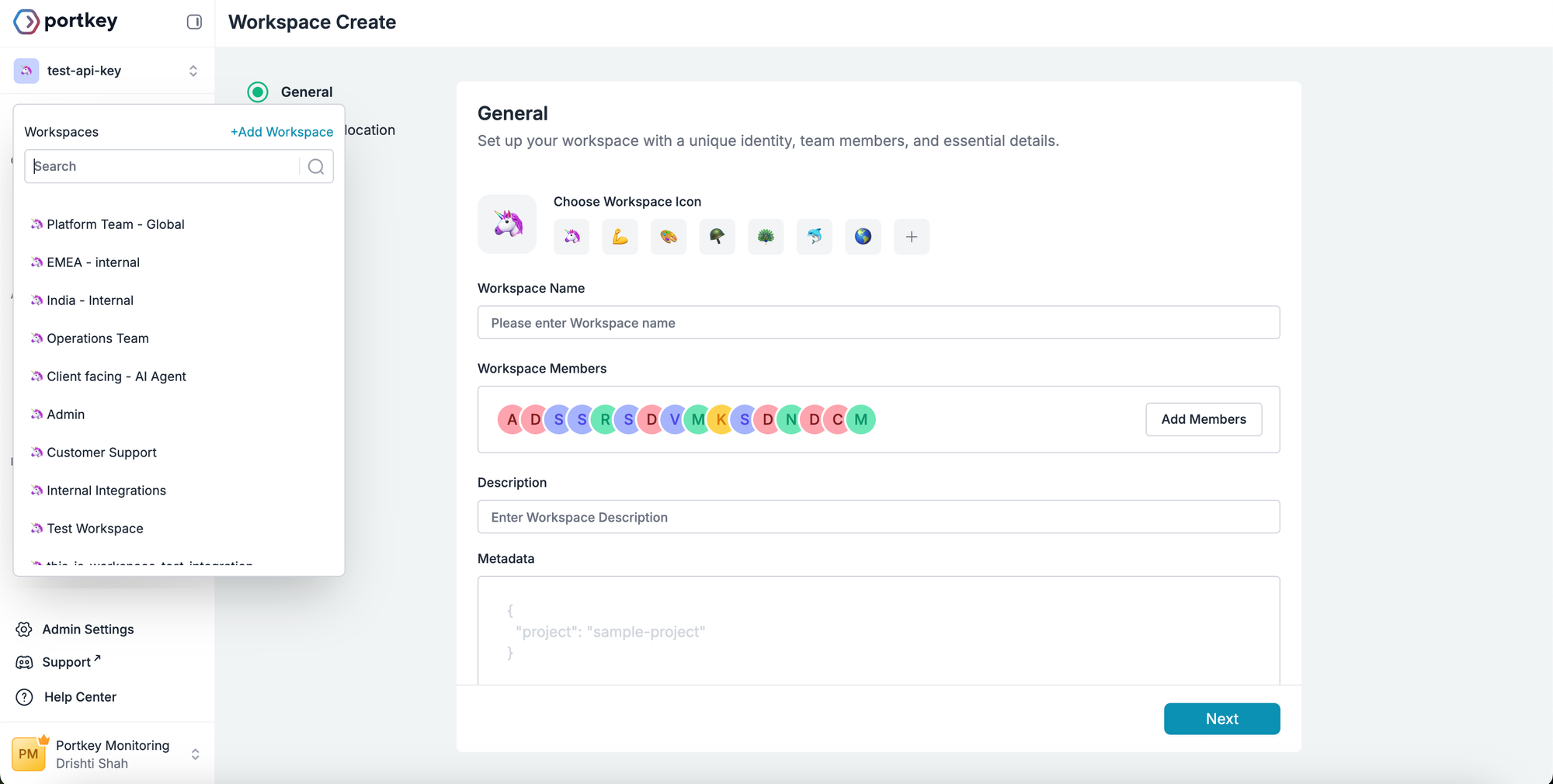
Repeat for each team.
Create via API
API Reference: POST /admin/workspaces — Create Workspace
Step 4: Set Up AI Provider Integrations
Integrations store your provider credentials securely and share them across all team workspaces. They let you:
- Store provider keys once, use across many workspaces
- Control which workspaces can access which integrations
- Enable or disable specific models at the organization level
- Set different budgets and rate limits per workspace
Create via UI
- Go to LLM Integrations
- Select your AI provider (e.g., OpenAI)
- Fill in a name, slug, and optional description
- Enter your provider API key
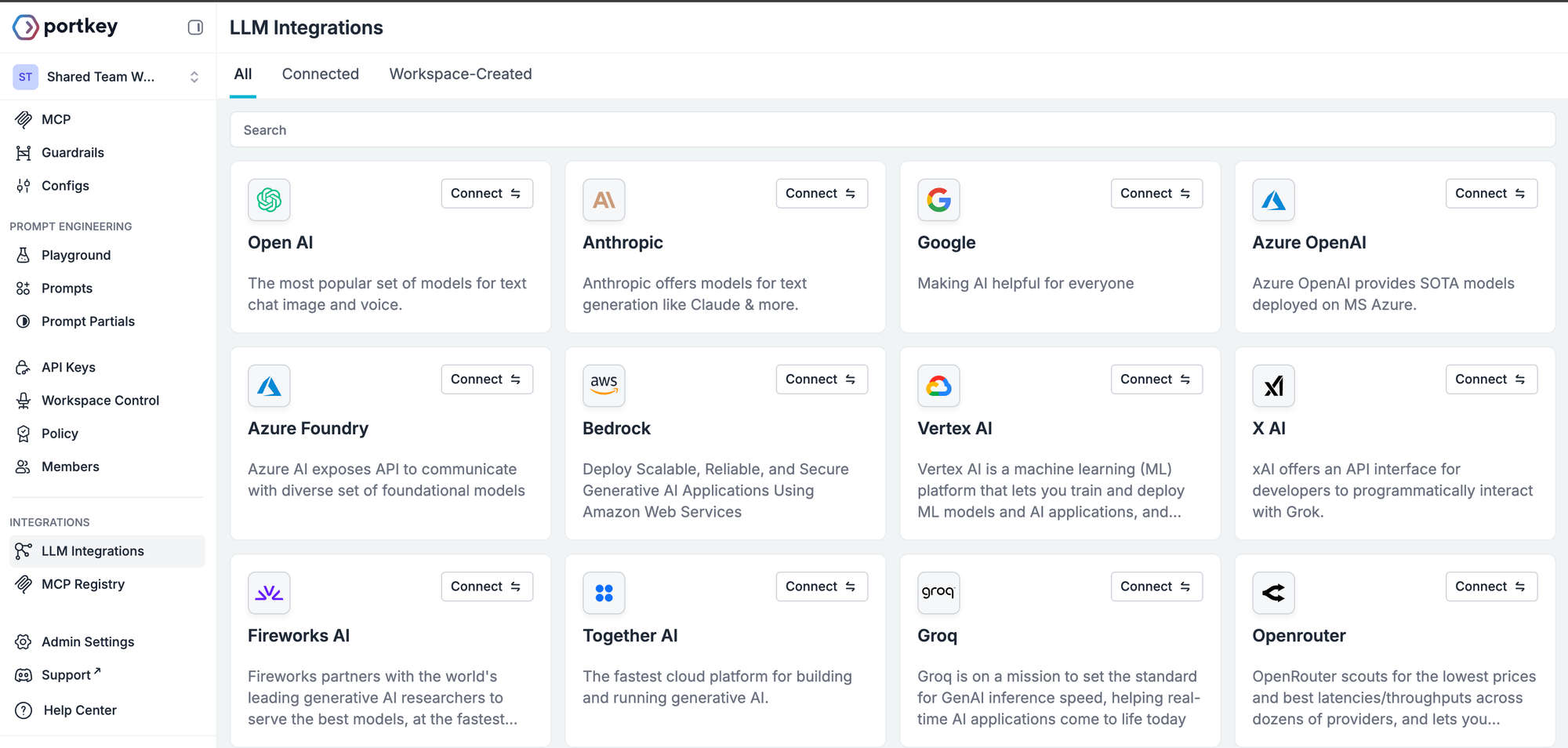
Repeat for each provider you want to offer.
Create via API
API Reference: POST /integrations — Create Integration
Step 4.1: Set Up Workspace Provisioning with Budget Limits
Configure via UI
- In your Integration settings, navigate to Workspace Provisioning
- Select which workspaces should have access (all or specific)
- For each workspace, click Edit Budget & Rate Limits and configure:
- Budget limit (e.g., $25)
- Alert threshold (e.g., 80%)
- Rate limit (e.g., 60 req/min)
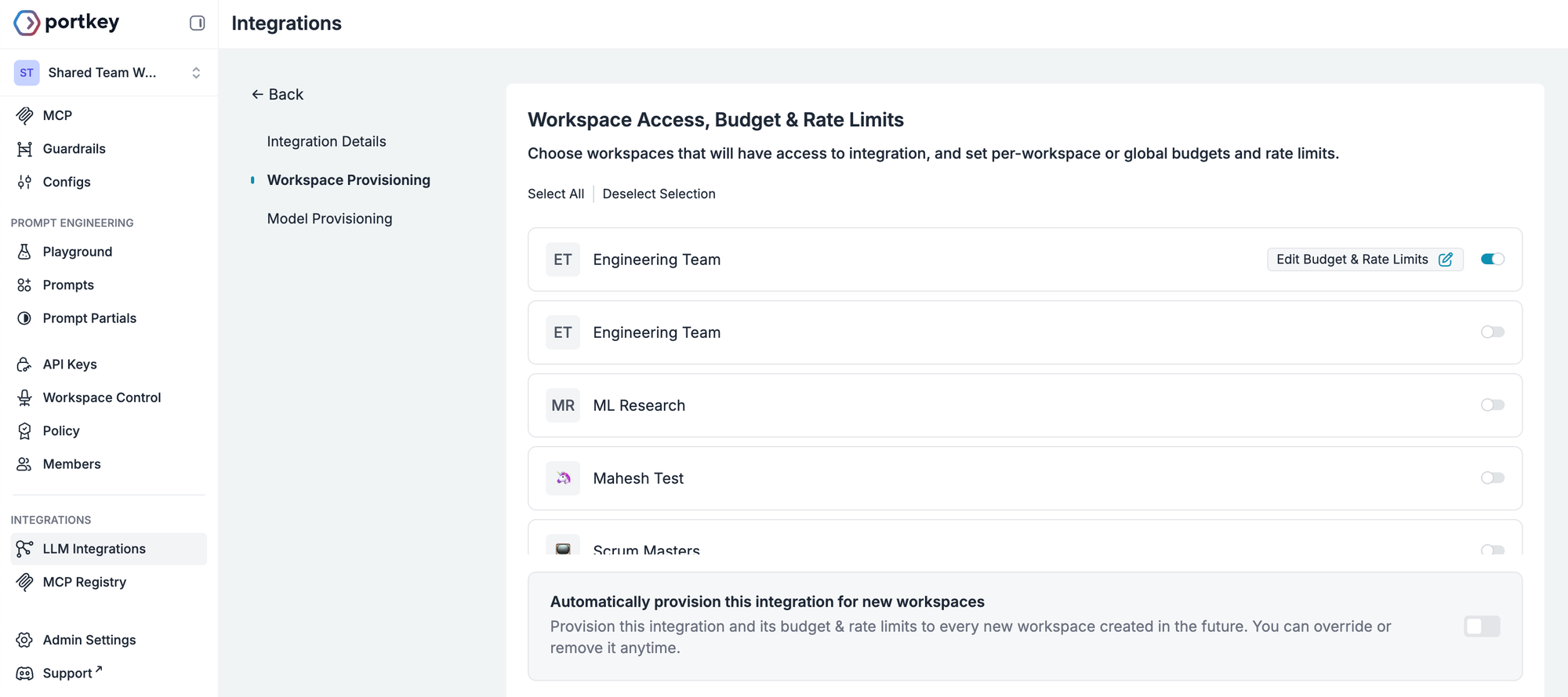
Configure via API
API Reference: PUT /integrations/{slug}/workspaces — Update Workspace Access
Step 4.2: Configure Model Access
Create via UI
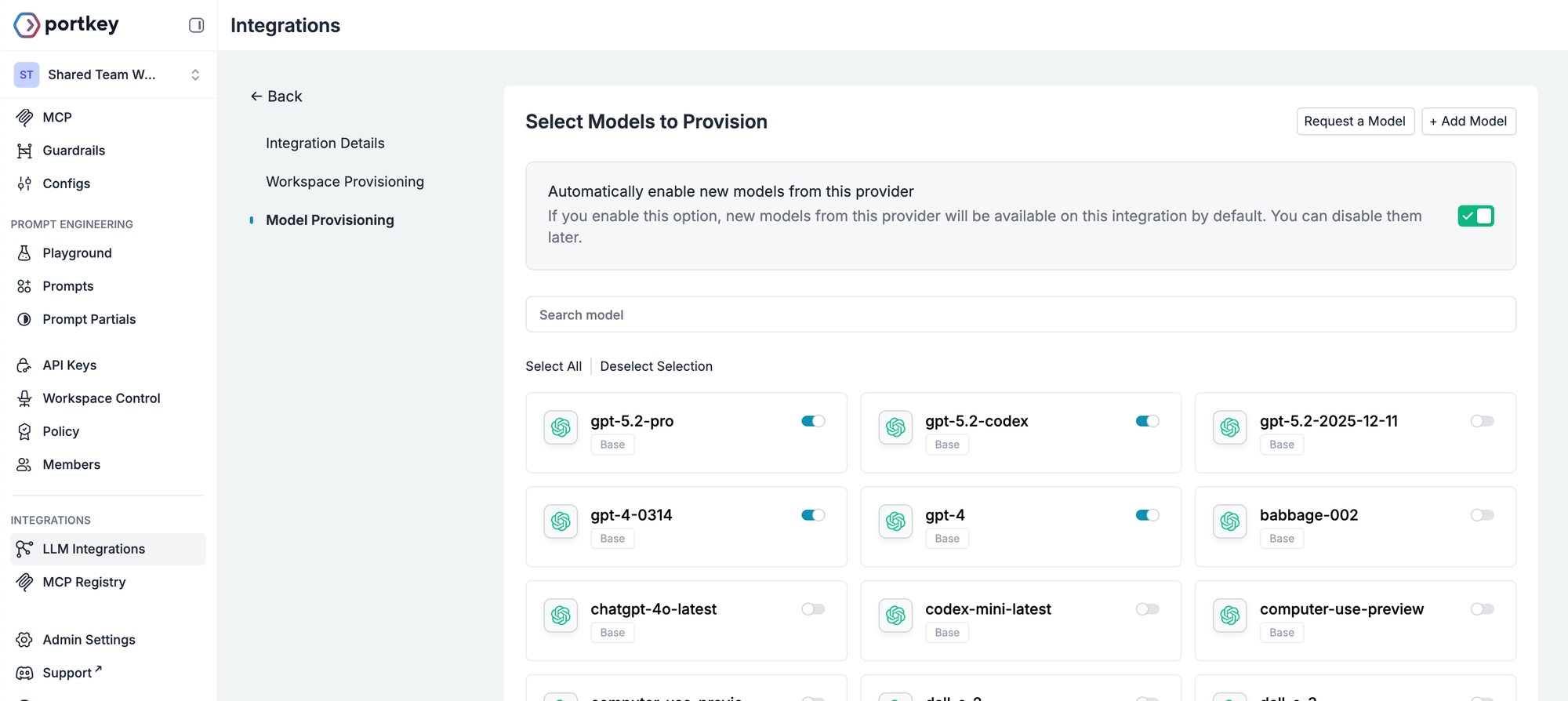
- In your Integration settings, go to the Model Provisioning tab
- Toggle on what you want to allow, or select all
Create via API
API Reference: PUT /integrations/{slug}/models — Update Model Access
Warning: Avoid enabling expensive models likegpt-5.2, orclaude-opus-4-5unless you have a large budget. A single team could exhaust significant resources quickly.
Step 5: Create API Keys
Create via UI
- Everyone added to a workspace has a default user key. To create a new one, go to API Keys from the left panel > Create
- Add the name, description and metatdata.
- Set budgets, alert threshold, and rate limit and set up required permissions
- Click Create and save the key securely
Repeat for each team/workspace.
Create via API
API Reference: POST /api-keys/{type}/{sub-type} — Create API Key
Step 6: Distribute Credentials to Teams
Provide each team with:
- Portkey API key (starts with
pk-...) - Quick start code snippets
- List of available models
- Budget info and how to check usage
Step 7: Track Usage with Metadata
Ask teams to include metadata in their requests:
response = client.with_options(
    metadata={
        "team_name": "Team Alpha",
        "project": "ai-assistant",
        "feature": "summarization",
        "hackathon": "your-hackathon-2024"
    }
).chat.completions.create(
    model="gpt-4o-mini",
    messages=[{"role": "user", "content": "Summarize this article..."}]
)
Metadata can also be set when setting up workspaces, and API keys.
With proper metadata, you can:
- Track which AI features teams are building
- Award prizes based on efficiency metrics
- Filter logs by team and feature
- Generate post-hackathon reports
Step 8: Monitor the Hackathon in Real-Time
Key Metrics to Watch
| Metric | Why It Matters |
|---|---|
| Total Cost | Track against your budget |
| Requests by Workspace | See which teams are most active |
| Error Rate | Identify teams having issues |
| Model Distribution | Ensure teams aren't overusing expensive models |
| Cost per Request | Find efficient vs. wasteful usage patterns |
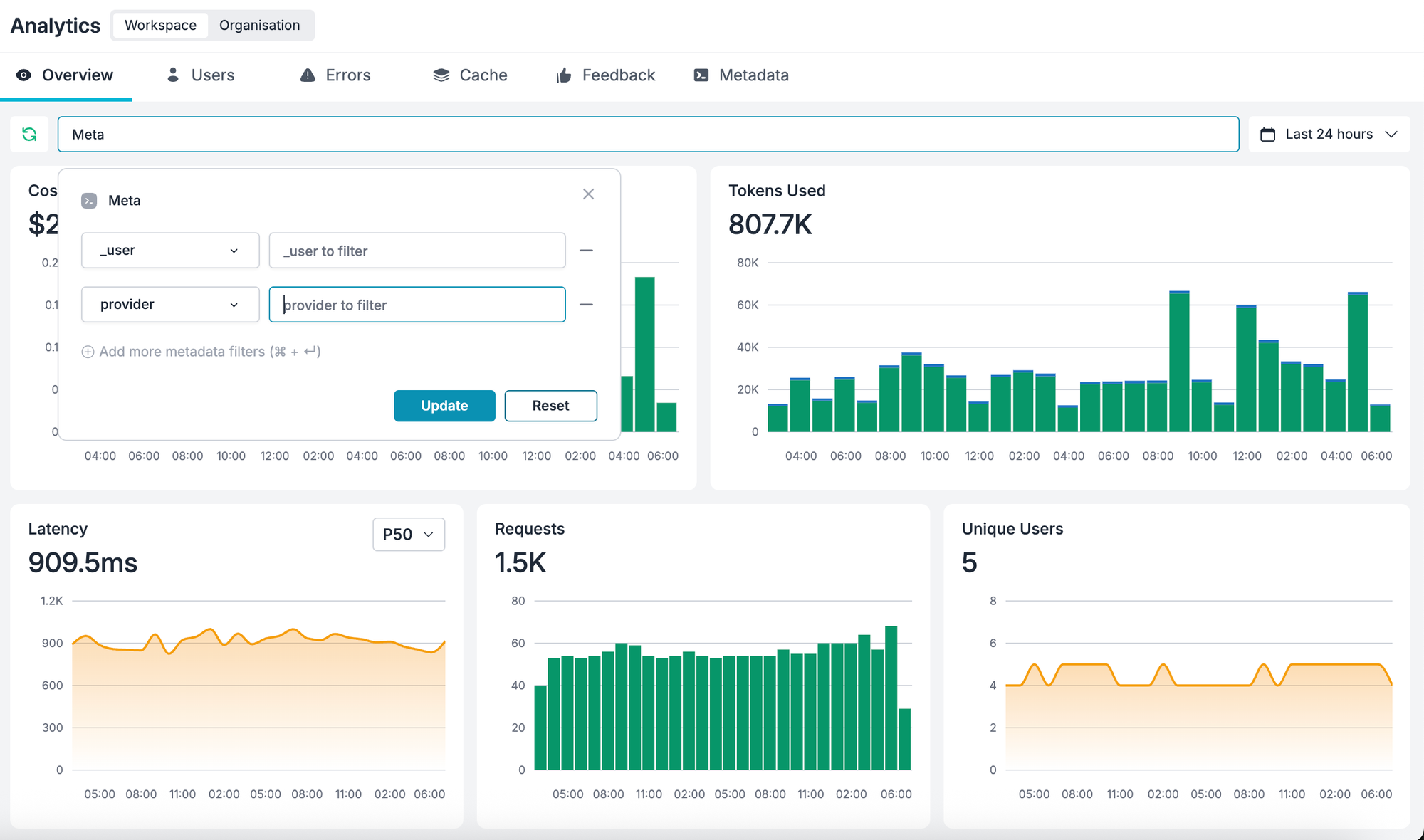
To view a specific team, open Analytics, click Filters, and select their workspace or filter by team_name metadata.
Step 9: Handle Common Hackathon Scenarios
Team runs out of budget:
- Go to Settings > API Keys > find their key > Edit > increase Credit Limit
- Or create a new key with additional budget
- Or redirect them to more efficient models
Team needs access to additional models:
- Go to Integrations > Model Provisioning > enable the models > Save
Debugging a team's issues:
- Go to Logs, filter by their workspace, and look at recent requests for errors
Additional Resources
- Portkey Documentation
- Make your first request
- Prompt Studio
- Supported integrations
- Run Portkey in AI Apps like Cursor, Claude Code, etc.
- MCP Gateway
- Guardrails
Need help setting up your hackathon? Contact [email protected] or book a call for personalized assistance.