

Credentials at a glance
Before you start
- Use a rotation account you trust. Sign in to the AI Gateway management console with SSO or your own credentials. Don’t depend on an existing API key to run the rotation.
- Plan for downtime. Replacing a credential breaks any application still using the old value. Roll out new values to your applications before revoking the old ones.
- Keep a list. Record each credential you rotate, so you can confirm none was missed. Use the checklist at the end of this page.
- Know your permissions. Rotating organisation-level resources requires an organisation owner or admin. Workspace-level resources require a workspace admin or manager.
1. AI Gateway API keys
The AI Gateway issues three kinds of API keys. They authenticate requests to the inference API and are not accepted on the Admin API. See API Keys (AuthN and AuthZ) for how they differ.- Admin API keys: organisation-level keys that work across workspaces
- Workspace service API keys: workspace-level keys for backends and automation
- Workspace user API keys: workspace-level keys owned by individual users
Choose a rotation method
The rotate endpoint always keeps the previous secret valid for the transition period, with a minimum of 30 minutes. To end access as soon as possible, create a new key and delete the old one. Gateways cache API keys and clear changed ones on a sync that runs about once a minute, so confirm the old key returns
401 on every gateway, including self-hosted ones, before treating it as revoked.Rotate with the console
1
Open Security Keys
In SCM, navigate to AI Security > AI Gateway > Security Keys.
2
Create a replacement key
Click Create New. Select the same type, workspace, scopes, and rate or budget limits as the key it replaces. Also copy its default config and its Config Override setting. Without them the new key loses the routing and guardrails attached to the old one, or lets requests override the config.
3
Deploy the new key
Update your applications, CI pipelines, secret stores, and
Authorization: Bearer headers with the new key.4
Delete the old key
After traffic moves to the new key, delete the old key from the list.
Rotate with the API
These endpoints are on the Admin API and require a Strata Cloud Manager access token, not an AI Gateway API key. See Admin API authentication.- Create an API key with
POST /v2/api-keys/{sub-type}. Set the same default config and config-override setting as the old key. - Deploy the new key.
- Delete the old key with
DELETE /v2/api-keys/{id}.
POST /v2/api-keys/{id}/rotate. The response contains the new secret and the time the previous secret expires.
Order of rotation
- Rotate admin API keys first. They have the broadest scope on the inference path.
- Rotate workspace service API keys next. They can manage other workspace keys.
- Rotate workspace user API keys last. Ask each user to replace theirs, or rotate them as an admin.
GET /v2/api-keys to find every key to replace. Delete any key you don’t recognise or no longer use.
Admin API service accounts
Admin API calls are authorised with a short-lived token issued to a service account in Strata Cloud Manager, using the service account’s Client ID and Client Secret. Rotate these as well:- In Strata Cloud Manager, go to System Settings > Identity & Access and issue a new credential for each service account used with the Admin API. If you can’t issue a new credential, create a replacement service account in the same tenant with the same role assignments.
- Update every job, pipeline, and secret store that holds the old Client Secret.
- Delete the old service account or credential.
2. AI provider credentials
Integrations and providers hold credentials for your AI providers: API keys, cloud access keys, service account JSON, and similar. Rotating the key only in the AI Gateway does not invalidate the old one. Rotate the credential at the provider. For each integration:1
Create a new credential at the provider
Generate a new API key, access key, or service account key in your provider’s console.
2
Update the credential in the AI Gateway
In SCM, navigate to AI Security > AI Gateway > Integrations, select the integration, and replace the stored credential. To use the API, call
PUT /integrations/{slug} or PUT /providers/{slug}.3
Test a request
Send a test request through a model on the integration to confirm the new credential works.
4
Revoke the old credential at the provider
Delete or disable the old key in your provider’s console.
Credentials by provider
Integrations that use workload identity federation do not store a static provider key, but they do use an identity provider client secret. Create a replacement client secret at the IdP, update it in the integration (or the vault entry it references), send a test request, then revoke the old secret. Also review the trust relationship and allowed subjects on the cloud side.
Rotate an external ID
The role’s trust policy checks the external ID in itssts:ExternalId condition. Changing the ID only in the integration makes AssumeRole calls fail. Rotate it in this order:
- Add the new external ID to the trust policy’s
sts:ExternalIdcondition, keeping the old one. A condition value can list more than one ID. - Update the external ID in the integration.
- Wait for the change to propagate, then send a test request through the integration.
- Remove the old external ID from the trust policy.
Credentials used in requests
If your applications send provider credentials per request, such as anAuthorization header or x-portkey-* provider headers, rotate those in your application secret stores as well.
3. MCP credentials
MCP integrations and servers store credentials that the AI Gateway uses to reach upstream MCP servers. Rotate each one at the source, then update the AI Gateway.
Also rotate any tokens the MCP server itself holds for downstream systems. Those live outside the AI Gateway.
Use
GET /mcp-servers and GET /mcp-integrations to list every server and integration that needs review.
4. Secret references and vault credentials
Secret references point to secrets in AWS Secrets Manager, Azure Key Vault, or HashiCorp Vault. The AI Gateway stores the reference configuration, including the auth config it uses to reach your vault. It does not store the secret value itself. Rotate in this order:- Vault access credentials. Rotate the credentials in each secret reference’s
auth_config(for example an IAM access key, an Azure client secret, or a HashiCorp Vault token or AppRole secret). Update the reference withPUT /secret-references/{secretReferenceId}onhttps://api.apps.paloaltonetworks.com/ai_gw/admin/v2. Updates toauth_configare merged, so send only the changed fields. - The secrets themselves. Rotate the secret values in your vault. Gateways cache fetched values for 5 minutes, so the new value takes effect within that window with no change in the AI Gateway.
- Revoke the old vault credentials.
5. JWT, sessions, and users
JWT authentication
JWT authentication
The AI Gateway validates JWTs using your IdP’s public keys, which are not secret. Rotate signing keys at your IdP if you suspect they were exposed, and confirm the JWKS configuration in the AI Gateway is current. See JWT.
Active sessions and users
Active sessions and users
Ask users to sign out and back in. Review organisation users and pending invites, and remove any user or invite you don’t recognise.
6. Plugin integration credentials
Plugin integrations store credentials for third-party guardrail and tool providers. Rotate the credential at the provider, then update it in the AI Gateway.1
Create a new credential at the plugin provider
Generate a new API key, token, or client secret in the provider’s console.
2
Update the plugin integration
In SCM, navigate to AI Security > AI Gateway > Admin Settings > Plugins, open the plugin, and replace the stored credentials.
3
Update workspace override credentials
Some guardrails accept workspace-specific Override Credentials that take precedence over the organisation-level integration. Open each guardrail that sets them and replace the values.
4
Test
Send a request that runs each guardrail or plugin, and confirm the check completes.
5
Revoke the old credential at the plugin provider
Wait for the change to propagate, then delete or disable the old credential.
Managed identity and similar setups store no secret.
Raw guardrails defined in JSON can carry a
credentials object inline. Review those under section 7 as well.
7. Credentials embedded in configs and guardrails
Credentials sometimes end up inside saved resources instead of integrations. Review each of the following for static secrets:- Configs: provider keys,
Authorizationheaders, or custom headers inside targets oroverride_params - Guardrails: API keys or headers for third-party guardrail providers, and webhook URLs, headers, or signing secrets for custom guardrails
- Custom hosts and custom headers: bearer tokens for private endpoints
8. Observability and log export credentials
Rotate any credential the AI Gateway uses to write to your systems:- OpenTelemetry exports: authentication headers or tokens for your OTel collector. See OpenTelemetry.
- Log storage for self-hosted gateways: object storage access keys, HMAC secrets, or service account keys.
- Third-party observability integrations that you configured with a token.
9. Self-hosted gateway secrets
For hybrid deployments, rotate every secret in your deployment configuration:PORTKEY_CLIENT_AUTH: the credential your gateway uses to sync with the AI Gateway control plane. See Rotate the gateway client auth key.- Log store credentials: for example
LOG_STORE_ACCESS_KEYandLOG_STORE_SECRET_KEY(S3, GCS HMAC, or Azure storage). - Cache and database credentials: Redis, and any database your deployment uses.
- Provider keys and other values in your environment files, Helm values, or Kubernetes secrets.
- Test keys: replace the
PORTKEY_API_KEYandOPENAI_API_KEYvalues from any smoke-test scripts.
Rotate the gateway client auth key
1
Open the gateway deployment
In Strata Cloud Manager, go to AI Security > AI Gateway > Admin Settings > Gateway Registration and open the deployment.
2
Rotate the key
Under Gateway Authentication, click Rotate Key. Optionally, set a Grace period (hours) from 0 to 24. This is how long the previous key keeps working. Leave it empty to use the default. Click Confirm Rotation.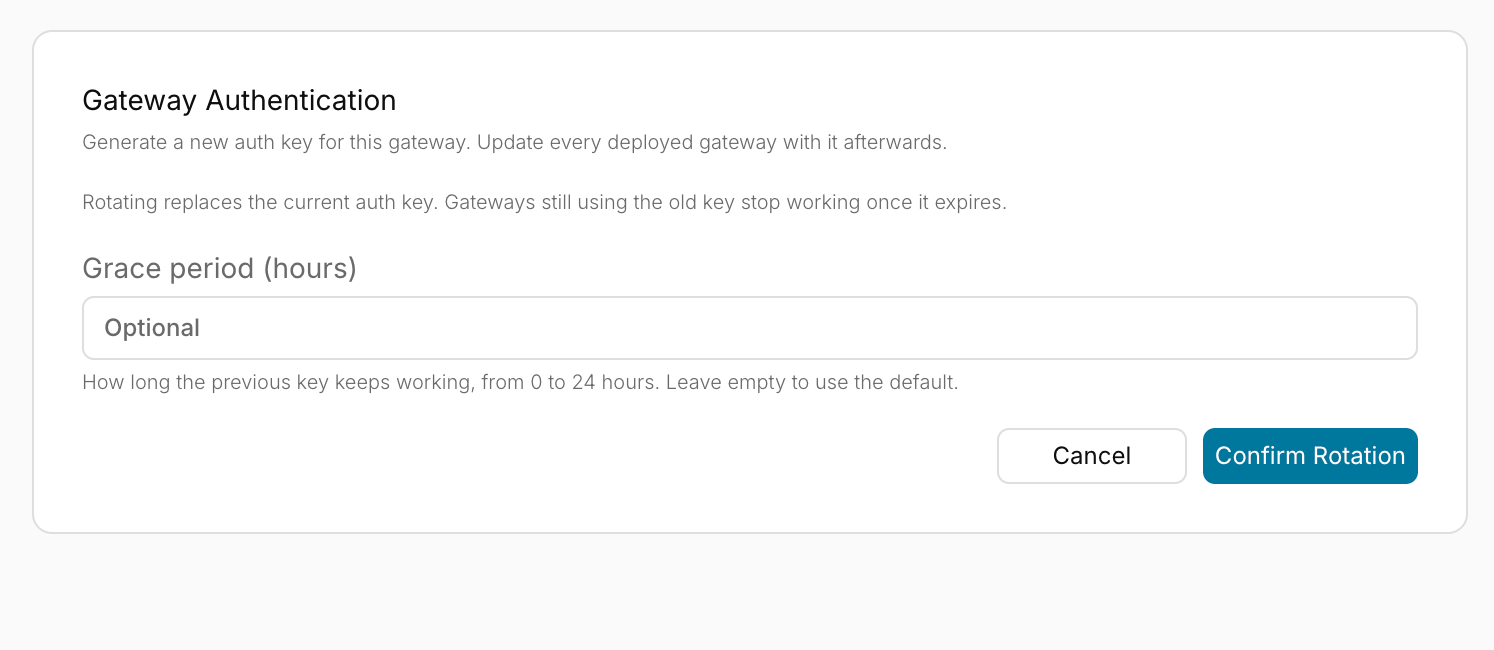
3
Copy the new key
Copy the new key and click Done. The key is shown only once.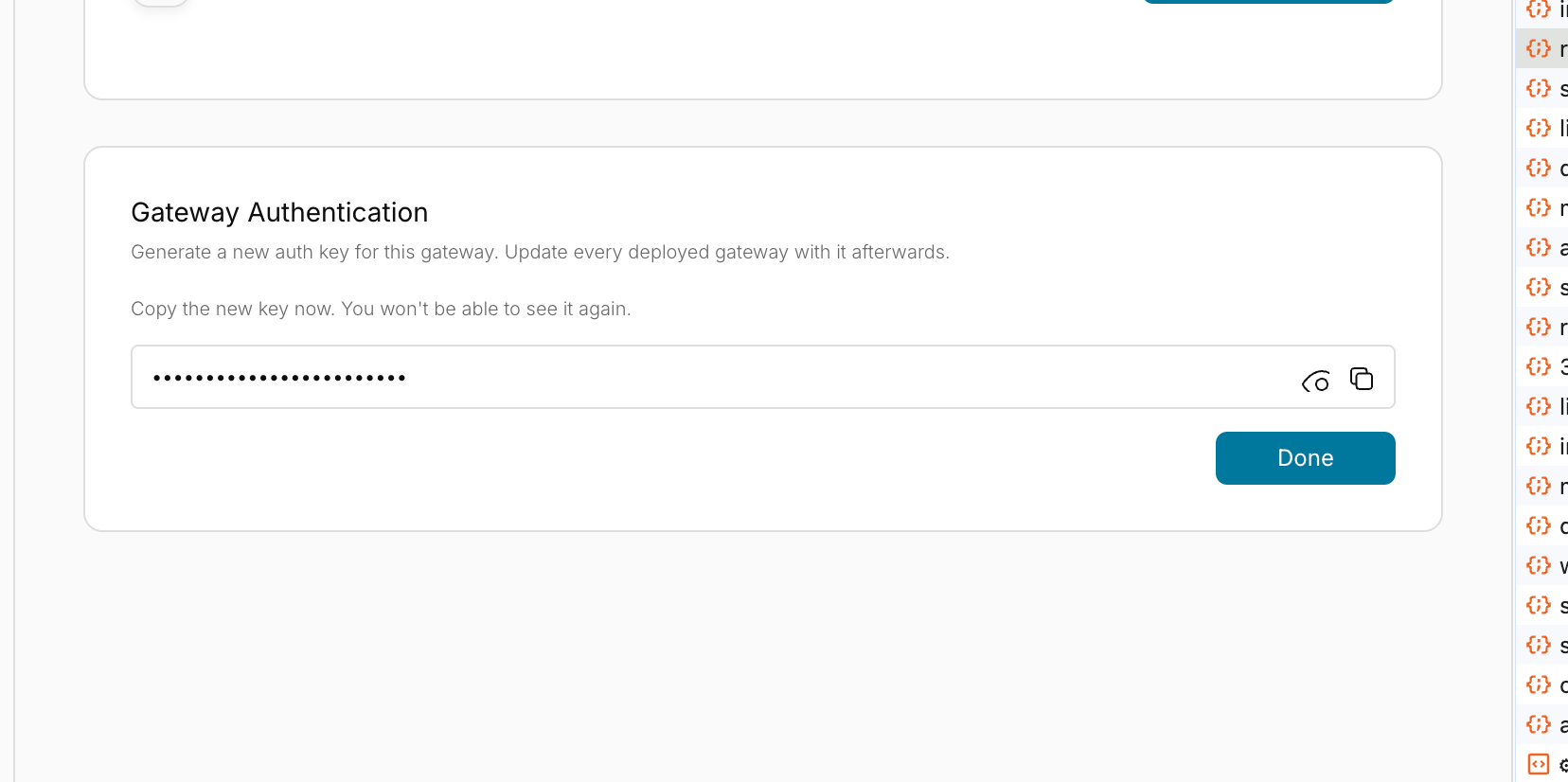
4
Update every deployed gateway and Data Service
Update
PORTKEY_CLIENT_AUTH to the new key for every gateway and optional Data Service instance that uses this deployment. If your deployment references a secret store, update the underlying credential while preserving secret references and any other fields in the secret. Restart all consuming services so they load the new key before the grace period ends. Services still using the old key lose control-plane authentication once it expires.After rotating
- Confirm the old credentials fail. Wait at least a few minutes for gateway sync and caches to refresh, then send a request with each old AI Gateway API key through every gateway, including self-hosted ones. Expect a
401. - Test end-to-end. Send a request through every integration, MCP server, and key path your applications use.
- Review audit logs. Check audit logs in SCM under Log Viewer by selecting Common/Audit from the drop-down, for unexpected creation of API keys, integrations, users, or configuration changes.
- Review request logs and provider usage. Check request logs and your AI providers’ usage dashboards for requests you didn’t make.
- Review users and workspaces. Remove any user, workspace member, or workspace you don’t recognise.
Rotation checklist
Copy this list to track progress.- Admin API keys replaced; old keys deleted
- Admin API service account credentials replaced; old credentials deleted
- Workspace service API keys replaced; old keys deleted
- Workspace user API keys replaced; old keys deleted
- Application secret stores updated with new AI Gateway keys
- Every integration and provider credential rotated at the provider, updated in the AI Gateway, and old credentials revoked
- MCP integration and server credentials rotated; user connections reset where needed
- Secret reference vault credentials rotated; secret values rotated
- Plugin integration credentials rotated, including workspace override credentials
- Configs, guardrails, and custom hosts reviewed for embedded secrets
- OTel and log export credentials rotated
- Self-hosted gateway secrets rotated; gateway redeployed
- Old AI Gateway API keys confirmed to return
401 - Audit logs and provider usage reviewed