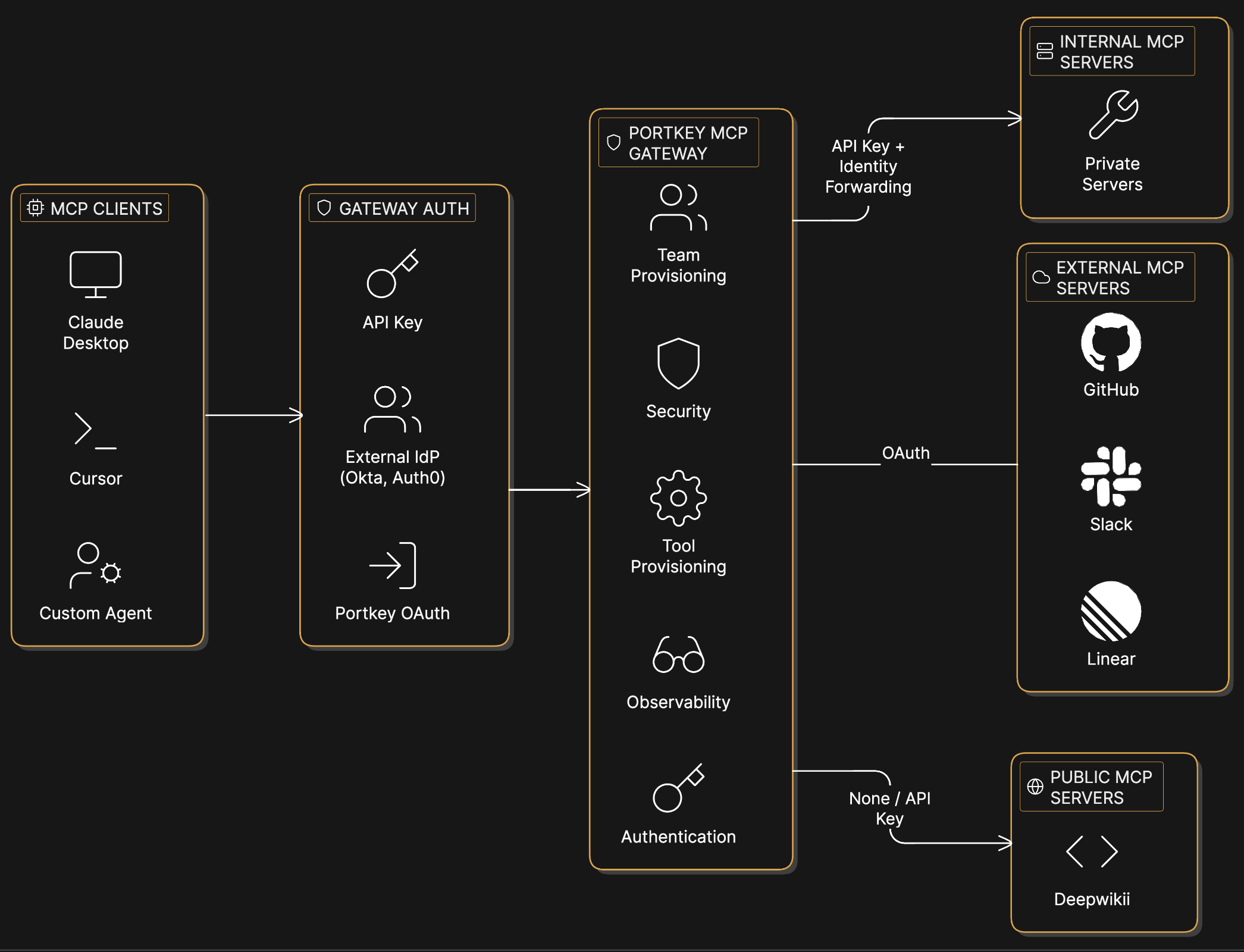
Centralized authentication, access control, and observability for MCP servers.
The MCP Gateway is Portkey’s solution for managing access to MCP servers. It acts as a proxy between MCP Clients and MCP servers, handling authentication, access control, and logging.When connecting to MCP servers directly, each agent needs its own credentials and configuration for every server. With the MCP Gateway, clients authenticate once to Portkey. The Gateway handles credential injection, permission checks, and request logging for all configured servers.
Quickstart
Add an MCP server and connect an MCP client in 5 minutes.
Integrations
Connect Claude Desktop, Cursor, VS Code, or custom agents.
When an AI Agent/MCP Client calls an MCP tool, the request flows through Portkey. The Gateway authenticates the request using the agent’s API key (or IdP token), checks whether that user has access to the requested server and tool, then injects the appropriate credentials for the upstream server—OAuth tokens for services like GitHub and Slack, API keys for public servers, or identity headers for internal servers. The request is proxied to the MCP server, and the full request/response is logged.This gives platform teams complete visibility into MCP usage—who accessed what, when, and with what parameters—while developers get access to tools without managing credentials or requesting permissions for each server.
Add an MCP server to your organization’s registry, configure its authentication, and provision access to workspaces. Then connect any MCP client to Portkey’s endpoint:
The API key determines which servers and tools are accessible. See Integrations for setup guides for Claude Desktop, Cursor, VS Code, and custom agents.