

Requires Gateway v2.18.0+ and Backend v1.24.0+.
target field set to mcp_tools. This keeps MCP and LLM policies separate — existing LLM rate limits are unaffected.
How It Works
MCP rate limit policies are workspace-scoped. When a tool call comes through the MCP Gateway, Portkey checks all activemcp_tools rate limit policies for that workspace. If any policy’s limit has been reached, the request is rejected with a rate limit error.
Policies support two limit types:
- Requests — Limit the number of tool calls (per minute, hour, or day)
- Tokens — Limit token consumption (per minute, hour, or day)
Supported Condition and Group-By Keys
Conditions determine which requests a policy applies to. Group-by keys determine how limits are bucketed — each unique combination gets its own counter.Conditions
Conditions filter which requests a policy applies to. All conditions must match (AND logic). Each condition supports:Group-By
Group-by keys determine how limits are tracked independently. For example, grouping byapi_key means each API key gets its own counter — one key hitting the limit doesn’t affect others.
Rate Limit Units
Use Cases
Use Case 1: Global MCP Rate Limit
Limit all MCP tool calls in a workspace to 500 requests per minute.Use Case 2: Per-User MCP Rate Limit
Limit each user (identified by_user metadata) to 50 MCP tool calls per minute.
Use Case 3: Per-Server Rate Limit
Cap total throughput to the Slack MCP server to 1000 requests per hour.Use Case 4: Limit a Specific Tool
Throttle thesend_message tool to 100 calls per minute, regardless of which server it’s on.
Use Case 5: Per-Server Token Limit
Limit token consumption on the GitHub MCP server to 500,000 tokens per day.Use Case 6: Per-API-Key Limits Grouped by Server
Give each API key its own rate limit, tracked independently per MCP server.Use Case 7: Per-Team Rate Limit by Server
Track and limit MCP usage separately for each team and server combination.Use Case 8: Exclude Specific Tools from a Server Limit
Apply rate limit to all Slack tools exceptlist_channels.
Creating a Policy
You can create MCP rate limit policies from the Portkey UI or via the Admin API.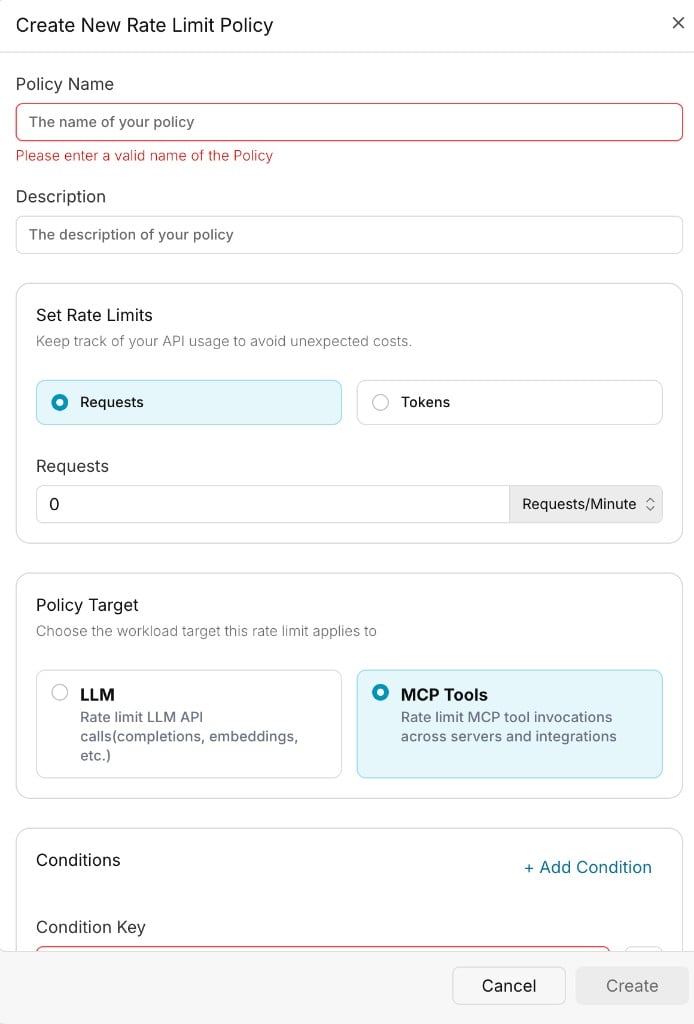
target set to mcp_tools.
cURL
Key Considerations
- Target is immutable. A policy’s
targetcannot be changed after creation. To switch betweenllmandmcp_tools, archive the existing policy and create a new one. - Existing policies are unaffected. All existing rate limit policies default to
target: llm. No migration is needed. - OAuth flows and
api_key. Theapi_keycondition and group-by key is not available in OAuth-based MCP flows. Usemcp_server,mcp_tool,workspace_id, ormetadata.*instead. - Workspace-scoped only. MCP rate limit policies are scoped to the workspace level. Org-wide MCP policies are not supported in this release.
Exceeding Rate Limits
When a rate limit is exceeded, Portkey returns a 429 Too Many Requests HTTP status code.- The error message indicates which limit was exceeded
- The limit resets automatically after the configured time interval
Next Steps
Usage & Rate Limit Policies
Full policy reference with conditions, group-by, and validation rules.
Rate Limits API
API reference for creating and managing rate limit policies.
Observability
Monitor MCP tool call logs and usage analytics.
Access Control
Control which workspaces and users can access MCP servers.
Portkey is now PRISMA AIRS AI Gateway. See it in action.
Contact Us