

The most common use case is that of text-to-image where the user sends a prompt which the image model processes and returns an image.
Text-to-Image Usage
Portkey supports the OpenAI signature to make text-to-image requests.
NodeJS
Python
OpenAI NodeJS
OpenAI Python
cURL
import Portkey from 'portkey-ai';
// Initialize the Portkey client
const portkey = new Portkey({
apiKey: "PORTKEY_API_KEY", // Replace with your Portkey API key
virtualKey: "VIRTUAL_KEY" // Add your provider's virtual key
});
async function main() {
const image = await portkey.images.generate({
model: "dall-e-3",
prompt: "Lucy in the sky with diamonds"
});
console.log(image.data);
}
main();
from portkey_ai import Portkey
from IPython.display import display, Image
# Initialize the Portkey client
portkey = Portkey(
api_key="PORTKEY_API_KEY", # Replace with your Portkey API key
virtual_key="VIRTUAL_KEY" # Add your provider's virtual key
)
image = portkey.images.generate(
model="dall-e-3",
prompt="Lucy in the sky with diamonds"
)
# Display the image
display(Image(url=image.data[0].url))
import OpenAI from 'openai'; // We're using the v4 SDK
import { PORTKEY_GATEWAY_URL, createHeaders } from 'portkey-ai'
const openai = new OpenAI({
apiKey: 'OPENAI_API_KEY', // defaults to process.env["OPENAI_API_KEY"],
baseURL: PORTKEY_GATEWAY_URL,
defaultHeaders: createHeaders({
provider: "openai",
apiKey: "PORTKEY_API_KEY" // defaults to process.env["PORTKEY_API_KEY"]
})
});
async function main() {
const image = await openai.images.generate({
model: "dall-e-3",
prompt: "Lucy in the sky with diamonds"
});
console.log(image.data);
}
main();
from openai import OpenAI
from portkey_ai import PORTKEY_GATEWAY_URL, createHeaders
from IPython.display import display, Image
client = OpenAI(
api_key='OPENAI_API_KEY',
base_url=PORTKEY_GATEWAY_URL,
default_headers=createHeaders(
provider="openai",
api_key="PORTKEY_API_KEY"
)
)
image = client.images.generate(
model="dall-e-3",
prompt="Lucy in the sky with diamonds",
n=1,
size="1024x1024"
)
# Display the image
display(Image(url=image.data[0].url))
curl "https://api.portkey.ai/v1/images/generations" \
-H "Content-Type: application/json" \
-H "x-portkey-api-key: $PORTKEY_API_KEY" \
-H "x-portkey-virtual-key: $OPENAI_VIRTUAL_KEY" \
-d '{
"model": "dall-e-3",
"prompt": "Lucy in the sky with diamonds"
}'
API Reference
Create Image
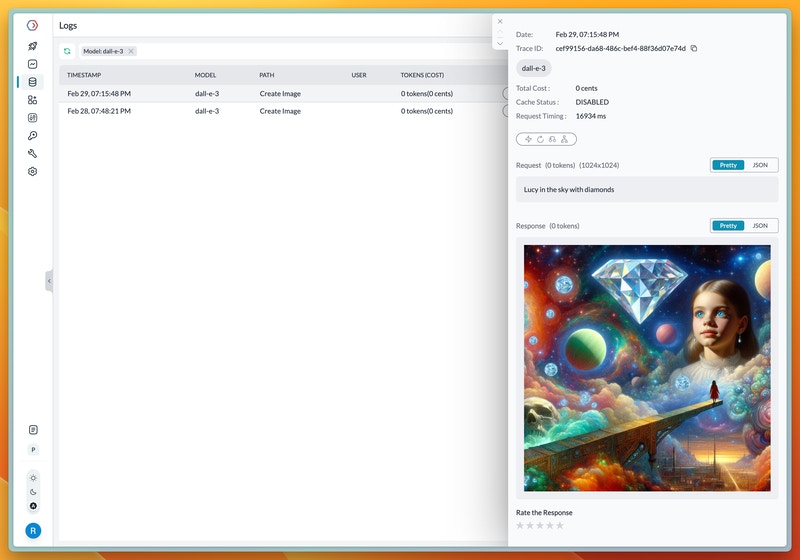
On completion, the request will get logged in the logs UI where the image can be viewed.
(Note that providers may remove the hosted image after a period of time, so some logs might only contain the url)
Cookbook
Here’s a detailed cookbook on image generation using Portkey which demonstrates the use of multiple providers and routing between them through Configs. Last modified on January 28, 2026