

This feature is available on all Portkey plans.
Requires Backend:
v1.17.0 or laterRequires Frontend: v1.9.0 or laterHow sharing works
- Read-only access — Recipients can view and use shared prompts and partials, but cannot edit them. Only the owning workspace can publish new versions.
- Organization or specific workspaces — Share with everyone in the organization, or pick specific workspaces.
- Fork to customize — Recipients can fork a shared prompt or partial into their own workspace to make changes.
- Dependencies are handled — If a prompt uses partials that aren’t shared yet, Portkey prompts you to share them alongside.
Sharing a prompt
- Open the prompt in the Prompt Library.
- Click Share.
- Under Access, choose:
- Organization — Visible to everyone in your organization.
- Specific workspaces — Visible only to the workspaces you select.
- Click Share.
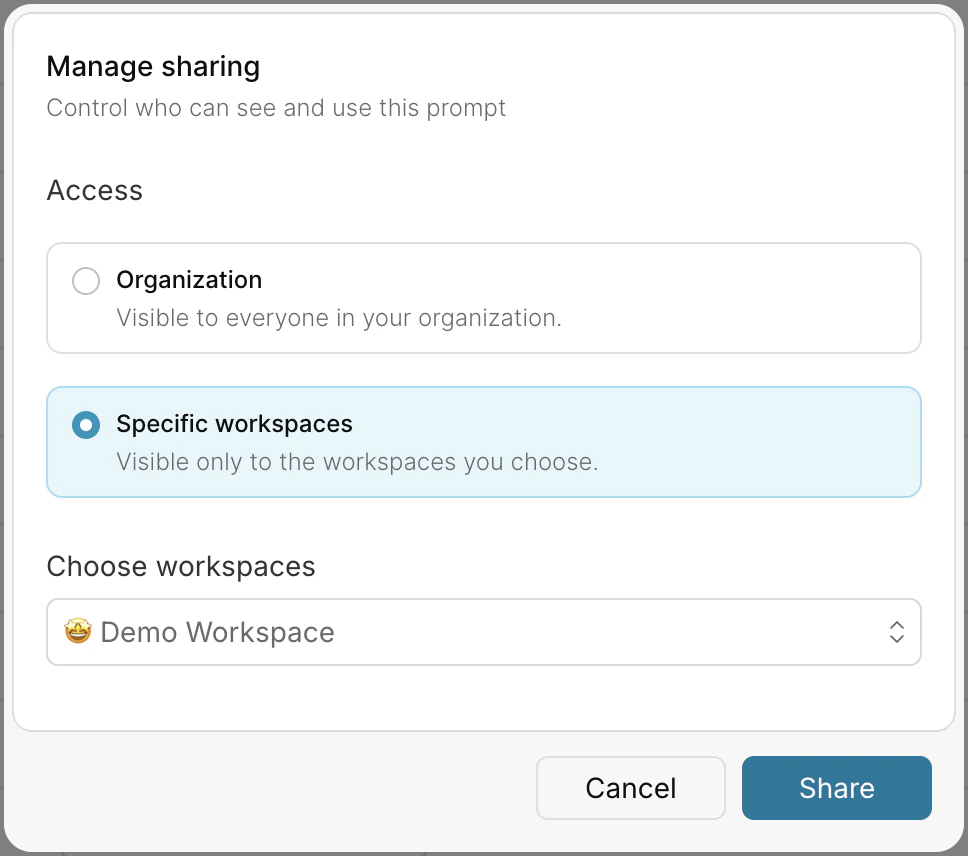
If the prompt references any partials that aren’t already shared with the target workspaces, Portkey shows an option to share those partials in the same flow. Shared prompts won’t render correctly without their partials.
Sharing a partial
Partials follow the same flow as prompts:- Open the partial from the Prompt Partials page.
- Click on the Share icon on the prompt card
- Choose Organization or Specific workspaces.
- Click Share.
Viewing shared prompts and partials
Recipients access shared items from the Shared with me tab in the Prompts and Prompt Partials pages. Each entry is labeled Read only and shows the original author and last update time.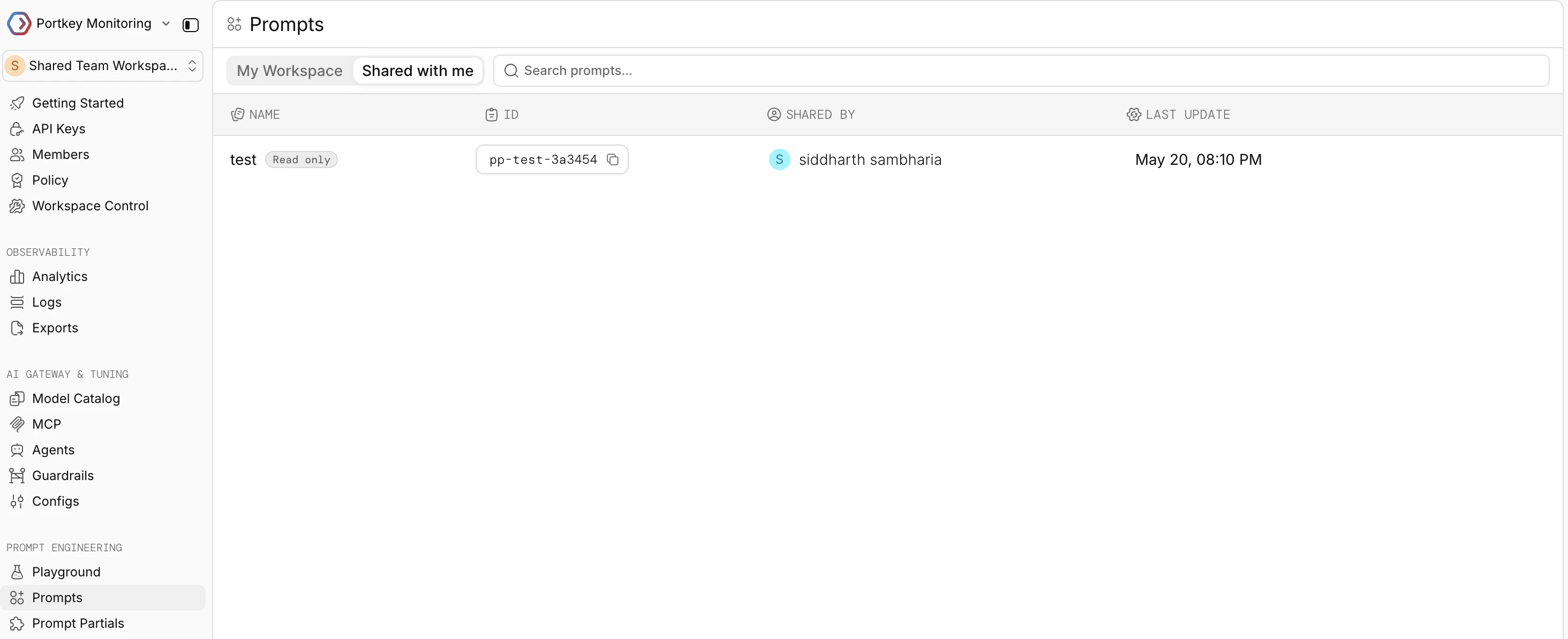
Forking a shared prompt
Forking creates an editable copy of a shared prompt or partial in your workspace. The fork is a new prompt with its own ID and version history — changes to the original do not propagate to forks. To fork:- Open the shared prompt from the Shared with me tab.
- Click Fork.
- Select the destination workspace.
Requirements for forking
The destination workspace must have access to the same LLM integration the prompt uses. Integration access is managed through Workspace Provisioning in the Model Catalog. If the prompt depends on partials, those partials must also be shared with the destination workspace before forking succeeds.Permissions
- Any workspace member with edit access to a prompt or partial can share it.
- Only the owning workspace can publish new versions of a shared item.
- Recipients with read-only access can view, use via the Prompt API, and fork — but cannot edit the original.
Next steps
- Prompt Library — Organize prompts and folders
- Prompt Partials — Build reusable prompt components
- Workspace Provisioning — Manage LLM integration access per workspace
- Prompt Versioning — Track changes over time
Portkey is now PRISMA AIRS AI Gateway. See it in action.
Contact Us