

Screenshots on this page show the previous product branding and navigation. The workflow they
illustrate is current; the interface around it has since been rebranded to Prisma AIRS.
Realtime API support is coming soon! LiveKit’s realtime model integration with the AI Gateway is not yet available.
- Unified AI Gateway - Single interface for 3,000+ LLMs with API key management
- Centralized AI observability: Real-time usage tracking for 40+ key metrics and logs for every request
- Governance - Real-time spend tracking, set budget limits and RBAC in your LiveKit agents
- Security Guardrails - PII detection, content filtering, and compliance controls
If you are looking to deploy LiveKit agents in production across your organisation, check out this section.
1. Setting up the AI Gateway
The AI Gateway lets you use 3,000+ LLMs with your LiveKit agents, with minimal configuration required. Let’s set up the core components in the AI Gateway that you’ll need for integration.1
Connect your LLM`
To create a new integration:
- Go to Integrations in Strata Cloud Manager
- Click “Add Integration” and select OpenAI
- Provision workspaces and budget/rate limits if required
2
Create Default Config
Configs in the AI Gateway define how your requests are routed and can enable features like fallbacks, caching, and more.To create your config: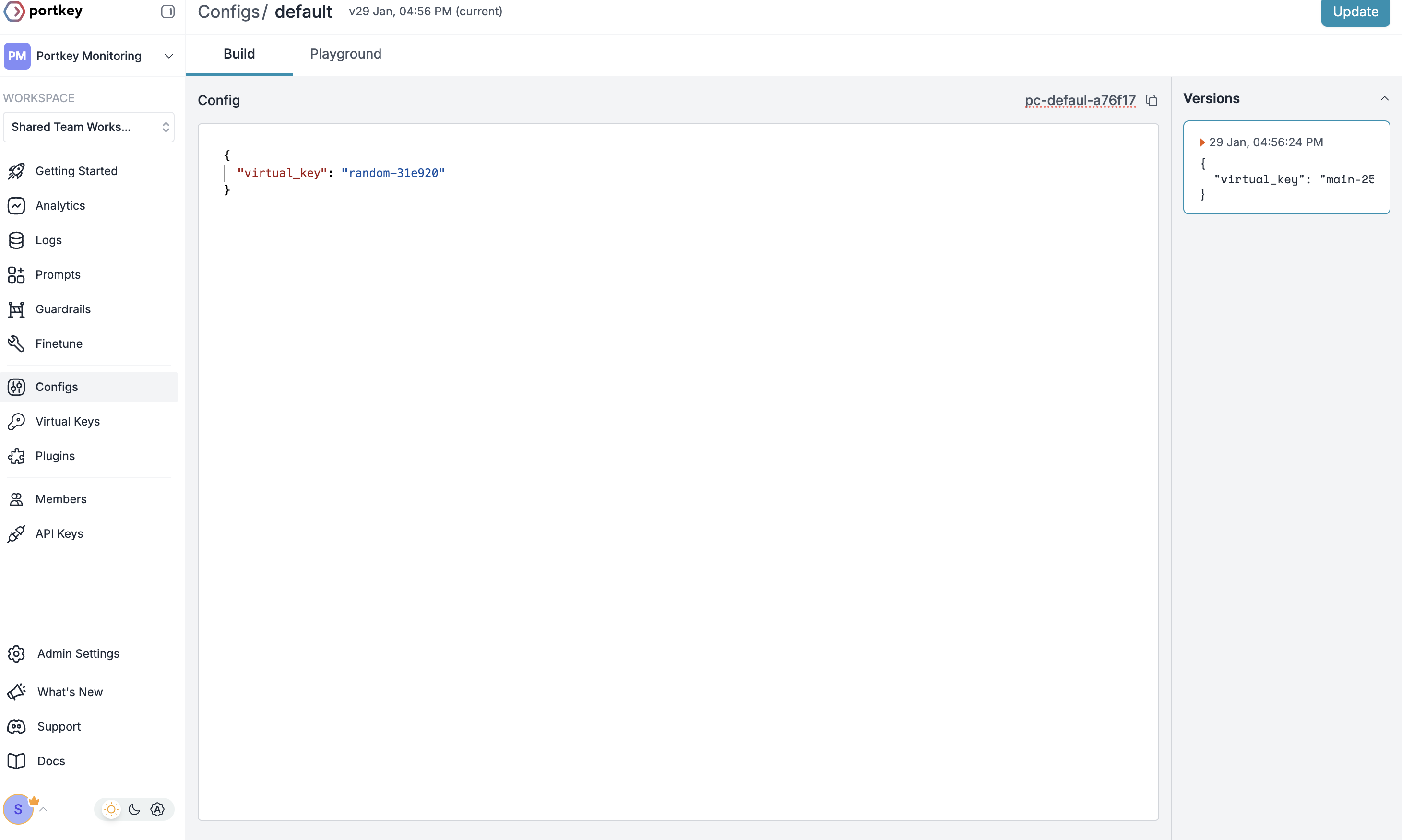
- Go to Configs in Strata Cloud Manager
- Create new config with:
- Save and note the Config ID for the next step
This basic config connects to your integration. You can add advanced features like caching, fallbacks, and guardrails later.
3
Configure AI Gateway API Key
Now create an AI Gateway API key and attach the config you created: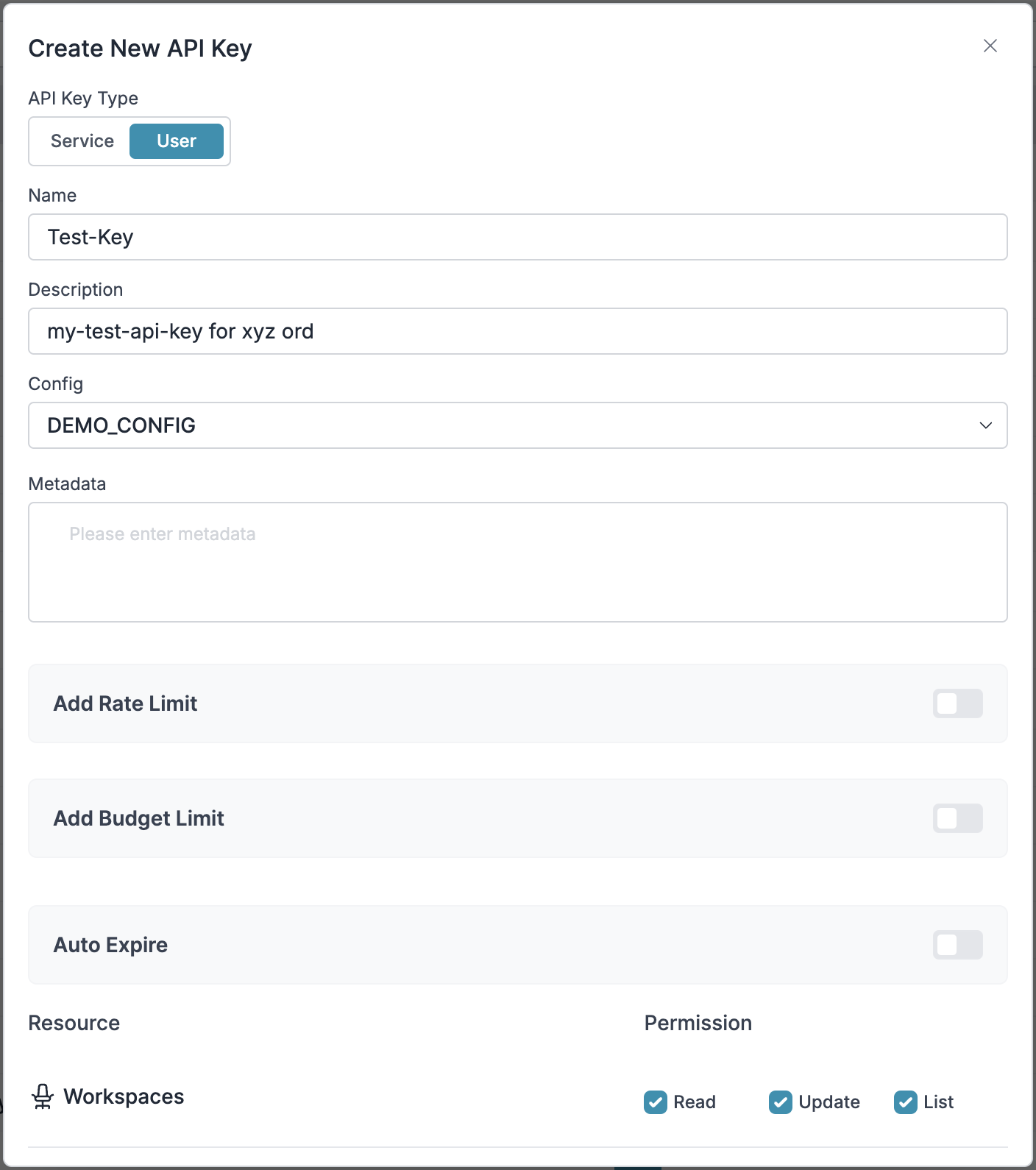
- Go to API Keys in the AI Gateway
- Create new API key
- Select your config from Step 2
- Generate and save your API key
Save your API key securely - you’ll need it for LiveKit integration.
2. Integrate the AI Gateway with LiveKit
Now that you have your AI Gateway components set up, let’s integrate them with LiveKit agents.Installation
Install the required packages:Configuration
End-to-End Example using the AI Gateway and LiveKit
Build a simple voice assistant with Python in less than 10 minutes.1
Setup
2
Add your .env file
3
Full STT-to-TTS agent code
3. Set Up Governance for Livekit
Why Governance? If you are using Livekit inside your orgnaization, you need to consider several governance aspects:- Cost Management: Controlling and tracking AI spending across teams
- Access Control: Managing which teams can use specific models
- Usage Analytics: Understanding how AI is being used across the organisation
- Security & Compliance: Maintaining your organisation’s security standards
- Reliability: Ensuring consistent service across all users
Step 1: Implement Budget Controls & Rate Limits
Step 1: Implement Budget Controls & Rate Limits
Step 1: Implement Budget Controls & Rate Limits
Integrations enable granular control over LLM access at the team/department level. This helps you:- Set up budget limits
- Prevent unexpected usage spikes using Rate limits
- Track departmental spending
Setting Up Department-Specific Controls:
- Navigate to Integrations in Strata Cloud Manager and create a new Integration
- Provision the integration to relevant workspaces with their own budgets
Step 2: Define Model Access Rules
Step 2: Define Model Access Rules
Step 2: Define Model Access Rules
As your AI usage scales, controlling which teams can access specific models becomes crucial. AI Gateway Configs provide this control layer with features like:Access Control Features:
- Model Restrictions: Limit access to specific models
- Data Protection: Implement guardrails for sensitive data
- Reliability Controls: Add fallbacks and retry logic
Example Configuration:
Here’s a basic configuration to route requests to OpenAI, specifically using GPT-4o:Configs can be updated anytime to adjust controls without affecting running applications.
Step 3: Implement Access Controls
Step 3: Implement Access Controls
Step 3: Implement Access Controls
Create User-specific API keys that automatically:- Track usage per user/team with the help of metadata
- Apply appropriate configs to route requests
- Collect relevant metadata to filter logs
- Enforce access permissions
Step 4: Deploy & Monitor
Step 4: Deploy & Monitor
Step 4: Deploy & Monitor
After distributing API keys to your team members, your Livekit setup is ready to go. Each team member can now use their designated API keys with appropriate access levels and budget controls. Apply your governance setup using the integration steps from earlier sections Monitor usage in Strata Cloud Manager:- Cost tracking by department
- Model usage patterns
- Request volumes
- Error rates
What’s Available
Livekit now has:- Departmental budget controls
- Model access governance
- Usage tracking & attribution
- Security guardrails
- Reliability features
AI Gateway Features
Now that you have your Livekit setup, let’s explore the comprehensive features the AI Gateway provides to ensure secure, efficient, and cost-effective AI operations.1. Comprehensive Metrics
Using the AI Gateway you can track 40+ key metrics including cost, token usage, response time, and performance across all your LLM providers in real time. You can also filter these metrics based on custom metadata that you can set in your configs. Learn more about metadata here.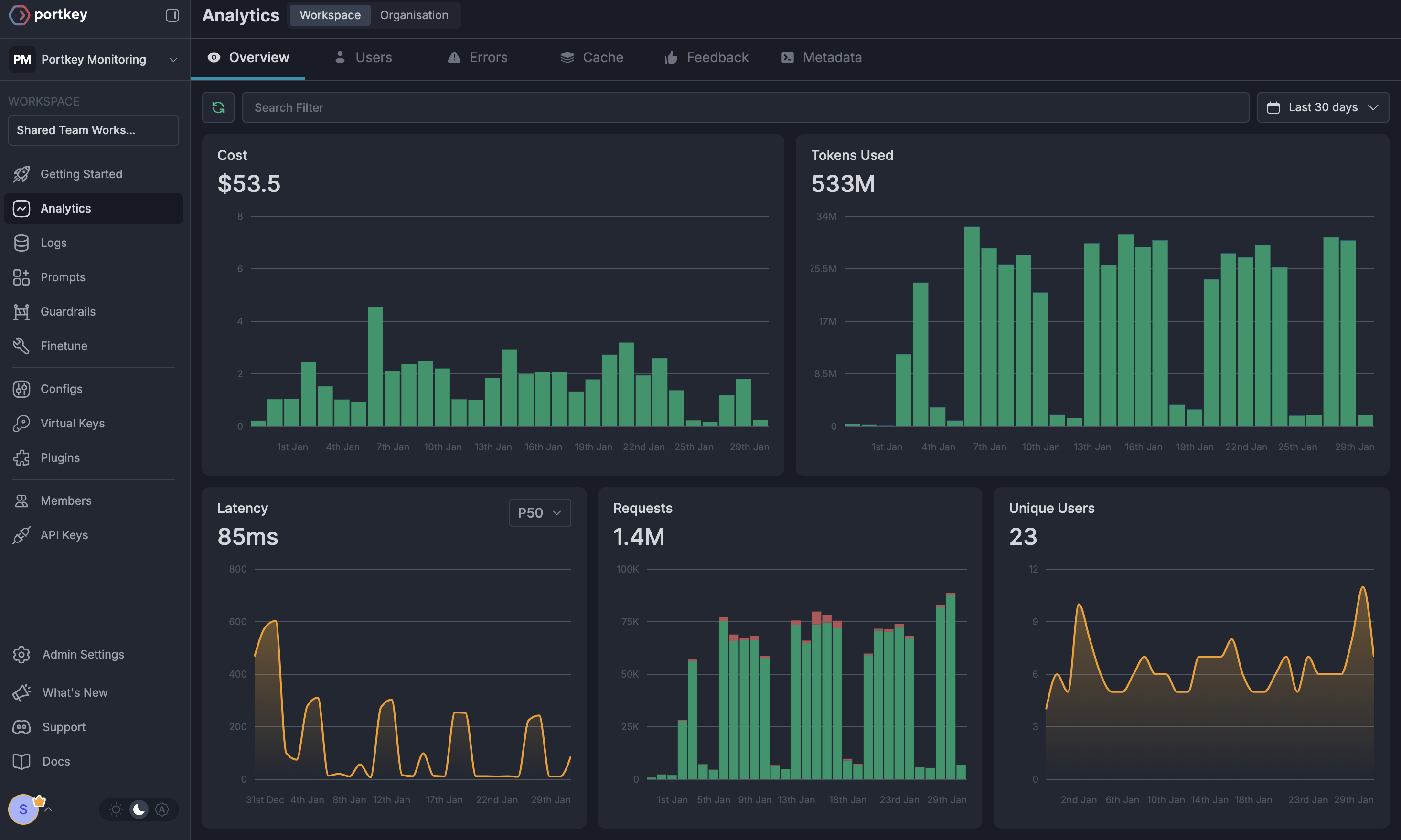
2. Advanced Logs
The AI Gateway’s logging dashboard provides detailed logs for every request made to your LLMs. These logs include:- Complete request and response tracking
- Metadata tags for filtering
- Cost attribution and much more…
3. Unified Access to 3,000+ LLMs
You can easily switch between 3,000+ LLMs. Call various LLMs such as Anthropic, Gemini, Mistral, Azure OpenAI, Google Vertex AI, AWS Bedrock, and many more by simply changing theprovider in your default config object.
4. Advanced Metadata Tracking
Using the AI Gateway, you can add custom metadata to your LLM requests for detailed tracking and analytics. Use metadata tags to filter logs, track usage, and attribute costs across departments and teams.Custom Metata
5. Access Management
Budget Controls
Set and manage spending limits across teams and departments. Control costs with granular budget limits and usage tracking.
Single Sign-On (SSO)
SSO integration with support for SAML 2.0, Okta, Azure AD, and custom providers for secure authentication.
Organisation Management
Hierarchical organisation structure with workspaces, teams, and role-based access control for large-scale deployments.
Access Rules & Audit Logs
Comprehensive access control rules and detailed audit logging for security compliance and usage tracking.
6. Reliability Features
Fallbacks
Automatically switch to backup targets if the primary target fails.
Conditional Routing
Route requests to different targets based on specified conditions.
Load Balancing
Distribute requests across multiple targets based on defined weights.
Caching
Enable caching of responses to improve performance and reduce costs.
Smart Retries
Automatic retry handling with exponential backoff for failed requests
Budget Limits
Set and manage budget limits across teams and departments. Control costs with granular budget limits and usage tracking.
7. Advanced Guardrails
Protect your Project’s data and enhance reliability with real-time checks on LLM inputs and outputs. Leverage guardrails to:- Prevent sensitive data leaks
- Enforce compliance with organisational policies
- PII detection and masking
- Content filtering
- Custom security rules
- Data compliance checks
Guardrails
Implement real-time protection for your LLM interactions with automatic detection and filtering of sensitive content, PII, and custom security rules. Enable comprehensive data protection while maintaining compliance with organisational policies.
FAQs
Can I use models other than OpenAI with LiveKit through the AI Gateway?
Can I use models other than OpenAI with LiveKit through the AI Gateway?
Yes! The AI Gateway supports 3,000+ LLMs. Simply integrate your preferred provider (Anthropic, Google, Cohere, etc.) and update your config accordingly. The LiveKit OpenAI client will work seamlessly with any provider through the AI Gateway.
How do I track costs for different voice agents?
How do I track costs for different voice agents?
Use metadata tags when creating AI Gateway headers to segment costs:
- Add
agent_type,department, orcustomer_idtags - View costs filtered by these tags in Strata Cloud Manager
- Set up separate providers with budget limits for each use case
What happens if my primary LLM provider goes down?
What happens if my primary LLM provider goes down?
Configure fallbacks in your AI Gateway config to automatically switch to backup providers. Your LiveKit agents will continue working without any code changes or downtime.
Can I implement custom business logic for my agents?
Can I implement custom business logic for my agents?
Yes! Use the AI Gateway’s hooks and guardrails to:
- Filter sensitive information
- Add custom headers or modify requests
- Implement business-specific validation
- Route requests based on custom logic
How do I migrate existing LiveKit agents to use the AI Gateway?
How do I migrate existing LiveKit agents to use the AI Gateway?
Migration is simple:
- Create providers and configs in the AI Gateway
- Update the OpenAI client initialization to use the AI Gateway’s base URL
- Add AI Gateway headers with your API key and config
- No other code changes needed!