

- 3,000+ LLMs through one interface - switch providers instantly
- Observability - track costs, tokens, and latency for every request
- Reliability - automatic fallbacks, retries, and caching
- Governance - budget limits, usage tracking, and team access controls
For deployments across teams, see Set Up Governance.
1. Setup
1
Add Provider
Go to Model Catalog → Add Provider.
2
Configure Credentials
Select your provider (OpenAI, Anthropic, etc.), enter your API key, and create a slug like 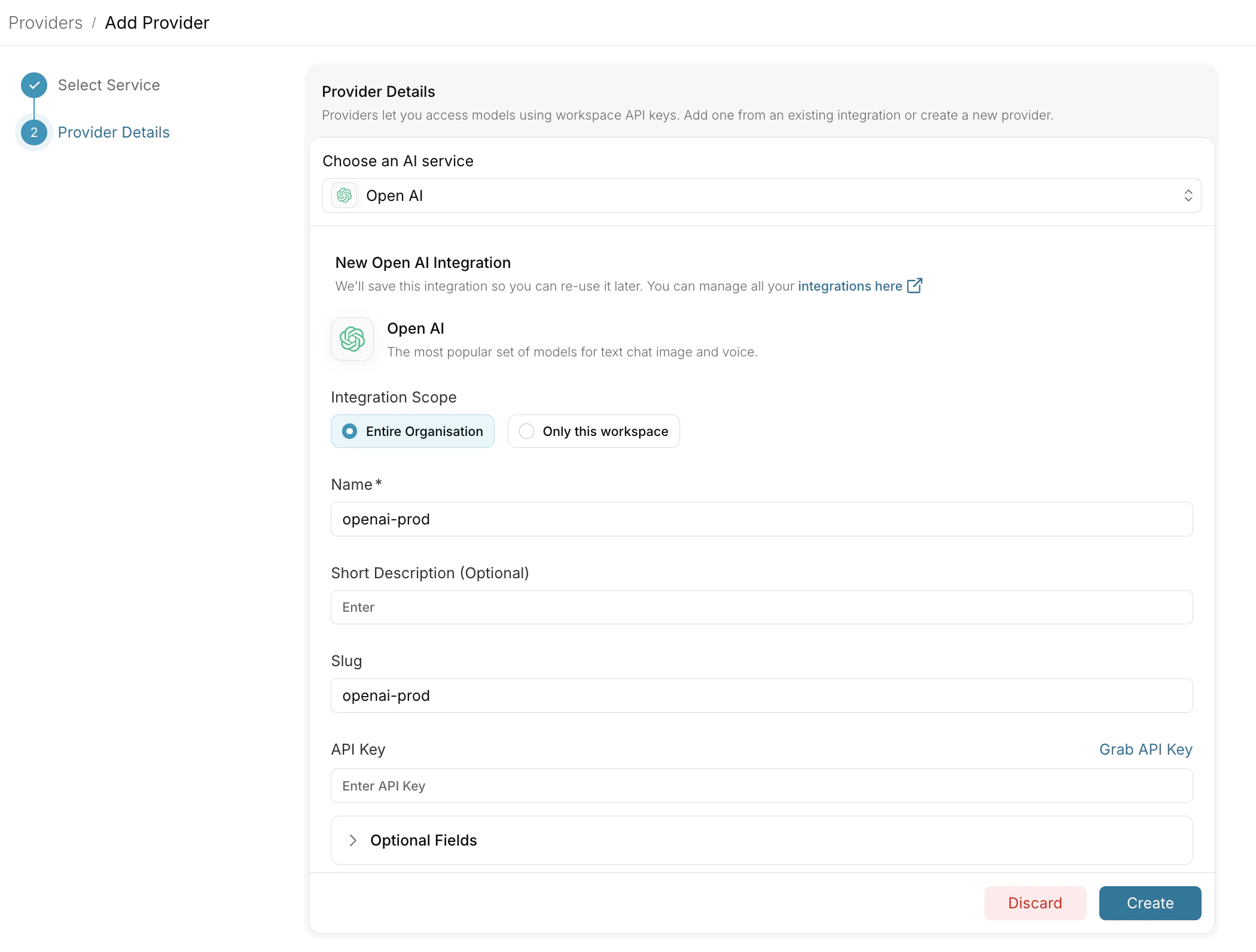
openai-prod.3
Get AI Gateway API Key
Go to API Keys and generate your AI Gateway API key.
2. Configure Goose
1
Launch Goose
Open Goose through the desktop app or run
goose in your terminal.2
Configure Provider
- Navigate to LLM provider settings
- Select OpenAI as your provider
- Configure:
- Base URL:
https://aigw.portkey.ai - API Key: Your AI Gateway API key
- Model:
@openai-prod/gpt-4o(or your provider slug + model)
- Base URL:
Switch Providers
Change models by updating the model field:Want fallbacks, load balancing, or caching? Create a AI Gateway Config, attach it to your API key, and set Model to
dummy. See Set Up Governance for examples.3. Set Up Governance
Why Governance?- Cost Management: Controlling and tracking AI spending across teams
- Access Control: Managing team access and workspaces
- Usage Analytics: Understanding how AI is being used across the organisation
- Security & Compliance: Maintaining your organisation’s security standards
- Reliability: Ensuring consistent service across all users
- Model Management: Managing what models are being used in your setup
Step 1: Implement Budget Controls & Rate Limits
Step 1: Implement Budget Controls & Rate Limits
Step 1: Implement Budget Controls & Rate Limits
Model Catalog enables you to have granular control over LLM access at the team/department level. This helps you:- Set up budget limits
- Prevent unexpected usage spikes using Rate limits
- Track departmental spending
Setting Up Department-Specific Controls:
- Navigate to Model Catalog in Strata Cloud Manager
- Create new Provider for each engineering team with budget limits and rate limits
- Configure department-specific limits
Step 2: Define Model Access Rules
Step 2: Define Model Access Rules
Step 2: Define Model Access Rules
As your AI usage scales, controlling which teams can access specific models becomes crucial. You can manage AI models in your organisation by provisioning models at the top integration level.Step 3: Set Routing Configuration
Step 3: Set Routing Configuration
Step 3: Set Routing Configuration
The AI Gateway lets you control your routing logic with its Configs feature. AI Gateway Configs provide this control layer with things like:- Data Protection: Implement guardrails for sensitive code and data
- Reliability Controls: Add fallbacks, load-balance, retry and smart conditional routing logic
- Caching: Implement Simple and Semantic Caching, and more
Example Configuration:
Here’s a basic configuration to load-balance requests to OpenAI and Anthropic:Configs can be updated anytime to adjust controls without affecting running applications.
Step 4: Implement Access Controls
Step 4: Implement Access Controls
Step 4: Implement Access Controls
Create User-specific API keys that automatically:- Track usage per developer/team with the help of metadata
- Apply appropriate configs to route requests
- Collect relevant metadata to filter logs
- Enforce access permissions
Step 5: Deploy & Monitor
Step 5: Deploy & Monitor
Step 5: Deploy & Monitor
After distributing API keys to your engineering teams, your setup is ready to go. Each developer can now use their designated API keys with appropriate access levels and budget controls. Apply your governance setup using the integration steps from earlier sections.Monitor usage in the AI Gateway dashboard:- Cost tracking by engineering team
- Model usage patterns for AI agent tasks
- Request volumes
- Error rates and debugging logs
What’s Now Available
You now have:- Departmental budget controls
- Model access governance
- Usage tracking & attribution
- Security guardrails
- Reliability features
AI Gateway Features
Now that your setup is in place, let’s explore the features the AI Gateway provides to ensure secure, efficient, and cost-effective AI operations.1. Comprehensive Metrics
Using the AI Gateway you can track 40+ key metrics including cost, token usage, response time, and performance across all your LLM providers in real time. You can also filter these metrics based on custom metadata that you can set in your configs. Learn more about metadata here.2. Advanced Logs
The AI Gateway’s logging dashboard provides detailed logs for every request made to your LLMs. These logs include:- Complete request and response tracking
- Metadata tags for filtering
- Cost attribution and much more…
3. Unified Access to 1600+ LLMs
You can easily switch between 1600+ LLMs. Call various LLMs such as Anthropic, Gemini, Mistral, Azure OpenAI, Google Vertex AI, AWS Bedrock, and many more by simply changing theprovider slug in your default config object.
4. Advanced Metadata Tracking
Using the AI Gateway, you can add custom metadata to your LLM requests for detailed tracking and analytics. Use metadata tags to filter logs, track usage, and attribute costs across departments and teams.Custom Metadata
5. Access Management
Budget Controls
Set and manage spending limits across teams and departments. Control costs with granular budget limits and usage tracking.
Single Sign-On (SSO)
SSO integration with support for SAML 2.0, Okta, Azure AD, and custom providers for secure authentication.
Organisation Management
Hierarchical organisation structure with workspaces, teams, and role-based access control for large-scale deployments.
Access Rules & Audit Logs
Comprehensive access control rules and detailed audit logging for security compliance and usage tracking.
6. Reliability Features
Fallbacks
Automatically switch to backup targets if the primary target fails.
Conditional Routing
Route requests to different targets based on specified conditions.
Load Balancing
Distribute requests across multiple targets based on defined weights.
Caching
Enable caching of responses to improve performance and reduce costs.
Smart Retries
Automatic retry handling with exponential backoff for failed requests
Budget Limits
Set and manage budget limits across teams and departments. Control costs with granular budget limits and usage tracking.
7. Advanced Guardrails
Protect your Project’s data and enhance reliability with real-time checks on LLM inputs and outputs. Leverage guardrails to:- Prevent sensitive data leaks
- Enforce compliance with organisational policies
- PII detection and masking
- Content filtering
- Custom security rules
- Data compliance checks
Guardrails
Implement real-time protection for your LLM interactions with automatic detection and filtering of sensitive content, PII, and custom security rules. Enable comprehensive data protection while maintaining compliance with organisational policies.
FAQs
How do I update my AI Provider limits after creation?
How do I update my AI Provider limits after creation?
Update AI Provider limits at any time from Model Catalog: 1. Open the provider you want to modify. 2. Update the budget or rate limits. 3. Save your changes.
Can I use multiple LLM providers with the same API key?
Can I use multiple LLM providers with the same API key?
Yes! Add multiple AI Providers to Model Catalog (one for each provider) and attach them to a single config. This config can then be connected to your API key, allowing you to use multiple providers through a single API key.
How do I track costs for different teams?
How do I track costs for different teams?
The AI Gateway provides several ways to track team costs:
- Create separate AI Providers for each team
- Use metadata tags in your configs
- Set up team-specific API keys
- Monitor usage in the analytics dashboard
What happens if a team exceeds their budget limit?
What happens if a team exceeds their budget limit?
When a team reaches their budget limit:
- Further requests will be blocked
- Team admins receive notifications
- Usage statistics remain available in dashboard
- Limits can be adjusted if needed