

Using Azure OpenAI with the AI Gateway
The AI Gateway provides a consistent API to interact with models from various providers. To integrate Azure OpenAI with the AI Gateway:Creating Your Azure OpenAI Integration
This integration is for all OpenAI models deployed on either Azure OpenAI or Azure AI Foundry.
Prerequisites
Before creating your integration, you’ll need:- An active Azure account
- Access to your Azure portal
- A model deployment on Azure (e.g., GPT-4, GPT-4o-mini)
Step 1: Start Creating Your Integration
Navigate to the Integrations page in Strata Cloud Manager and select Azure OpenAI as your provider.Step 2: Configure Integration Details
Fill in the basic information for your integration:- Name: A descriptive name for this integration (e.g., “Azure OpenAI Production”)
- Short Description: Optional context about this integration’s purpose
- Slug: A unique identifier used in API calls (e.g., “azure-openai-prod”)
Step 3: Set Up Authentication
The AI Gateway supports three authentication methods for Azure OpenAI. For most use cases, we recommend using the Default (API Key) method.Gather Your Azure Credentials
From your Azure portal, you’ll need to collect: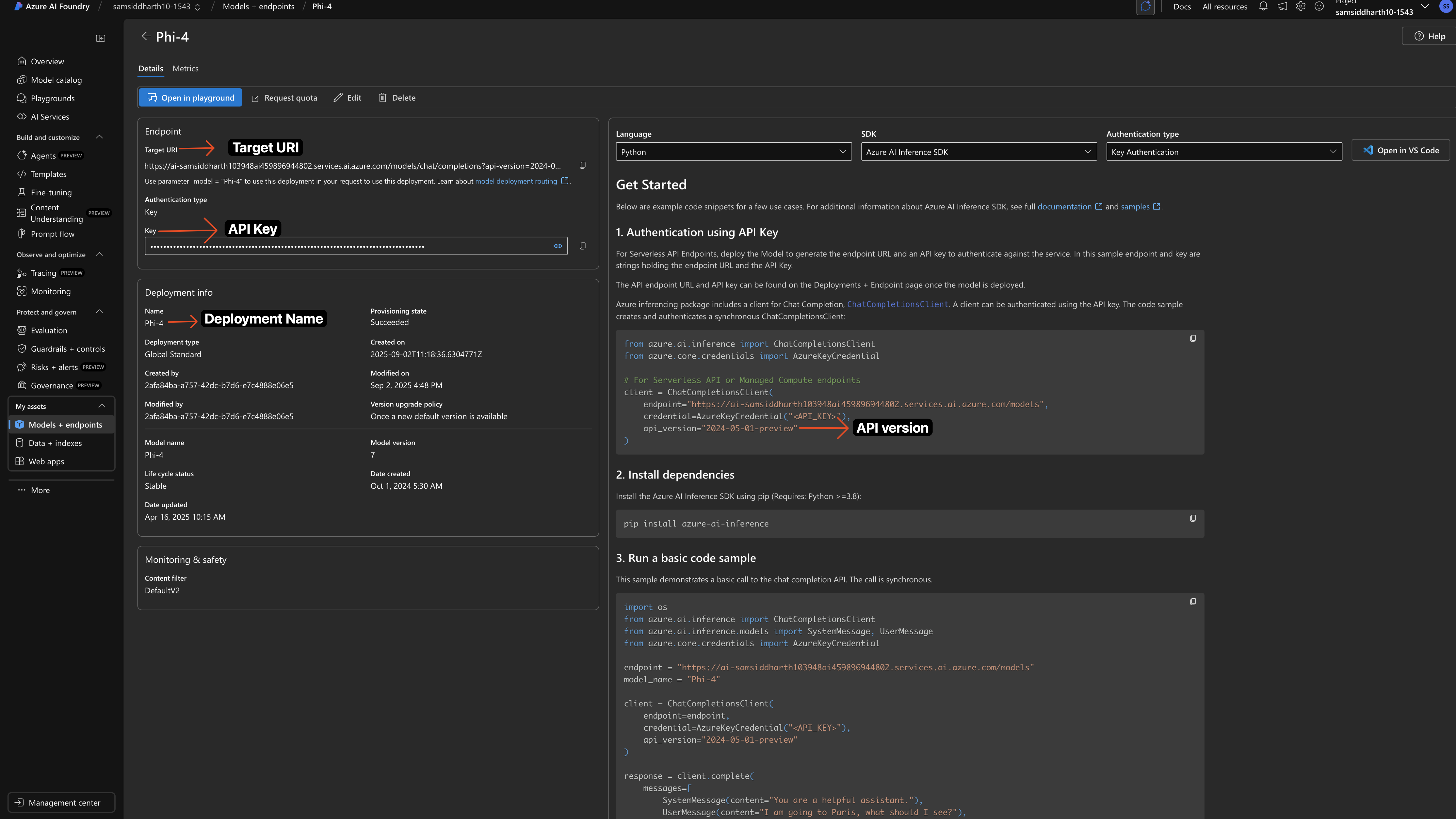
Enter Credentials in the AI Gateway
- Navigate to your model deployment in Azure
- Click on the deployment to view details
- Copy the API Key from the authentication section
We recommend importing your Azure details (resource name, deployment details, API version) directly from your Target URI. Simply copy the target URL and import it.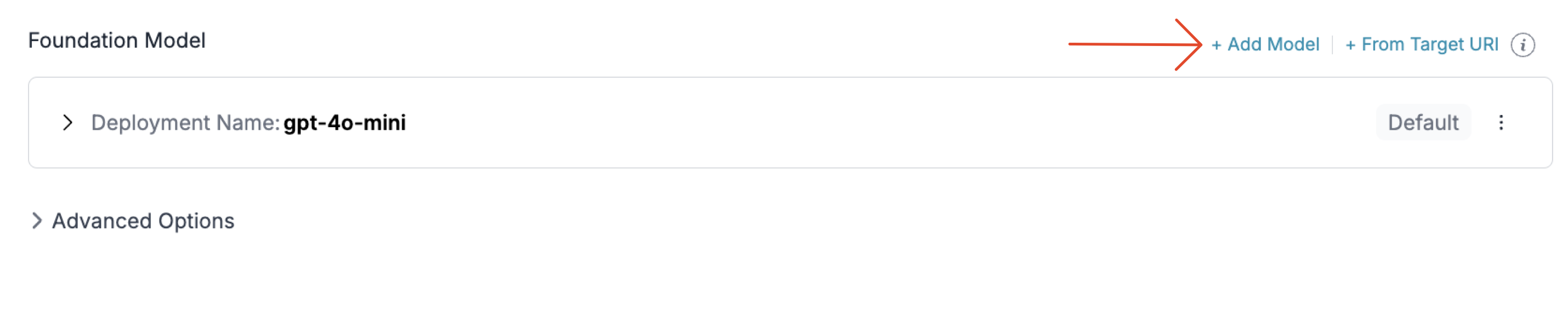
- Azure Resource Name: Get Your resource Name from Azure
Find Your Azure Resource Name
Find Your Azure Resource Name
Your Azure resource Name is different from your Project Name. Here’s how you can find it:
- Note the API Version and enter it in the given field
- Alias Name: A gateway-specific field for accessing the model - name it as you prefer
- Foundation Model: Select a foundation model from the list that matches your deployment. This helps the AI Gateway track costs and metrics. If your model isn’t listed, choose a similar model type to begin with.
Adding Multiple Models to Your Azure OpenAI Integration
You can deploy multiple models through a single Azure OpenAI integration by adding multiple deployments under the same integration.1. Install the OpenAI SDK
Add the OpenAI SDK to your application to interact with Azure OpenAI’s API through the AI Gateway.- NodeJS
- Python
2. Initialize the AI Gateway with the Azure
Set up the AI Gateway with your Azure Integration as part of the initialization configuration. You can create a provider for Azure in Strata Cloud Manager.3. Invoke Chat Completions with Azure OpenAI
Use the AI Gateway instance to send requests to your Azure deployments. You can also override the provider slug directly in the API call if needed.Image Generation
The AI Gateway supports multiple modalities for Azure OpenAI and you can make image generation requests through AI Gateway the same way as making completion calls. The AI Gateway captures the information about the request on Strata Cloud Manager. On your logs screen, you’d be able to see this request with the request and response.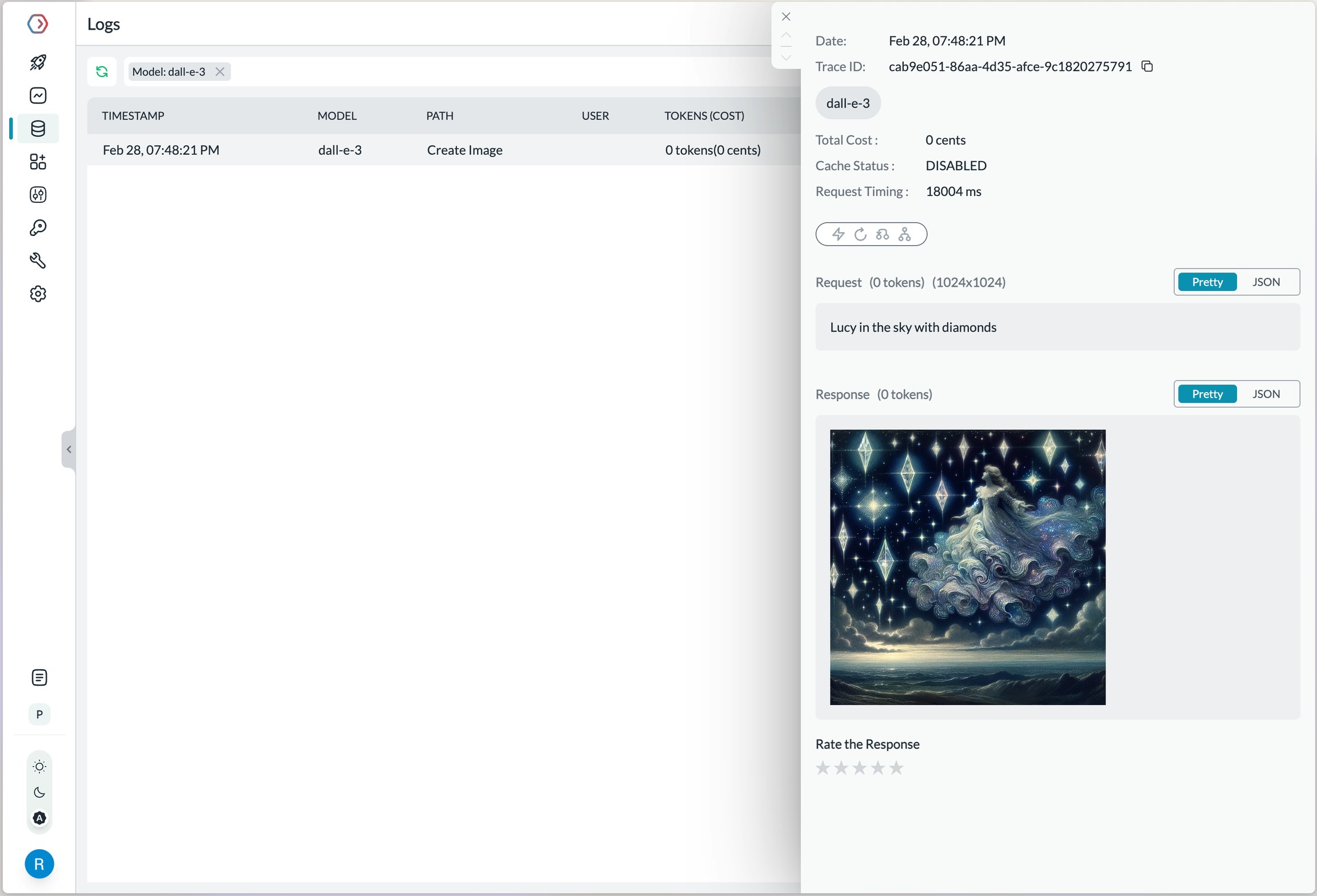
Azure Government Cloud
Integration is identical to global Azure OpenAI. Set a Custom Host that points to Azure Government and ensure the path ends with
/openai (remove any params after /openai).Steps
- In the AI Gateway, create or edit your Azure OpenAI provider.
- Open “Advanced Options”.
- Set “Custom Host” to:
You need to set the Custom Host to the Azure Government endpoint and ensure the path ends with the first
/openai (remove any params after /openai).- Save and use normally in SDKs and via the gateway.
Making Requests Without Model Catalog
Here’s how you can pass your Azure OpenAI details & secrets directly without using the Model Catalog feature.Key Mapping
In a typical Azure OpenAI request,Example
- cURL
How to Pass JWT (JSON Web Tokens)
If you have configured fine-grained access for Azure OpenAI and need to useJSON web token (JWT) in the Authorization header instead of the regular API Key, you can use the forwardHeaders parameter to do this.