

Agent Skills is available on all Portkey plans. The sync CLI requires Node.js 18+.
SKILL.md file that tells your agent how your team works — coding standards, review checklists, security patterns, API conventions.
Portkey is a skills registry for your team. Create and version skills in Prompt Engineering Studio, sync them to any agent with one command. When you publish an update, every engineer gets it on their next sync.
How it works
Skills in Portkey are stored as versioned, team-shared assets. The sync CLI pulls them down and writes them to the correct directory for each agent automatically:
No additional configuration needed — the agent discovers
SKILL.md files and uses the description field to decide when to activate each skill.
Quick start
Step 1: Create a skill in Portkey
In Prompt Engineering Studio, create a new Partial. Skills are stored as Prompt Partials with a YAML frontmatter block: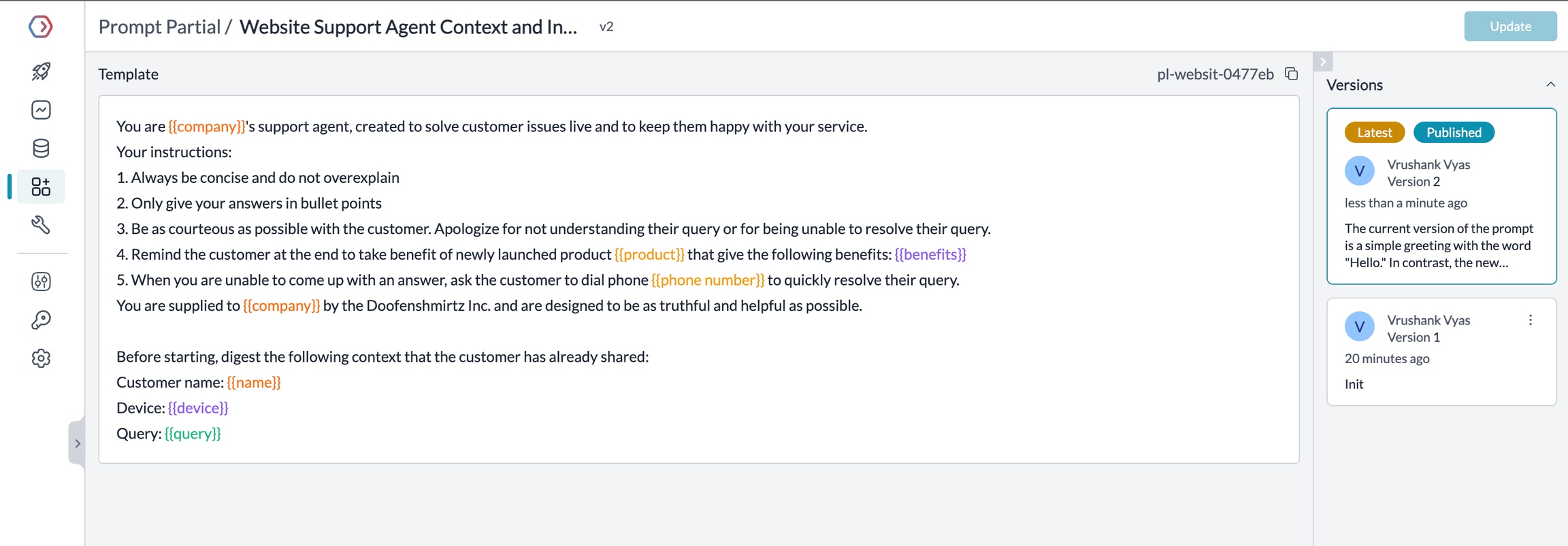
name field becomes the directory name on disk (code-reviewer/SKILL.md). The description tells the agent when to activate the skill.
Step 2: Sync to your machine
Portkey CLI reference
Full CLI reference — gateway routing, MCP, and all options
Authoring skills
The SKILL.md format
Every skill must start with YAML frontmatter containingname and description:
name — lowercase, hyphens only, max 64 characters. Becomes the directory name on disk.
description — tells the agent when to activate this skill. Write it like a trigger condition: “Use when reviewing Python code, or when the user asks about code quality, performance, or testing.”
Versioning
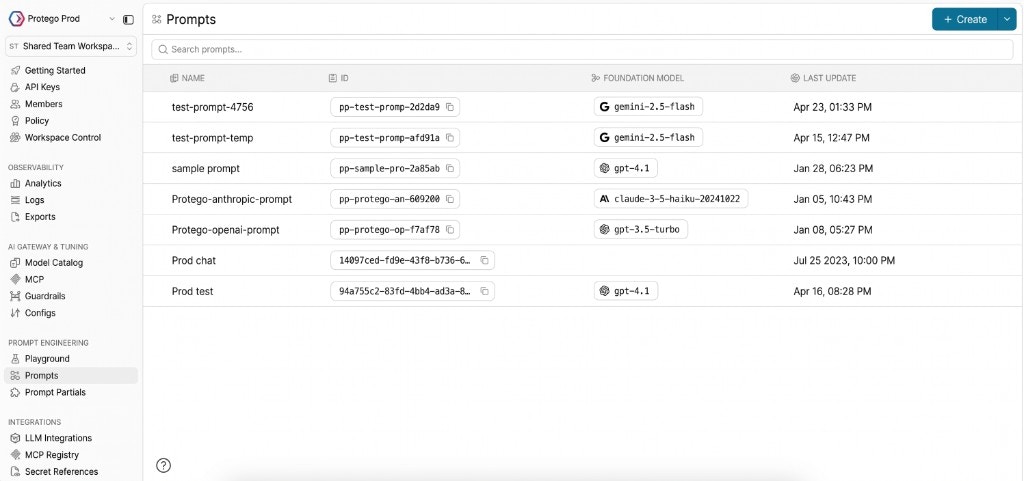
Skills follow the same versioning workflow as all Portkey Prompt Partials:- Edit — make changes in the partial editor
- Save — creates a new draft version (doesn’t affect what’s published)
- Publish — promotes a version to production; everyone who syncs next gets it
Rolling back
If a new version causes issues:- Open the skill in Portkey → Version History
- Select the previous version → Publish
- Team re-runs
sync→ rolled back immediately
Using skills in agents
After syncing, skills are written to the agent’s skills directory and discovered automatically at session start. Claude Code reads from.claude/skills/ — skills are available immediately in your next Claude Code session.
Cursor reads from .cursor/skills/ — skills appear as active context in Cursor’s rule system.
Codex reads from .codex/skills/ — skills are loaded when Codex starts a session in the project.
Next steps
Claude Code
Gateway routing, MCP, and skills for Claude Code
Cursor
Add skills to Cursor’s rule system
OpenAI Codex
Load skills into Codex sessions
All coding agents
Cline, Roo Code, Goose, opencode, and more
Portkey is now PRISMA AIRS AI Gateway. See it in action.
Contact Us